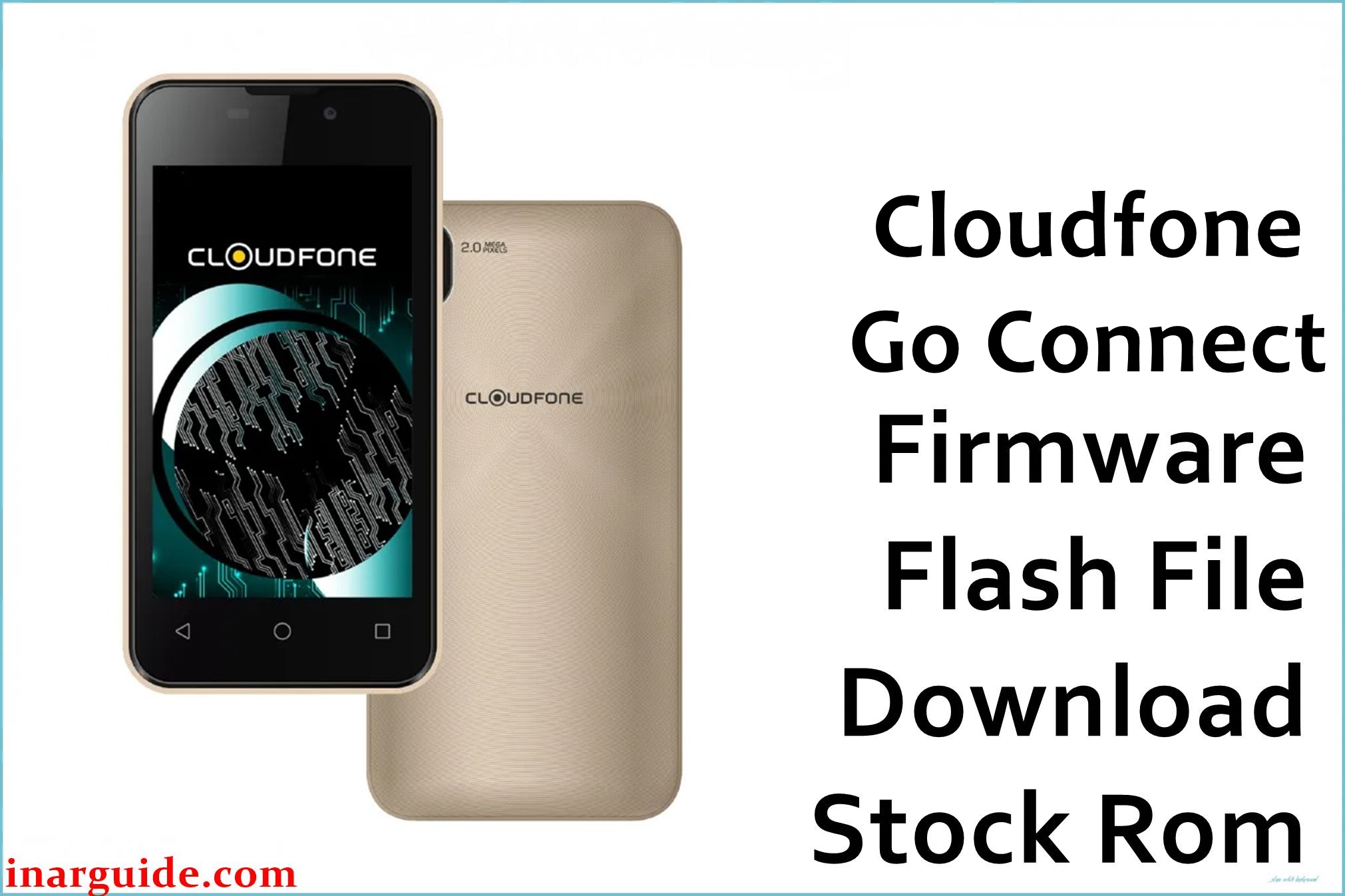
The CloudFone Go Connect is a compact budget smartphone with a 4.0‑inch WVGA display, Spreadtrum SC7731G quad‑core processor, 512 MB RAM, 8 GB internal storage, dual‑SIM 3G connectivity, and a 2500 mAh battery aimed at first‑time Android users and light data usage. Many owners of low‑RAM Spreadtrum devices report performance slowdowns, app crashes, storage errors, stuck‑on‑logo bootloops after failed updates or resets, and soft‑bricked phones that only show as SPD devices on PC.
The Cloudfone_Go_Connect_18022018_6.0_SPD.zip file is an official Android 6.0 Marshmallow stock firmware in SPD (Spreadtrum) format that can unbrick the Go Connect, fix bootloops, restore the system after malware or failed tweaks, and return the device to its original stable state when flashed with an SPD tool such as SPD Upgrade/ResearchDownload.
CloudFone Go Connect Firmware Details
| Device Name | Model Identifier | Chipset | Android Version | Firmware Version / Name | Build Date (ROM) | File Size | File Type | Flashing Tool | Bootloader Status | Region / Notes |
|---|---|---|---|---|---|---|---|---|---|---|
| CloudFone Go Connect | Go Connect / SC7731G board | Spreadtrum/UNISOC SC7731G, quad‑core Cortex‑A7, Mali‑400 GPU | Android 6.0 Marshmallow | Cloudfone_Go_Connect_18022018_6.0_SPD.zip | 2018‑02‑18 Marshmallow build (SPD package) | ≈873.24 MB compressed zip (flashing image set) | SPD stock ROM archive (PAC/IMG content for SC7731G, partition images, nv, system, boot, etc.) | SPD/UNISOC Upgrade Tool or ResearchDownload/Infinity/Hydra SPD module | Bootloader standard/locked; flashing handled through SPD download mode over USB | Philippines budget device; ROM intended only for CloudFone Go Connect, not Go Connect Lite / Lite 2 or Go SP variants. |
Using the wrong SPD firmware or flashing settings can permanently brick your CloudFone Go Connect, erase all data, and corrupt IMEI/NVRAM. Always confirm that your device is the CloudFone Go Connect with SC7731G, not Go Connect Lite or other CloudFone Go variants, back up important data and NVRAM if possible, keep the battery above 60%, and never disconnect the USB cable while the SPD tool is flashing.
Download Official Firmware for CloudFone Go Connect
| Filename | Region | File Size | Build Date | Build Version | Android Version | Flashing Type | Notes / Target | Download Links |
|---|---|---|---|---|---|---|---|---|
| Cloudfone_Go_Connect_18022018_6.0_SPD.zip | Philippines / CloudFone Go Connect SC7731G only | ≈873 MB compressed | 2018‑02‑18 Android 6.0 Marshmallow factory ROM | Official Go Connect SPD firmware (20180218 6.0) | Android 6.0 Marshmallow | SPD Upgrade/ResearchDownload “Download/Upgrade” mode (Spreadtrum) | Use to unbrick, fix stuck logo/bootloop, resolve heavy lag and crashes, and repair software damage on CloudFone Go Connect devices detected as SPD/SC7731G over USB. | Download CloudFone Go Connect Firmware (MediaFire) |
Flashing Requirements
- CloudFone Go Connect handset with confirmed SC7731G chipset and at least 60% battery.
- Cloudfone_Go_Connect_18022018_6.0_SPD.zip extracted on a Windows PC so the SPD firmware file (usually.pac or folder with partition images) is available.
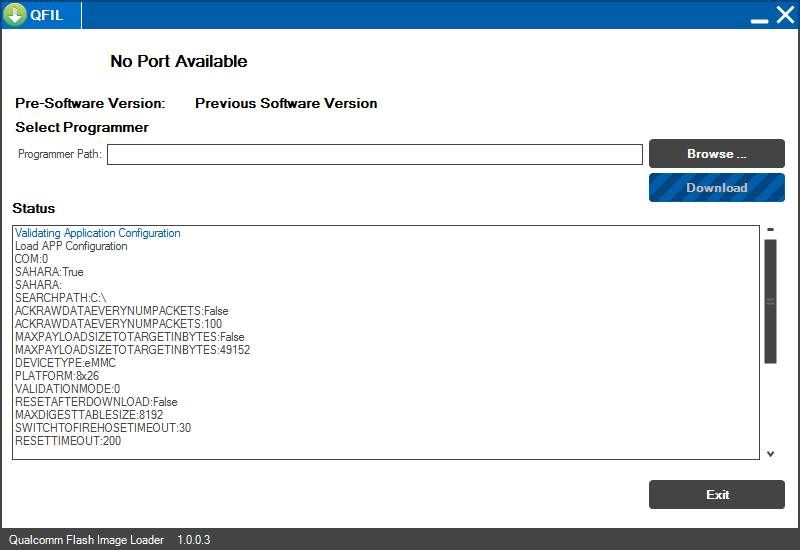
- SPD/UNISOC flashing tool installed, such as SPD Upgrade Tool or ResearchDownload, plus Spreadtrum USB drivers.
- Good‑quality USB cable and a stable USB port (avoid hubs) for a reliable connection during the flashing process.
- Backup of user data and, where possible, an NVRAM/IMEI or full flash backup, since full firmware upgrade may wipe modem/NV and internal storage.
How to Flash the Firmware
- Install Spreadtrum USB drivers, then extract the SPD tool (e.g., ResearchDownload) and the Cloudfone_Go_Connect_18022018_6.0_SPD.zip firmware to your PC.
- Open the SPD flashing tool and load the Go Connect firmware file (often a.pac) from the extracted folder so the tool lists all partitions to be flashed.
- Leave default partition settings unless you know what to change, click the Start/Play button in the SPD tool to prepare for download.
- Power off the Go Connect, connect it to the PC via USB (holding Volume Up/Down may help), and let the tool detect the phone and begin writing the firmware until it shows a passed/success status.
- Disconnect the phone and power it on; the first boot into Android 6.0 Marshmallow can take a few minutes while the OS initializes and optimizes apps.
For a detailed step‑by‑step SPD flashing tutorial with screenshots that matches this device, follow the dedicated Spreadtrum/UNISOC Upgrade Tool guide before flashing your Go Connect firmware.
Flashing SPD firmware always carries risk. This website and the firmware providers are not responsible for bricked CloudFone Go Connect devices, corrupted NVRAM/IMEI, lost data, or any other damage caused by using the SC7731G 6.0 files or flashing methods described here. By downloading and flashing, you agree that all actions are performed at your own risk and you accept full responsibility for any outcome. If you encounter issues, describe your problem in the comments so technicians and other users can assist while you remain solely accountable for your device.
Frequently Asked Questions (FAQs)
What problems can this CloudFone Go Connect firmware fix?
This SPD ROM can repair stuck‑on‑logo bootloops, repeated restarts, severe lag, app/system crashes, and OS damage caused by failed updates, malware, or unsuccessful tweaks on the Go Connect. It is particularly useful when the phone is soft‑bricked but still shows up as an SPD/SC7731G device on your computer.
Is this firmware only for the CloudFone Go Connect (not Lite or Lite 2)?
Yes, the Cloudfone_Go_Connect_18022018_6.0_SPD.zip build is for the original CloudFone Go Connect with SC7731G; using it on Go Connect Lite, Go Connect Lite 2, Go SP, or other CloudFone models can hard‑brick those phones. Always match the exact model name and hardware before flashing.
Will flashing this ROM upgrade Android beyond 6.0?
No, this firmware keeps the phone on Android 6.0 Marshmallow and focuses on stability and bug fixes, not major OS upgrades. Higher Android versions on such low‑spec hardware are usually provided only via custom ROMs, which can introduce bugs and performance issues.
Can this firmware remove FRP or screen lock?
A full firmware flash that wipes userdata can clear some local screen locks, but Google FRP protection often still requires the associated Google account credentials depending on security settings. Only attempt FRP‑related operations on devices you legally own and have permission to unlock.