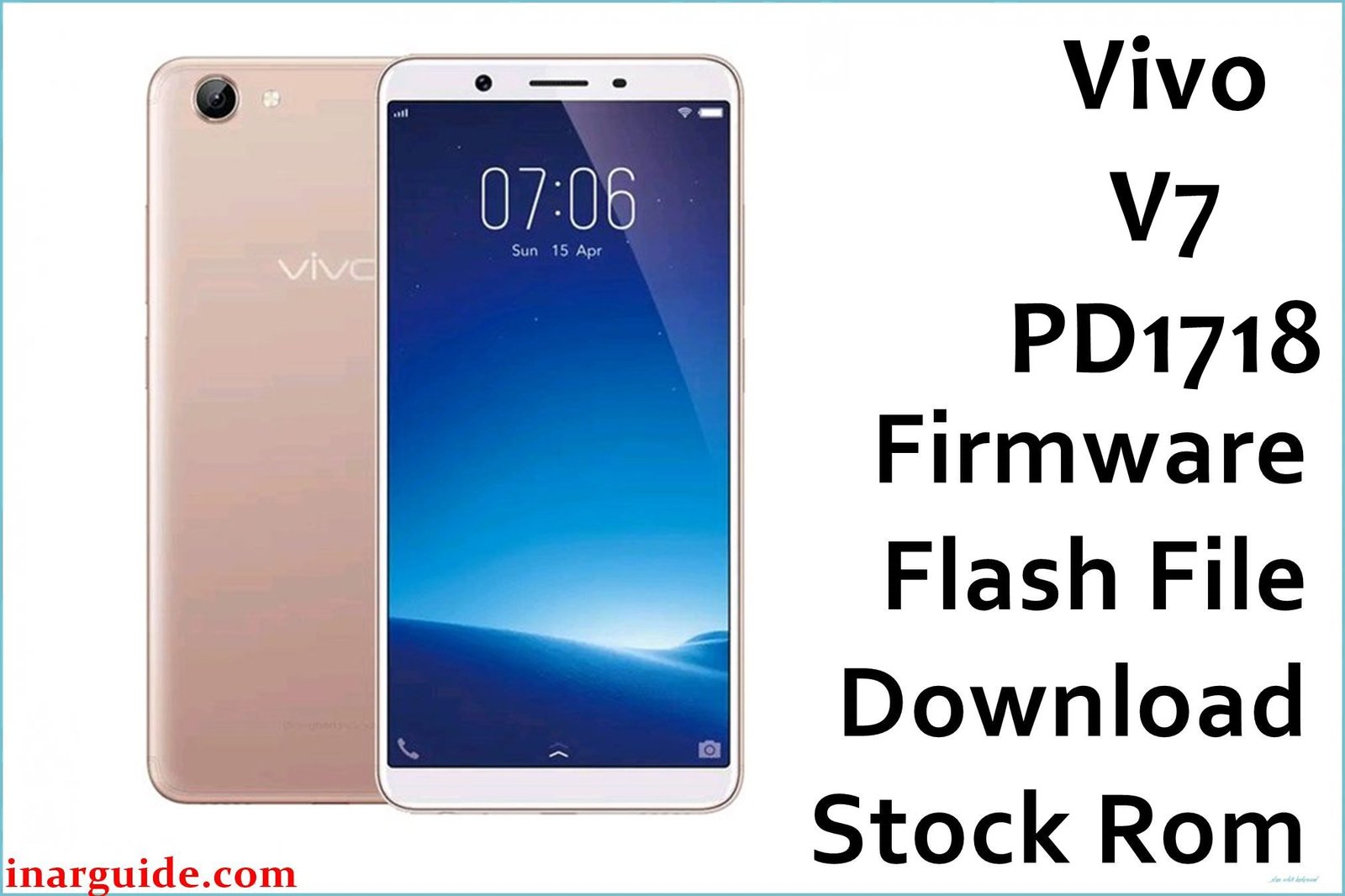
Looking to update or reinstall the official stock ROM on your Vivo V7? This guide provides the direct download link for the official OTA (Over-The-Air) update file for the PD1718 and walks you through the installation process.
This is the manufacturer’s intended method for manually updating your device. It is perfect for fixing software bugs, resolving bootloop issues without a PC, or returning your phone to its latest official software version.
Vivo V7 Quick Specifications
- Release Year:
- 2017
- Display:
- 5.7-inch IPS LCD, 720 x 1440 pixels (~282 ppi density)
- Processor:
- Qualcomm Snapdragon 450, Octa-core 1.8 GHz
- RAM:
- 4GB
- Storage:
- 32GB internal, expandable via microSDXC up to 256GB
- Operating System:
- Launched with Android 7.1.2 (Nougat), Funtouch OS 3.2
- Rear Camera:
- 16 MP with LED flash
- Front Camera:
- 24 MP with LED flash
- Battery:
- 3000 mAh non-removable
- Connectivity:
- 4G LTE, Wi-Fi 802.11 a/b/g/n, Bluetooth 4.2, microUSB 2.0
- Other Features:
- Rear-mounted fingerprint sensor, 3.5mm headphone jack, FM radio
The Vivo V7 (PD1718) is a smartphone released in 2017 with a focus on its selfie capabilities, featuring a high-resolution 24 MP front camera. It includes a “FullView” display with an 18:9 aspect ratio and is powered by a mid-range Qualcomm Snapdragon 450 processor.
Vivo V7 (PD1718) Firmware Download Links
| Filename | Download Link |
|---|---|
| Vivo_V7_PD1718_A_1.10.6_Update_OTA.zip | Download A_1.10.6 (MediaFire) |
Important Safety Notice & Prerequisites
This is the safest official method, but preparation is still key.
- Backup Your Data: While this method often keeps user data, errors can occur. It is highly recommended to back up your important photos, contacts, and files before you begin.
- Charge Your Phone: Ensure your phone’s battery is charged to at least 50% to prevent it from shutting down during the update process.
- Sufficient Storage: Make sure you have enough free space on your phone’s internal storage or SD card to download and store the firmware file, which can be several gigabytes.
- Correct Firmware File: Download only the file listed for your specific PD1718. The phone will likely reject the wrong file, but it’s best practice to be precise.
How to Install the Update: Step-by-Step Instructions
There are two primary methods to install the OTA update file. Start with Method 1 if your phone is working normally.
Method 1: Local Upgrade (From Phone Settings)
Use this method if you can fully boot your phone and access the Settings menu. It is the easiest and most straightforward way.
- Download the Firmware: Download the official
.zipfirmware file from the link above directly to your phone. Do not unzip or extract the file. - Move the File: Using the phone’s “Files” app, ensure the downloaded
.zipfile is in the main “internal storage” folder (the root directory), not inside the “Download” folder or any other subfolder. - Start the Update:
- Navigate to your phone’s Settings menu.
- Go to System update.
- Tap the settings icon (usually a gear or three dots) in the top-right corner.
- Select the “Local upgrade” or “Install from storage” option.
- The phone will automatically find the firmware file. Select it and tap “Install Now”.
- Wait for Completion: Your phone will verify the package and automatically reboot to install the update. This process will take several minutes. Do not interrupt it.
Method 2: Sideload via Recovery Mode
Use this method if your phone cannot boot properly (e.g., it’s stuck on the logo) but can still access Recovery Mode.
- Prepare the File: Download the firmware
.zipfile to a computer. Move it to the root directory of an SD card and insert the SD card into your phone. If your phone doesn’t have an SD card slot, you must place the file in the root of the internal storage before the bootloop occurs. - Enter Recovery Mode:
- First, power off your Vivo V7 completely.
- Press and hold the Volume Up + Power buttons simultaneously until the fastboot mode appears.
- Use the volume key to select the Recovery Mode.
- Install from Recovery:
- Use the Volume buttons to navigate and the Power button to select.
- Select the “Install update” or “Apply update from SD Card / internal storage” option.
- Navigate to and select the firmware
.zipfile you placed in the root directory. - Confirm the installation. The phone will begin the update process.
- Reboot System: Once the installation is complete, select the “Reboot system now” option from the main recovery menu. The first boot may take longer than usual.





