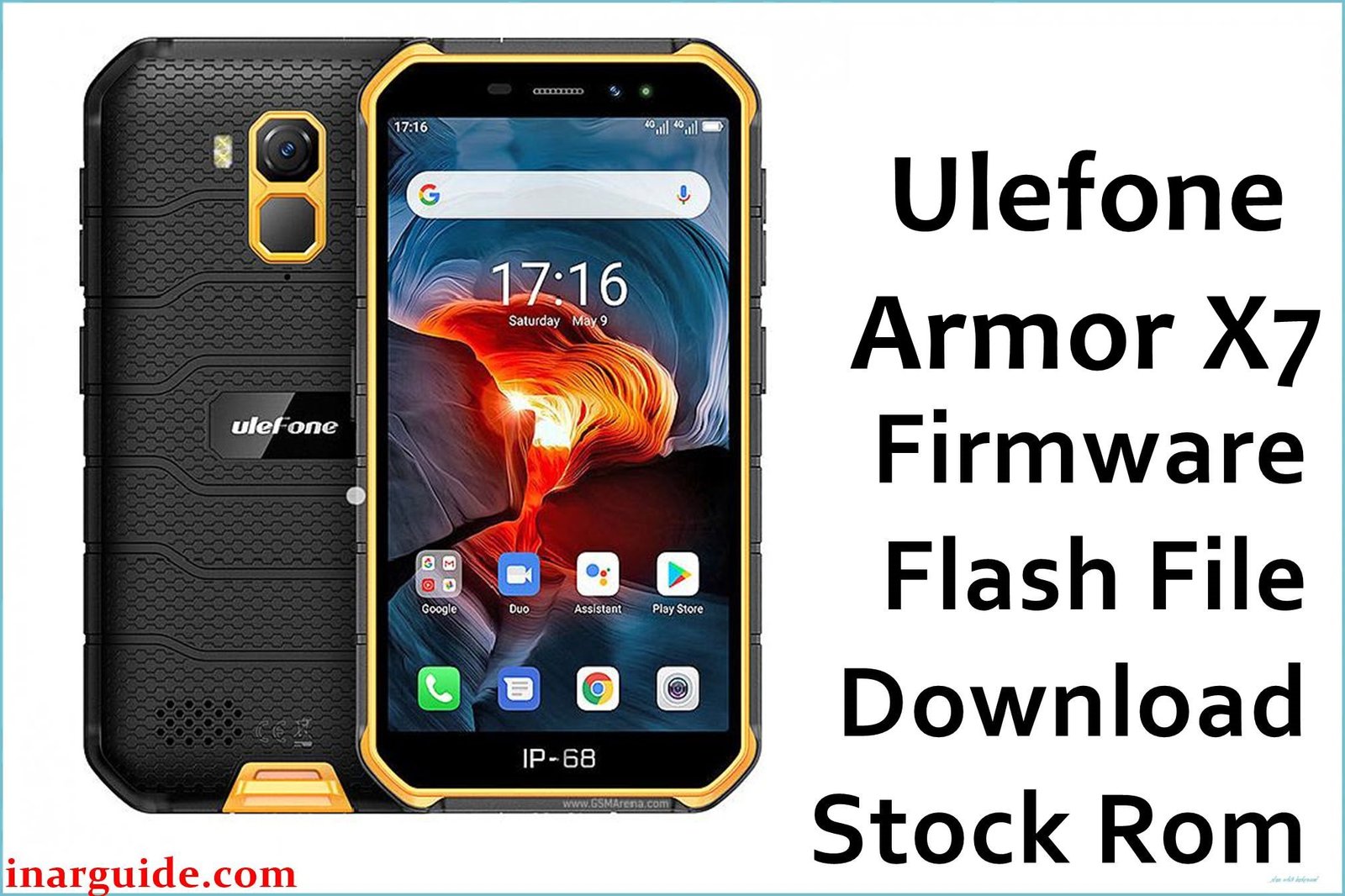
The Ulefone Armor X7 is a compact rugged Android 10 smartphone built around the MediaTek Helio A20 MT6761, 2 GB RAM, 16 GB storage, a 5‑inch HD display and a 4000 mAh battery with IP68/IP69K and MIL‑STD‑810G protection.
Over time, Armor X7 and X7 Pro users have reported issues like fast battery drain, sluggish performance, very sensitive or occasionally unresponsive touch, weak sunlight visibility and connectivity glitches.
The official V02, V03 and V04 firmware builds provided here help refresh the system, fix bugs from earlier releases, improve security and restore stability on both global and EEA variants when flashed correctly.
Ulefone Armor X7 Firmware Details
| Device Name | Ulefone Armor X7 |
|---|---|
| Model / Platform | Armor X7 (MT6761 Helio A20, quad‑core Cortex‑A53, 2 GB RAM, 16 GB storage) |
| Display / Battery | 5.0‑inch HD IPS LCD, glove‑ready; 4000 mAh battery for long runtimes |
| Rugged Rating | IP68/IP69K, MIL‑STD‑810G drop resistance, targeted at outdoor and field work |
| Android / UI | Android 10 with mostly stock interface on shipped and updated builds |
| Known Issues | Battery drain, slow or laggy UI, touch oversensitivity or occasional freeze, wireless problems and update failures on older firmware. |
| Firmware Builds Here | V02 EEA 2020‑11‑17, V03 2022‑02‑22 (global), V04 EEA 2022‑01‑19 – all Android 10 full packages |
| File Type | ZIP update / service packages for Armor X7, typically flashed via SD‑card local update or MTK flashing tools |
Download Official Firmware for Ulefone Armor X7
Select the firmware that matches your device’s region and current channel (EEA vs non‑EEA) to avoid network, Google services or OTA update problems after flashing.
| Filename | File Size | Build Date | Build / Version | Android Version | Flashing Type | Region | Download Link |
|---|---|---|---|---|---|---|---|
| Ulefone_Armor_X7_MT6761_V02_EEA_20201117.zip | 1.4 GB | 2020‑11‑17 | V02 EEA | Android 10 | ZIP update / SD‑card / MTK tool | EEA (EU) | Download V02 EEA (Google Drive) |
| R2-Ulefone-Armor_X7_V03_20220222 – P2NQS62EE7.GQU2.Ulefone.HB.HD.HWS5VJ.0117.V3.03_20220222 – full_k61v1_32_bsp_hdp-user 10.zip | 1.4 GB | 2022‑02‑22 | V03 20220222 | Android 10 | Full ZIP (likely SP Flash / SD‑card) | Global / General (non‑EEA) | Download V03 Global (Google Drive) |
| Ulefone-Armor_X7_EEA_V04_20220119 – P2NQS62EE7.GQU2.Ulefone.EEA.HB.HD.HWS5VJ.0114.V3.03_20220119 – full_k61v1_32_bsp_hdp-user 10.zip | 1.4 GB | 2022‑01‑19 | EEA V04 20220119 | Android 10 | Full ZIP (SD‑card / MTK flash) | EEA (EU) | Download EEA V04 (Google Drive) |
Flashing Requirements
- Windows PC or laptop (for advanced MTK flashing) and a reliable microUSB cable; for simple update, only the phone and a microSD card may be required.
- Fully charged or at least 60 % battery on the Armor X7 to avoid power loss during the firmware process.
- Correct firmware ZIP for your region: V02/V04 for EEA devices and V03 for global/other channels, matching the original software branch.
- Complete backup of contacts, photos and app data, because full firmware flashes often wipe user data or require a factory reset afterwards.
- MediaTek SP Flash Tool and MTK VCOM drivers if you plan to flash via PC rather than local SD‑card update.
How to Flash the Firmware
- Download the correct Armor X7 firmware ZIP from the table, verify its region (EEA vs Global) and copy it to a microSD card or to your PC depending on the method you will use.
- For SD‑card/local update: place the ZIP on the SD card, then use the system’s local update option or stock recovery “apply update from SD card” (if available) to install it, following on‑screen prompts.
- For SP Flash Tool: extract the full_k61v1_32_bsp_hdp package, load the scatter file in SP Flash Tool, select Download Only or Firmware Upgrade, connect the powered‑off phone and start the flash.
- Wait until the process finishes and the tool or device confirms success; do not disconnect the cable or remove the battery mid‑flash.
- Reboot the Armor X7; the first boot on new firmware may take several minutes while Android 10 and apps are optimized and background indexing completes.
For detailed, step‑by‑step instructions with screenshots on MTK devices, follow the MediaTek (MTK) SP Flash Tool flashing guide when using these Armor X7 firmware files.
Frequently Asked Questions (FAQs)
What problems can updating my Armor X7 firmware fix?
A clean flash of a newer build often improves stability, smooths out UI lag, reduces random app crashes and can help with bugs like battery drain or connectivity glitches introduced in earlier software.
How do I know if my phone is EEA or Global?
Check Settings → About phone and software information for “EEA” tags or region identifiers; EEA devices should use the V02 or V04 EEA builds, while non‑EEA/global devices should use the V03 package.
Will flashing these ZIPs wipe my data?
That depends on the method, but major version or full‑package updates can trigger a factory reset or require one to avoid bugs, so always assume your data may be erased and back up first.
Can these firmwares fix a bootlooping or stuck Armor X7?
Yes, many soft‑brick or bootloop cases caused by bad updates or corrupted system files can be recovered by flashing the correct full firmware through SD‑card or SP Flash Tool.
What if the touchscreen is still too sensitive or unresponsive?
If fresh firmware does not solve touch issues, check for screen protectors, damage or water ingress; some X7/X7 Pro units show hardware‑related touch problems that require physical repair, not just software.
Will I still receive OTA updates after manual flashing?
If you remain on an official, region‑correct build, OTA updates generally continue to work, but cross‑region flashes or modified system partitions can interfere with future update delivery.





