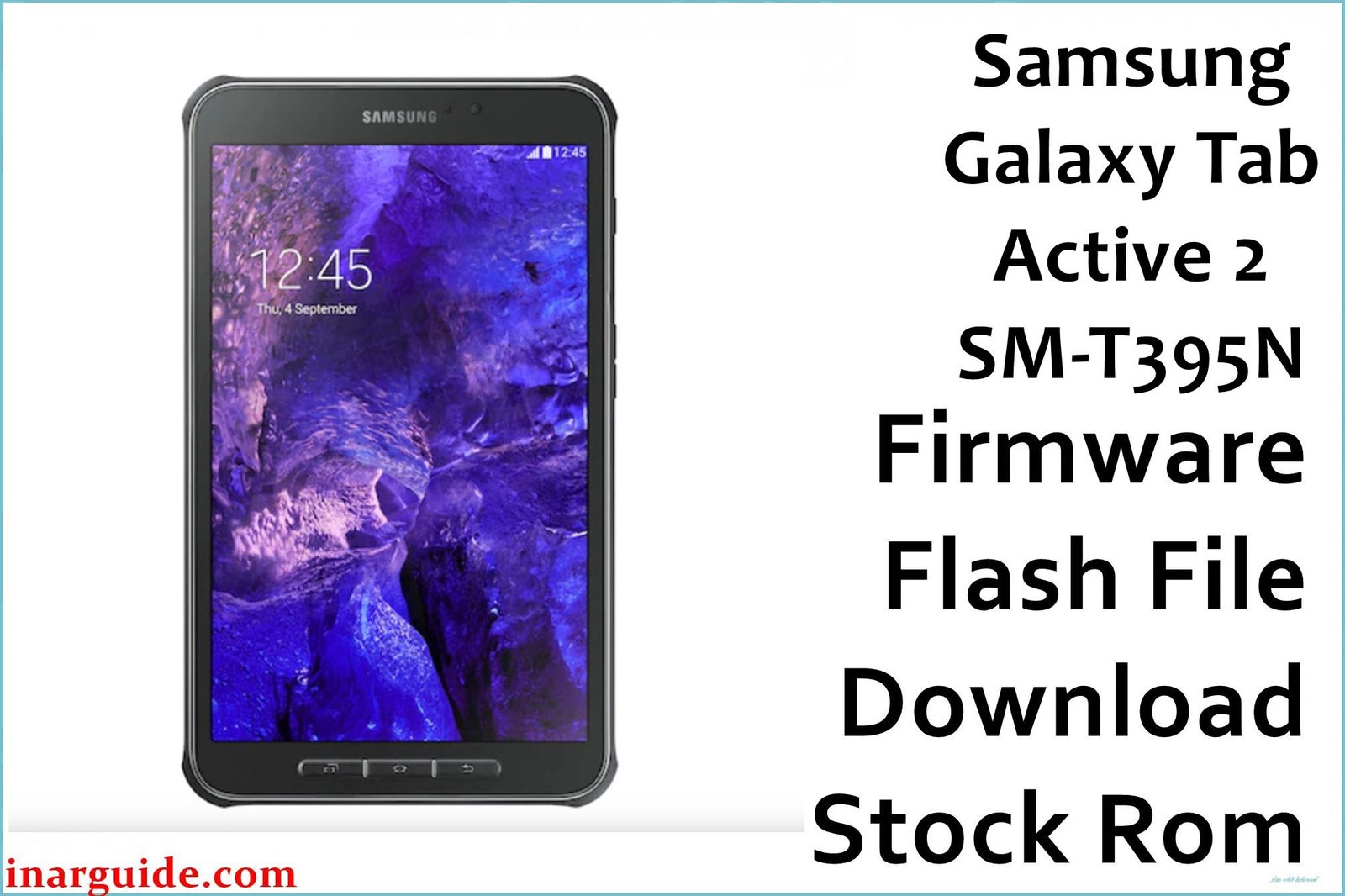
Looking to install the stock ROM on your Samsung Galaxy Tab Active 2 SM-T395N? This comprehensive guide provides direct download links for the firmware flash file and clear, step-by-step instructions to get your phone back on track.
Use this firmware file to effectively reset your phone, fix bootloop issues, bypass password locks, resolve device freezing, and address numerous other software problems.
Samsung Galaxy Tab Active 2 SM-T395N Quick Specs
- Display: 8.0-inch TFT display
- Resolution: 1280 x 800 pixels
- Processor: Exynos 7870 Octa-core
- RAM: 3GB
- Storage: 16GB (expandable via microSD up to 256GB)
- Operating System: Android 7.1.1 Nougat (upgradable to 9.0 Pie)
- Main Camera: 8 MP
- Front Camera: 5 MP
- Battery: 4450 mAh (Removable)
- Connectivity: Wi-Fi, Bluetooth 4.2, 4G LTE
- Special Features: Rugged design with MIL-STD-810G certification, IP68 water and dust resistance, S Pen support.
Downloads:
| CSC | Version | Android Version | Download Links |
|---|---|---|---|
| KOO | T395NKOU8CTD2 | 9.0 | Download South Korea (Unlocked Korea) (Google Drive) |
How to Flash Samsung Galaxy Tab Active 2 SM-T395N with Odin
- Prepare Your PC: Begin by installing the official Samsung USB drivers on your computer to ensure proper device recognition.
- Enter Download Mode: Power off your device. Enter Download Mode by holding the Volume Down, Home, and Power buttons simultaneously while connecting the Galaxy Tab Active 2 SM-T395N to your PC.
- Launch Odin: Download and unzip the Odin flashing utility on your PC. Run the executable file to start the program.
- Connect the Device: Once your phone is in Download Mode and connected via USB, Odin should display an “Added” message.
- Load the Galaxy Tab Active 2 SM-T395N Firmware Files: In Odin, load each firmware component (BL, AP, CP, and CSC) into its corresponding field.
- Start Flashing: Click the “Start” button to initiate the firmware installation. Wait for a confirmation message like “PASS” indicating success.
- Finish Up: Disconnect your phone and let it reboot. It should now be running the newly installed firmware.





