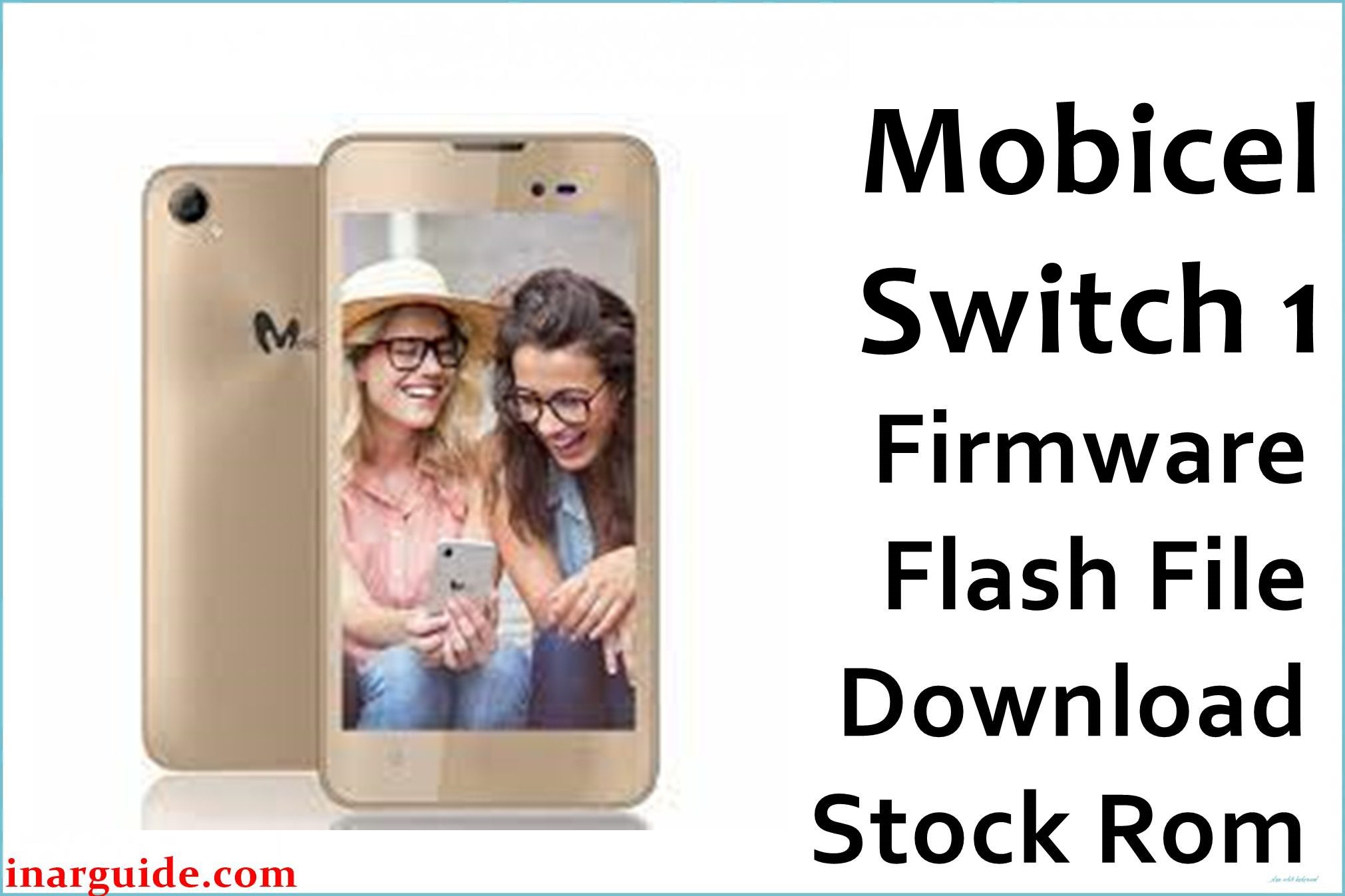
The Mobicel Switch 1 is an entry-level smartphone known for its basic functionality. Running Android 8.1 Oreo (Go edition), it is designed for first-time smartphone users. However, its limited hardware, particularly the modest Spreadtrum (UNISOC) chipset and small amount of RAM, makes it susceptible to software glitches. Common user complaints include the device becoming unresponsive or freezing completely, persistent “Unfortunately, App has stopped” errors, and SIM card not being detected. For owners experiencing these issues, flashing the official stock firmware is the most reliable method to restore stability and functionality.
This guide provides the official stock ROM packages for both the single-SIM and dual-SIM variants of the Mobicel Switch 1. As a Spreadtrum (UNISOC) device, it must be flashed using the SPD Research Tool.
Mobicel Switch 1 Firmware Details
Below are the key specifications for the Mobicel Switch 1. This firmware will restore the device to its original Android 8.1 Oreo (Go edition) software. Note that this is a Spreadtrum (UNISOC) device and requires the SPD Upgrade Tool.
| Attribute | Details |
|---|---|
| 📱 Device | Mobicel Switch 1 |
| 🆔 Chipset | Spreadtrum (UNISOC) |
| 🤖 Android OS | 8.1 Oreo (Go edition) |
| ✅ Build Version | MDD_120220 / MDD_100720 |
| 📂 File Type | SPD Firmware (PAC File) |
| 💻 Flashing Tool | SPD Upgrade Tool (Research Download) |
Download Official Firmware for Mobicel Switch 1
Choose the firmware that matches your device’s SIM configuration:
- Build: MDD_120220 (Single-SIM Variant)
- File Name: Mobicel_Switch_1_MDD_120220_SPD.zip
- Size: 707 MB
- 🔗 Download Link: Download (MediaFire)
- Build: MDD_100720 (Dual-SIM Variant)
- File Name: Mobicel_Switch_1_Dual-SIM_MDD_100720_SPD.zip
- Size: 677 MB
- 🔗 Download Link: Download (MediaFire)
Why Flash This Specific Firmware?
Flashing this official firmware is the definitive solution for the Mobicel Switch 1’s most common and frustrating problems, as reported by users on various African tech forums and community groups:
- Fix an Unresponsive or “Dead” Touchscreen: A prevalent issue is the touchscreen becoming partially or completely unresponsive, especially after the device has been idle or the battery has drained completely. This firmware reflashes the touch controller drivers, restoring correct touch input.
- Stop Constant “Unfortunately, App has stopped” Errors: Due to its limited resources, the Switch 1 is prone to system UI and app crashes that make the device unusable. A clean firmware install clears the corrupted system cache and data that cause these persistent force closures.
- Resolve “SIM Card Not Detected” and Network Problems: Users frequently report one or both SIM slots failing to recognize a card, or experiencing unstable network signals. This process rewrites the NVRAM and modem partitions, which store crucial network calibration data unique to each device.
- Recover from a Soft Brick or Bootloop: If your Switch 1 is stuck on the Mobicel logo or repeatedly restarting, it indicates a corrupted operating system. Flashing the stock ROM is the only way to replace the damaged system files and achieve a successful boot.
Crucial Prerequisites Before Flashing
Before you begin, back up any accessible data. This procedure will permanently delete everything on the phone.
- Install the latest SPD Upgrade Tool (Research Download) on your Windows PC.
- Install the correct Spreadtrum (UNISOC) USB Drivers.
- A working USB cable and a PC with a stable power supply.
- Ensure your Mobicel Switch 1 has at least 50% battery charge to prevent power failure during the flash.
How to Flash the Firmware
This firmware must be installed using the SPD Upgrade Tool on a Windows computer. The process involves connecting the powered-off phone to the PC.
- Download and extract the correct ZIP file for your device (Single-SIM or Dual-SIM) to a new folder.
- Install the Spreadtrum USB drivers and the SPD Upgrade Tool on your computer.
- Launch the ResearchDownload.exe tool.
- Click on the “Load Packet” or “Scatter-loading” button and navigate to the extracted firmware folder. Select the file named PAC or something similar.
- Completely power off your Mobicel Switch 1.
- Click the “Start” or “Download” button in the SPD tool.
- While the tool is waiting for a connection, connect your powered-off phone to the PC via the USB cable. The tool should automatically detect the device and begin the flashing process. Do not disconnect the cable until the process is complete.
- You will see a “Download OK” or “Success” message upon completion. You can then disconnect the phone and power it on. The first boot may take several minutes.
For a complete, step-by-step tutorial with screenshots, please follow our master guide:
→ How to Use the SPD Upgrade Tool to Flash Your Smartphone
Disclaimer: Flashing your device is an advanced procedure that will erase all your data and carries a risk of permanently damaging your device if not done correctly. We are not responsible for any data loss or hardware failures. Proceed with extreme caution and ensure you have selected the correct firmware for your specific model.





