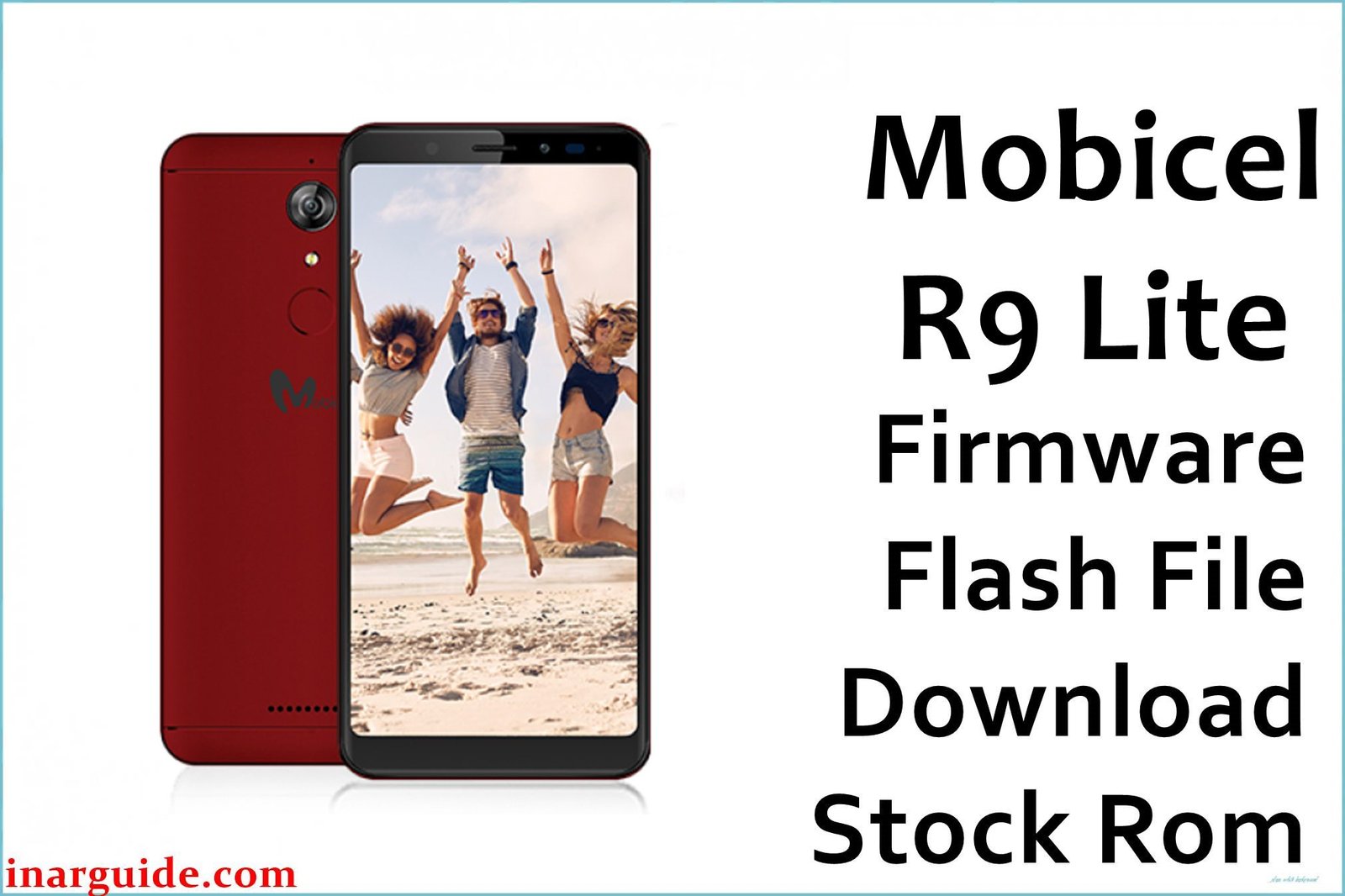
The Mobicel R9 Lite is a budget-friendly smartphone primarily available in the Southern African market. It features a large 5.7-inch display, is powered by the reliable Qualcomm Snapdragon 430 chipset, and runs on Android 7.1.2 Nougat. While functional for its price point, its 2GB of RAM and age can lead to significant software problems over time. Users commonly report issues such as the device getting stuck in a bootloop at the Mobicel or Vodacom logo, severe system lag, and critical software errors that can completely brick the phone. In these situations, manually reinstalling the stock firmware is the most effective, and often only, solution.
This guide provides the official stock ROM packages for the Mobicel R9 Lite. As this is a Qualcomm-powered device, the firmware must be installed using the QFIL (Qualcomm Flash Image Loader) tool.
Mobicel R9 Lite Firmware Details
Below are the core details for the Mobicel R9 Lite. Flashing these firmware files will restore the device to a clean installation of Android 7.1.2 Nougat. Ensure you use the QFIL tool, as this is not a MediaTek device compatible with SP Flash Tool.
| Attribute | Details |
|---|---|
| 📱 Device | Mobicel R9 Lite |
| 🆔 Chipset | Qualcomm Snapdragon 430 (MSM8937) |
| 🤖 Android OS | 7.1.2 Nougat |
| ✅ Build Versions | Multiple (See Download Section) |
| 📂 File Type | QFIL Firmware |
| 💻 Flashing Tool | QFIL (Qualcomm Flash Image Loader) |
Download Official Firmware for Mobicel R9 Lite
Two primary firmware versions are available. The Vodacom (VDC_ZA) version is specifically for devices on the Vodacom South Africa network. Choose the one that matches your device’s origin.
- Build: VDC_ZA_050518 (Vodacom South Africa)
- File Name: Mobicel_R9_Lite_MSM8937_VDC_ZA_050518_7.1.2_QPST.zip
- Size: 1.92GB
- 🔗 Download Link: Download (MediaFire)
- Build: 110917 (Generic)
- File Name: Mobicel_R9_Lite_MSM8937_110917_7.1.2_QPST.zip
- Size: 1.74GB
- 🔗 Download Link: Download (MediaFire)
Why Flash This Specific Firmware?
Based on real-world user feedback from South African tech forums and repair communities, flashing the stock firmware addresses these specific Mobicel R9 Lite problems:
- Fix Bootloop on Mobicel or Vodacom Logo: This is the most common reason for flashing. If the device fails to boot past the startup screen, a full firmware reinstallation is necessary to repair the corrupted operating system files.
- Unbrick a Dead Mobicel R9 Lite: A failed update or software glitch can hard-brick the device, leaving it unresponsive. If your PC detects it as “Qualcomm HS-USB QDLoader 9008,” this firmware is the only tool that can bring it back to life.
- Resolve Network Issues on Vodacom: For users on the Vodacom network experiencing “No Service,” dropped calls, or data connectivity problems, flashing the specific VDC_ZA firmware can restore the correct modem and carrier configurations.
- Clean Install for FRP (Google Lock) Removal Prep: If you are locked out of your phone after a factory reset (FRP lock), flashing the stock firmware is a critical first step. It ensures the device is running a clean, non-corrupted system before you proceed with FRP bypass methods.
- Eliminate System-Wide Lag and Freezing: Over time, the phone can become extremely slow. A clean flash removes all residual junk files, corrupted app data, and cache, restoring the phone’s original software performance.
Crucial Prerequisites Before Flashing
Before you begin, back up any accessible data. This procedure will permanently delete everything on the phone.
- The latest version of the QPST package, which includes the QFIL tool.
- The correct Qualcomm HS-USB QDLoader 9008 drivers installed on your PC.
- A compatible Micro-USB cable and a Windows PC.
How to Flash the Firmware
This firmware must be installed using the QFIL (Qualcomm Flash Image Loader) tool on a Windows computer. The process involves booting the phone into a special diagnostic mode known as EDL (Emergency Download) Mode.
- Download and extract your chosen Mobicel R9 Lite firmware zip file to a convenient location on your PC.
- Install the Qualcomm USB drivers and the latest QPST/QFIL tool.
- Run QFIL from the Start Menu or installation folder.
- Power off your Mobicel R9 Lite completely.
- Enter EDL Mode: Press and hold both the Volume Up and Volume Down buttons simultaneously. While holding them, connect the phone to your computer via USB cable. The screen will stay black, but QFIL should show the port as
Qualcomm HS-USB QDLoader 9008. - In QFIL, make sure “Flat Build” is the selected build type.
- Click “Browse…” next to the “Programmer Path” field, navigate to the extracted firmware folder, and select the file that ends in
_firehose.mbn(e.g.,prog_emmc_firehose_8937_ddr.mbn). - Click “Load XML…” and a file explorer window will open. Select the
rawprogram_unsparse.xmlfile first, and then immediately select thepatch0.xmlfile. - With all paths correctly loaded, click the “Download” button to start the flashing process. Wait patiently for the process to complete, indicated by a “Download Succeeded” status.
For a complete, step-by-step tutorial with screenshots, please follow our master guide:
→ How to Install ROM with Qualcomm Flash Image Loader (QFIL)
Disclaimer: Flashing a Qualcomm device is an advanced procedure that will erase all your data and carries a significant risk of permanently damaging your device if not done correctly. We are not responsible for any data loss or hardware failures. Proceed with extreme caution.