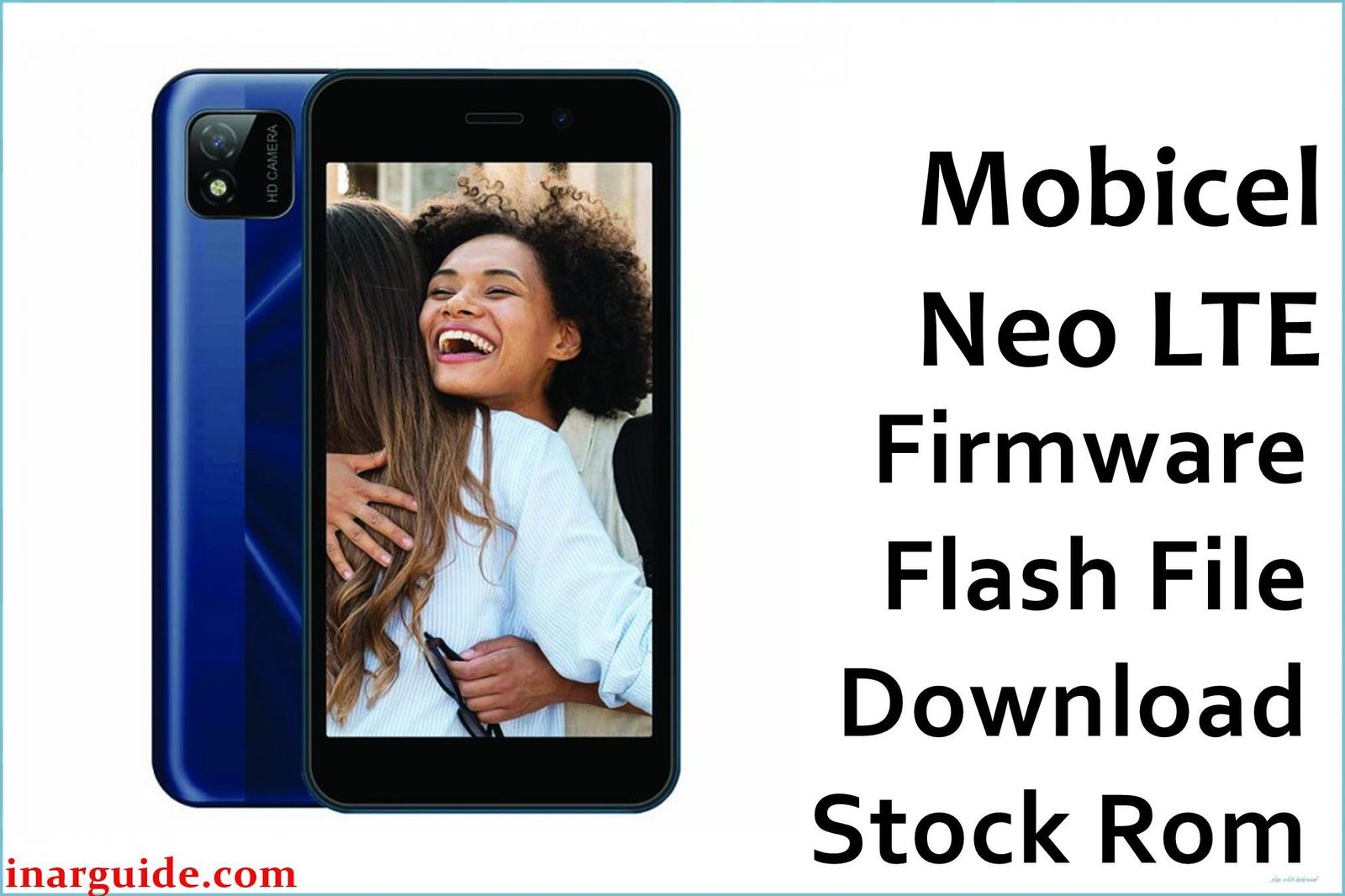
The Mobicel Neo LTE is an affordable 4G smartphone that has been released with different chipsets over time. While it provides essential connectivity, users have reported several software-related problems. Common issues include Wi-Fi and Bluetooth frequently disconnecting, the touchscreen becoming unresponsive, and the device randomly freezing or restarting during use. These problems are often rooted in corrupted system software or driver conflicts. Flashing the official stock firmware is the most reliable method to resolve these issues and restore stable performance.
This guide provides the official stock ROM packages for the different variants of the Mobicel Neo LTE. As a MediaTek (MTK) device, it must be flashed using the SP Flash Tool.
Mobicel Neo LTE Firmware Details
Below are the key specifications for the Mobicel Neo LTE. This firmware will restore the device to its original Android software. Note that this is a MediaTek (MTK) device and requires SP Flash Tool.
| Attribute | Details |
|---|---|
| 📱 Device | Mobicel Neo LTE |
| 🆔 Chipset | MediaTek MT6735 / MT6739 |
| 🤖 Android OS | 6.0 Marshmallow / 10 (Q) |
| ✅ Build Version | MDD_170121 / MDD_190711 |
| 📂 File Type | MTK Firmware (Scatter File) |
| 💻 Flashing Tool | SP Flash Tool |
Download Official Firmware for Mobicel Neo LTE
Choose the firmware that matches your device’s chipset and Android version. Using the wrong firmware will brick your device.
- Build: MDD_170121 (MT6735 – Android 6.0)
- File Name: Mobicel_Neo_LTE_MT6735_MDD_170121_6.0.zip
- Size: 1.17 GB
- 🔗 Download Link: Download (Google Drive)
- Build: MDD_190711 (MT6739 – Android 10)
- File Name: Mobicel_Neo_LTE_MT6739_190711_10.zip
- Size: 891 MB
- 🔗 Download Link: Download (MediaFire)
Why Flash This Specific Firmware?
Flashing the official Mobicel Neo LTE firmware addresses specific and recurring complaints from users on South African and international forums. It is the definitive solution for:
- Fix Persistent Wi-Fi and Bluetooth Dropouts: A frequent issue with the Neo LTE is unstable wireless connectivity, where Wi-Fi fails to stay connected or Bluetooth devices unpair randomly. This is often due to a corrupted NVRAM partition. Flashing the stock ROM with “Format All + Download” restores the correct calibration files for the wireless modules.
- Resolve an Unresponsive Touchscreen and “Ghost Touch”: Users report the touchscreen becoming laggy, failing to respond to taps, or registering phantom “ghost touches.” This firmware re-installs the correct touch panel drivers, recalibrating the hardware to eliminate these input errors.
- Stop Random Freezes and System UI Crashes: The device can become unstable, freezing during app use or showing “System UI isn’t responding” errors. A clean firmware install replaces the corrupted system files that cause these crashes, returning the device to its original stability.
- Recover from a Failed Software Update or Custom ROM Flash: If an attempted update failed or a custom ROM caused a bootloop, this official firmware is the safest way to unbrick the Mobicel Neo LTE and return it to a bootable state.
Crucial Prerequisites Before Flashing
Before you begin, back up any accessible data. This procedure will permanently delete everything on the phone.
- The latest version of the SP Flash Tool.
- The correct MediaTek USB VCOM Drivers installed on your PC.
- Ensure your Mobicel Neo LTE has at least 50% battery charge.
- Critical: Identify your device’s chipset (MT6735 or MT6739) to download the correct firmware. Flashing the wrong file will permanently damage the device.
How to Flash the Firmware
This firmware must be installed using the SP Flash Tool on a Windows computer. The process involves connecting the powered-off phone to the PC.
- Download and extract the
Mobicel_Neo_LTE_MT6739_190711_10.zipfile (or the correct file for your model) to a new folder. - Install the MediaTek USB drivers and the SP Flash Tool on your computer.
- Launch SP Flash Tool and load the scatter file from the extracted folder.
- Select the “Download Only” or “Format All + Download” option (use the latter for severe issues like IMEI loss).
- Click “Download” and then connect your powered-off Mobicel Neo LTE to the PC via USB cable.
- Wait for the flashing process to complete successfully.
For a complete, step-by-step tutorial with screenshots, please follow our master guide:
→ How to Flash Stock Firmware to MediaTek (MTK) Smartphones
Disclaimer: Flashing your device is an advanced procedure that will erase all your data and carries a risk of permanently damaging your device if not done correctly. We are not responsible for any data loss or hardware failures. It is critical to use the correct firmware file for your specific chipset model (MT6735 or MT6739).





