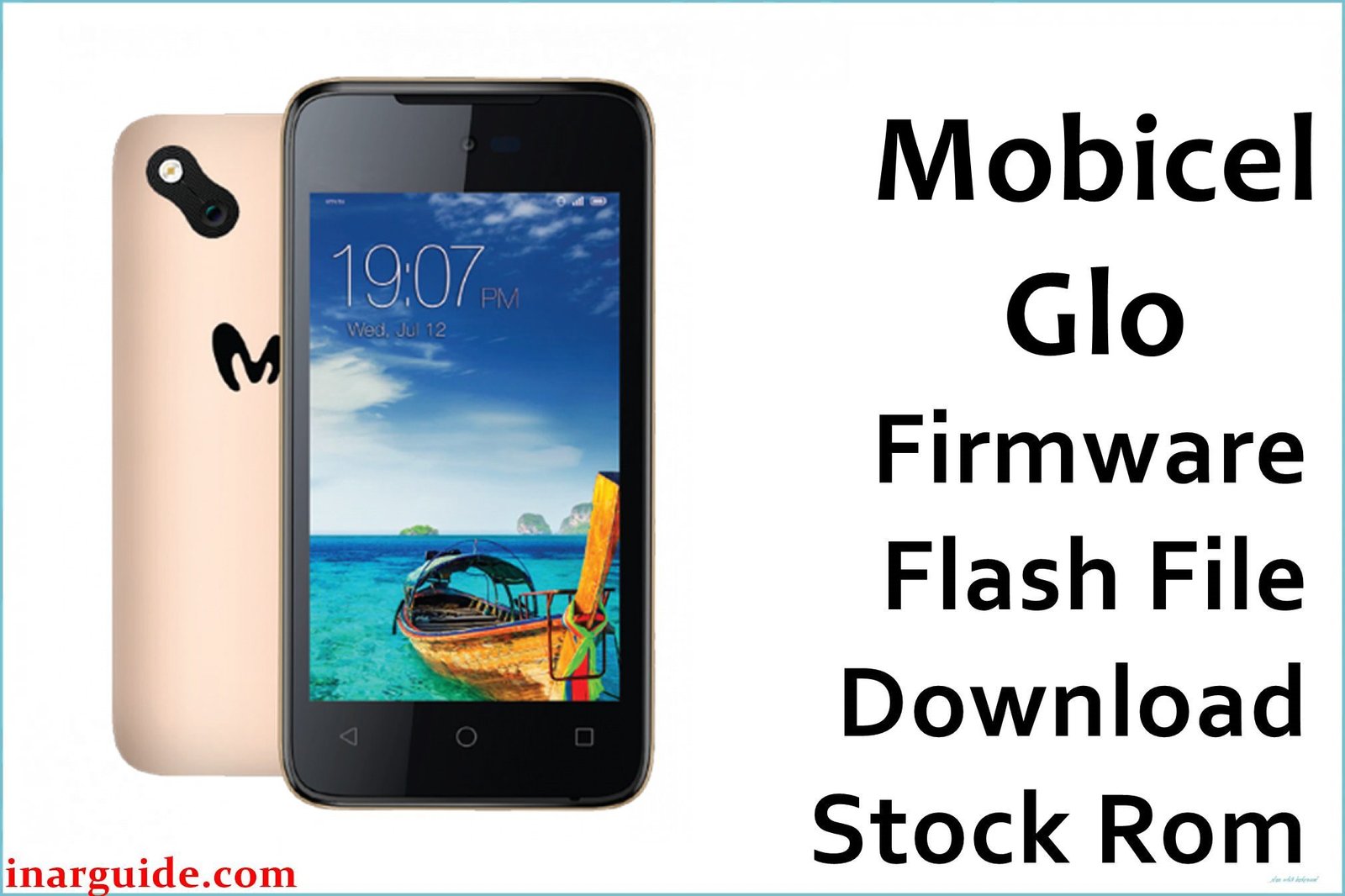
The Mobicel Glo is a budget smartphone running Android 8.1 Oreo on a Spreadtrum SP7731E chipset. Users frequently report issues with the device’s display showing lines or flickering, making the screen difficult to view. Another common problem is Wi-Fi and Bluetooth connectivity dropping unexpectedly, despite strong signal strength. The device also suffers from frequent app crashes and system freezes, particularly when using memory-intensive applications. These issues are typically caused by corrupted display drivers and unstable system software. Flashing the official stock firmware provides a complete system reset, restoring stable display performance and reliable wireless connectivity.
This guide provides the official stock ROM packages for the Mobicel Glo. As a Spreadtrum (UNISOC) device, it must be flashed using the SPD Upgrade Tool.
Mobicel Glo Firmware Details
Below are the key specifications for the Mobicel Glo. This firmware will restore the device to its original Android 8.1 Oreo software. Note that this is a Spreadtrum (UNISOC) device and requires the SPD Tool.
| Attribute | Details |
|---|---|
| 📱 Device | Mobicel Glo |
| 🆔 Chipset | Spreadtrum SP7731E |
| 🤖 Android OS | 8.1 Oreo |
| ✅ Build Version | 171019_MIRA / V9.0_201116_MIRA / Telcel_SW_01_V08 |
| 📂 File Type | SPD Firmware (PAC File) |
| 💻 Flashing Tool | SPD Upgrade Tool (Research Download) |
Download Official Firmware for Mobicel Glo
Choose the firmware that matches your device variant. The Telcel version is specifically for Mexican networks.
- Build: 171019_MIRA
- File Name: Mobicel_Glo_SP7731E_171019_8.1.0_MIRA.zip
- Size: 751 MB
- 🔗 Download Link: Download (MediaFire)
- Build: V9.0_201116_MIRA
- File Name: Mobicel_Glo_SP7731E_V9.0_201116_8.1.0_MIRA.zip
- Size: 819 MB
- 🔗 Download Link: Download (MediaFire)
- Build: Telcel_SW_01_V08 (Telcel Mexico Variant)
- File Name: Mobicel_Glo_Telcel_SW_01_V08_020819_SPD.zip
- Size: 802 MB
- 🔗 Download Link: Download (MediaFire)
Why Flash This Specific Firmware?
Flashing the official Mobicel Glo firmware addresses the specific display and connectivity issues commonly reported by users:
- Fix Screen Flickering and Display Line Issues: Many users report horizontal or vertical lines appearing on the screen, or the display flickering intermittently. This firmware reflashes the display drivers and LCD controller software, eliminating these visual artifacts.
- Resolve Wi-Fi and Bluetooth Connection Drops: The device frequently loses connection to Wi-Fi networks and Bluetooth devices despite being in range. This firmware restore repairs the wireless module drivers and NVRAM settings for stable connectivity.
- Stop Frequent App Crashes and System Freezes: Applications often crash unexpectedly, and the system freezes during normal use. A clean firmware install replaces corrupted system files that cause these stability problems.
- Fix Touchscreen Responsiveness Issues: Some areas of the touchscreen may become less responsive over time. This process recalibrates the touch panel and reinstalls the touch driver software.
Crucial Prerequisites Before Flashing
Before you begin, back up any accessible data. This procedure will permanently delete everything on the phone.
- Install the latest SPD Upgrade Tool (Research Download) on your Windows PC.
- Install the correct Spreadtrum (UNISOC) USB Drivers.
- A reliable USB cable and a PC with a stable power supply.
- Ensure your Mobicel Glo has at least 50% battery charge.
How to Flash the Firmware
This firmware must be installed using the SPD Upgrade Tool on a Windows computer. The process involves connecting the powered-off phone to the PC.
- Download and extract the
Mobicel_Glo_SP7731E_171019_8.1.0_MIRA.zipfile (or your chosen variant) to a new folder. - Install the Spreadtrum USB drivers and the SPD Upgrade Tool on your computer.
- Launch the ResearchDownload.exe tool.
- Click on the “Load Packet” button and navigate to the extracted firmware folder. Select the .pac file.
- Completely power off your Mobicel Glo.
- Click the “Start” button in the SPD tool.
- While the tool is waiting, connect your powered-off Mobicel Glo to the PC via the USB cable.
- Wait for a “Download OK” or “Success” message before disconnecting the phone.
For a complete, step-by-step tutorial with screenshots, please follow our master guide:
→ How to Use the SPD Upgrade Tool to Flash Your Smartphone
Disclaimer: Flashing your device is an advanced procedure that will erase all your data and carries a risk of permanently damaging your device if not done correctly. We are not responsible for any data loss or hardware failures. Proceed with extreme caution and ensure you have selected the correct firmware variant for your device.





