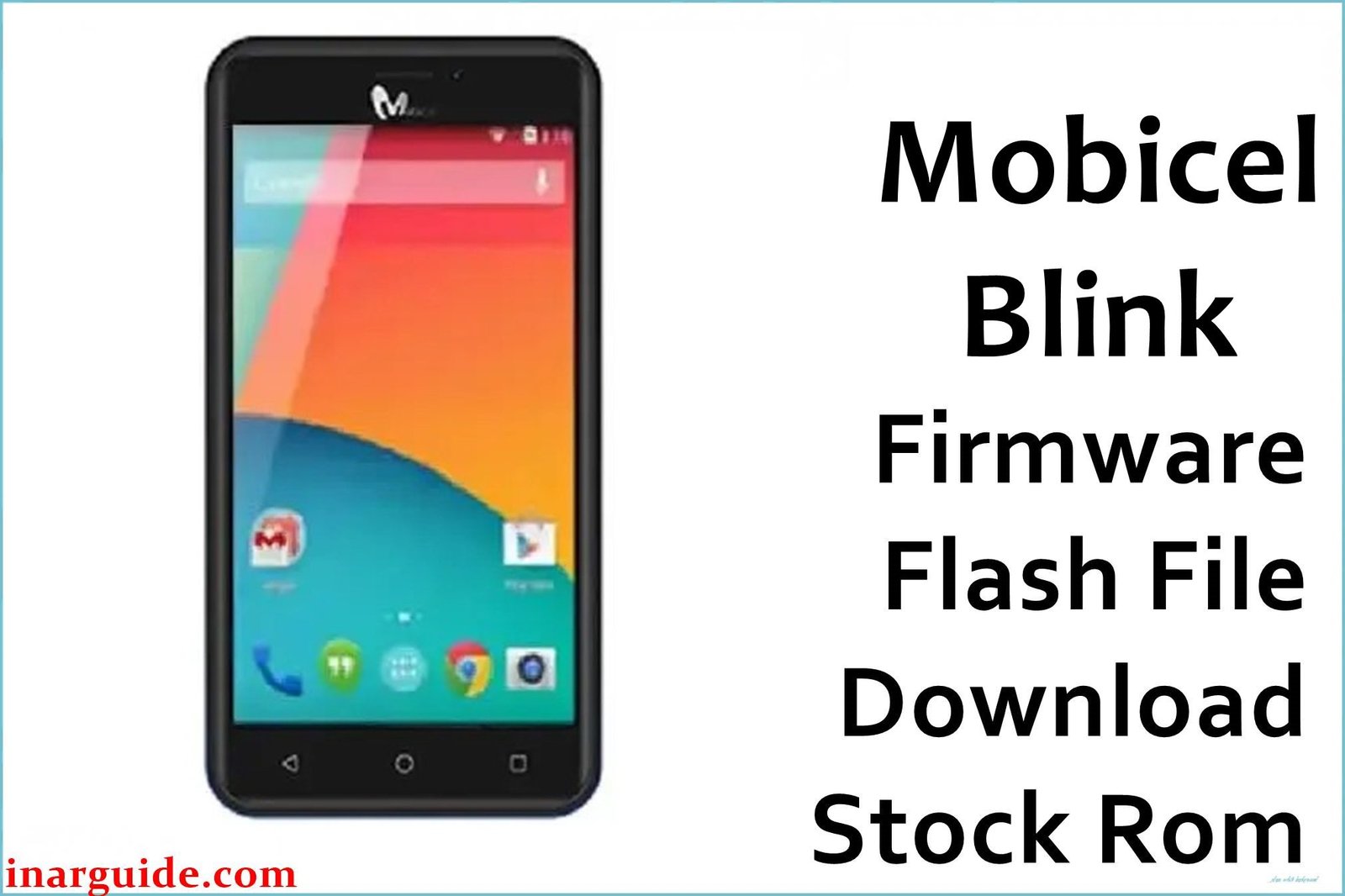
The Mobicel Blink (SP7731E) is an affordable Android Go phone built on the Spreadtrum SC7731E quad-core chipset, 1GB RAM, 8GB storage, and a 2000mAh removable battery. Like all entry-level SPD devices running Android Go, the Blink is prone to persistent freezing, lagging, app crashes, battery-related random restarts, Wi-Fi/Bluetooth bugs, and most critically, “stuck at logo” bootloop errors. These are most often solved by a full reflash with the official PAC firmware using SPD Upgrade Tool.
All Mobicel Blink PAC files must be flashed only with SPD Upgrade Tool (Research Download). Both builds listed here are for the same hardware type—choose the build that matches your device or test both if unsure.
Mobicel Blink SP7731E Firmware Details
Reference table for build/hardware compatibility:
| Attribute | Details |
|---|---|
| 📱 Device | Mobicel Blink (SP7731E) |
| 🆔 Chipset | Spreadtrum SP7731E quad-core 1.3GHz |
| 🤖 Android OS | 8.1 Go Edition |
| ✅ Builds | 171019_8.1.0_MIRA, 140320_8.1_SPD |
| 📂 File Type | PAC Firmware |
| 💻 Flashing Tool | SPD Upgrade Tool |
Download Official Firmware for Mobicel Blink (SP7731E)
- Build: 171019_8.1.0_MIRA
- File Name: Mobicel_Blink_SP7731E_171019_8.1.0_MIRA.zip
- Size: 710MB
- 🔗 Download Link: Download (Google Drive)
- Build: 140320_8.1_SPD
- File Name: Mobicel_Blink_SP7731E_140320_8.1_SPD.zip
- Size: 800MB
- 🔗 Download Link: Download (MediaFire)
Why Flash This Specific Firmware?
- Bootloop and Logo Recovery: Fixes logo stuck, infinite restart, or “dead after app/update” failures—firmware reflash repairs corrupted partitions.
- Repair Freezing, Crash, Lag, and System Bugs: Full refresh wipes buggy/conflicting apps, malware, and data bloat to restore stable factory operation.
- Fix Camera, Battery, and Wireless Faults: Camera/Wi-Fi/Bluetooth bugs, random shutdown, or battery-related reboots often resolve with stock ROM.
- Recover/Unbrick Most Bricked Devices: Unless mainboard or storage is physically failed, almost all Mobicel Blinks can be restored with the correct PAC flash.
Crucial Prerequisites Before Flashing
Backup your information—flashing will erase all user data, files, and accounts.
- SPD Upgrade Tool (Research Download for PAC files, Windows).
- Install all Spreadtrum/Unisoc USB drivers for proper flashing.
How to Flash the Firmware
- Download and extract desired PAC firmware (choose by build date).
- Install required SPD/Unisoc USB drivers.
- Open SPD Upgrade Tool (UpgradeDownload.exe).
- Click gear icon, select PAC file from extracted folder.
- Power off device (remove battery if possible).
- Hold Volume Down and connect via USB.
- Click “Start Downloading”, wait for green “Passed”.
Step-by-step visual tutorial: How to Use the SPD Upgrade Tool
Disclaimer: Firmware flashing deletes all user data and can brick your device if interrupted or mismatched. Use at your own risk—carefully match build to hardware if you can.





