Match the exact model, region, and branch name. Similar model numbers are not the same device.
Firmware files are here on Inar Guide. Tutorials, flash tools and USB drivers are on FlashGuideHub.
Looking to install the stock ROM on your Lenovo Yoga Tablet 2 1050F? This comprehensive guide provides direct download links for the firmware flash file and clear, step-by-step instructions to get your phone back on track.
Use this firmware file to effectively reset your phone, fix bootloop issues, bypass password locks, resolve device freezing, and address numerous other software problems.
This file is strictly for the Lenovo Yoga Tablet 2 1050F.
Download:
Firmware name: Lenovo_Yoga_Tablet_2_1050F.zip
Lenovo Model: Lenovo Yoga Tablet 2 1050F
Android version: 5.0
File Size: 1 GB
Requirements
- A Windows PC
- Phone USB cable
- Your phone’s stock ROM file
- PC device drivers and
- Intel Phone Flash Tool
If you want to know how to flash Qualcomm Snapdragon devices, follow here.
Flash Lenovo Yoga Tablet 2 1050F with the Intel Phone Flash Tool
First is to download the firmware file you wish to flash and extract the file.
Then download the Intel Android USB Driver on your PC, extract the file, and install the driver.
Also, download the iSOC USB Driver and install the driver too.
Now, download the Intel Flash Tool on your PC and install the tool.
Launch the tool after the installation.
Once the tool opens, click on “Browse” to locate the flash.xml inside the firmware folder you extracted earlier.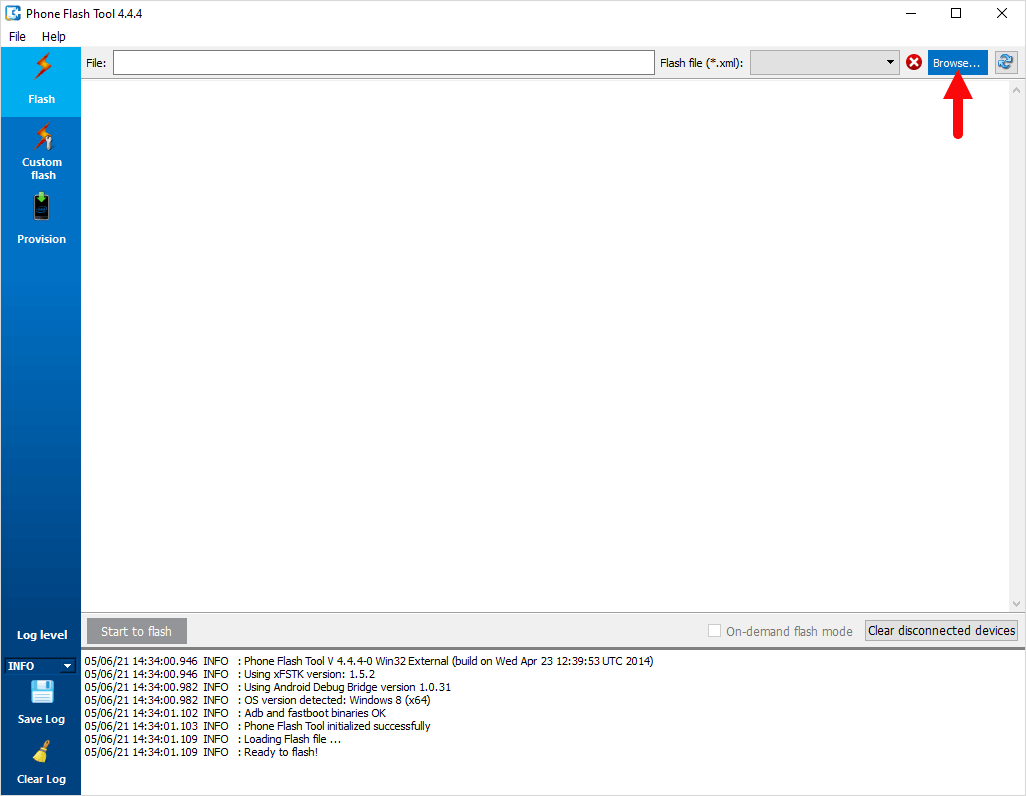
Once you locate the flash.xml, open it on the tool to launch it.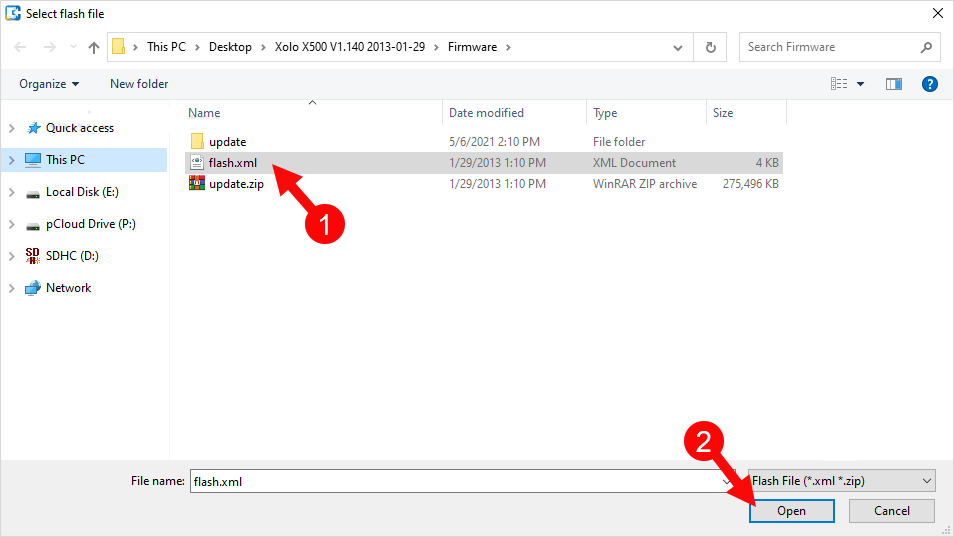
The next step is to connect your phone to the PC with the USB cable.
To connect your phone, power it off, and while it is off, boot it to the fastboot mode of your phone.
While at fastboot, now plug it into the PC using the USB cable and then proceed to flashing.
To begin flashing, click on Start to Flash.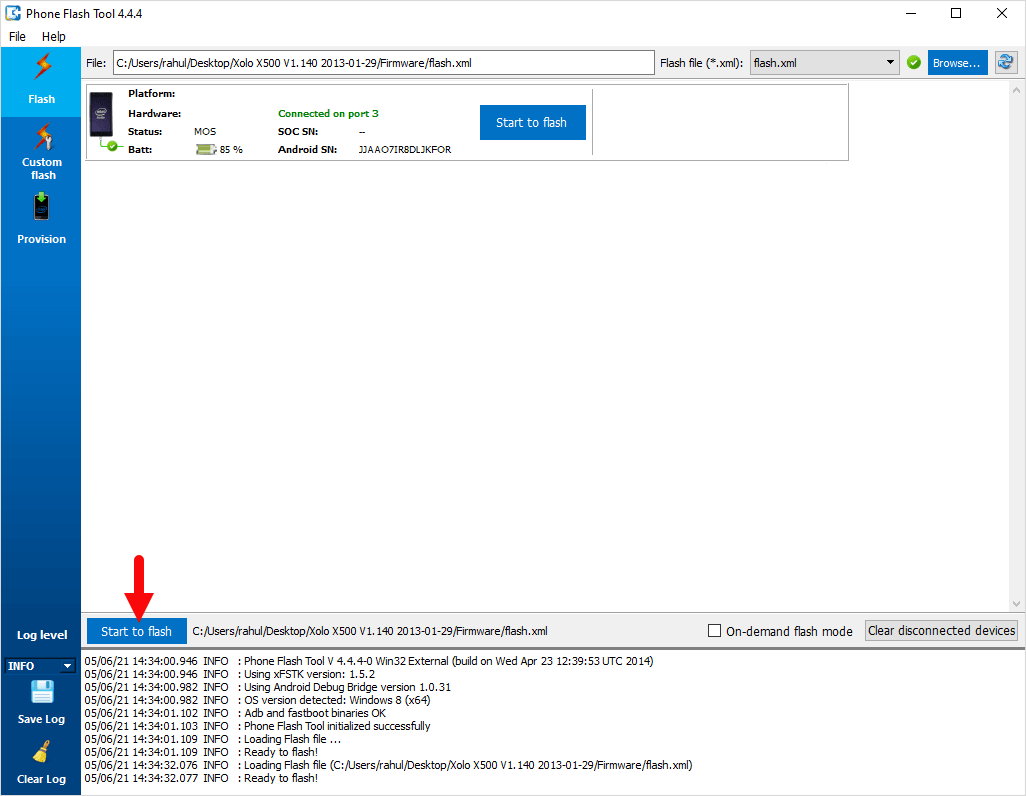
Drop your phone to avoid interruption and wait for the flashing to complete.
Once it is complete, unplug your phone, reboot it, and enjoy the new experience.