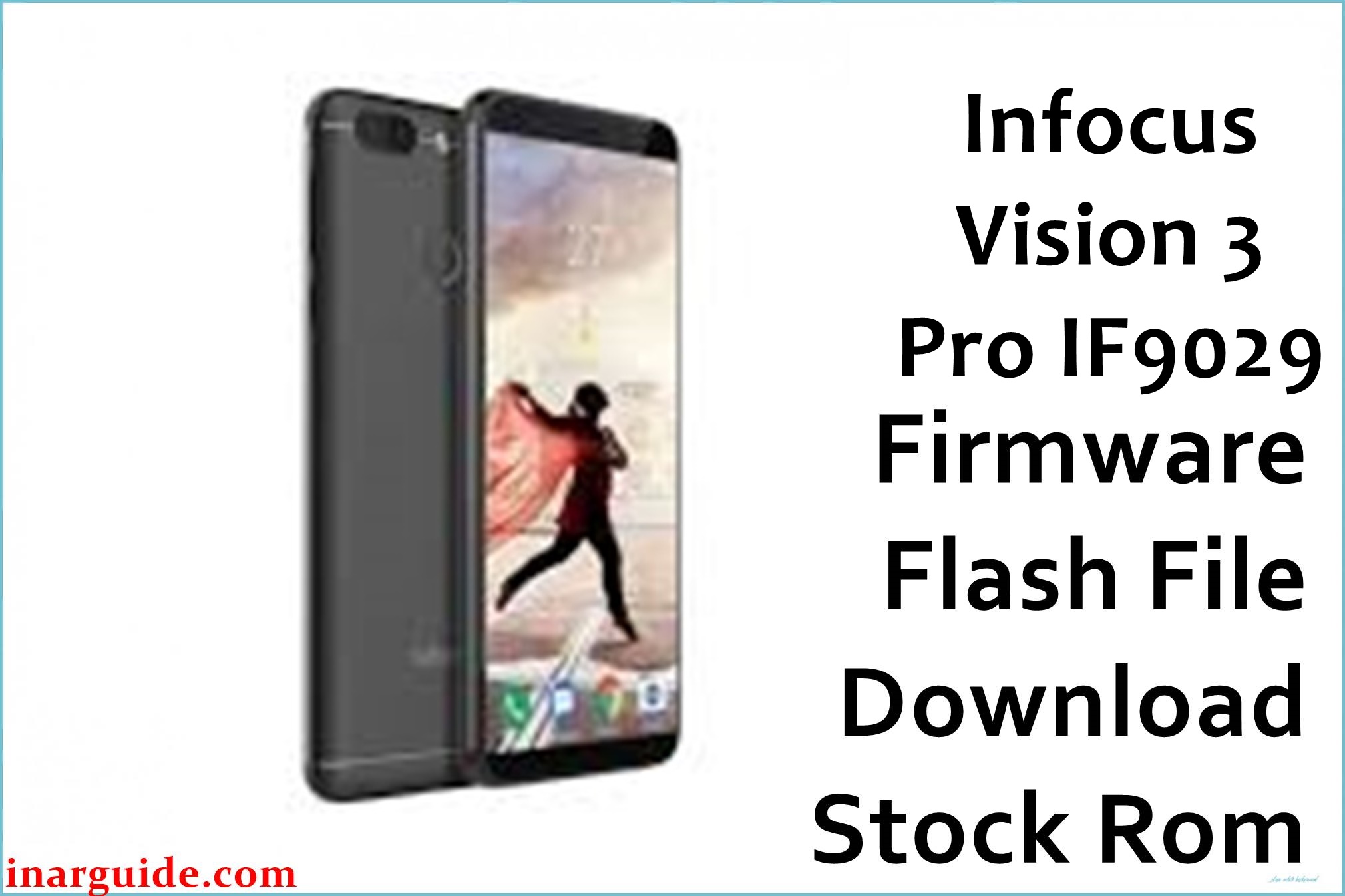
The InFocus Vision 3 Pro (model IF9029) is an upgraded version of the original Vision 3, featuring a MediaTek MT6750 octa-core processor, 4GB of RAM, and a large 5.7-inch display. Although well-built, many users reported issues including sluggish performance after updates, Wi-Fi disconnection errors, and random system app crashes. Some devices also suffered from boot loops or unresponsive screens after rooting attempts. Installing the official firmware below helps fix these issues, restores device stability, and refreshes your system to stock condition.
InFocus Vision 3 Pro Firmware Details
| Device Name: | InFocus Vision 3 Pro |
| Model: | IF9029 |
| Chipset: | MediaTek MT6750 (Octa-Core 1.5GHz Cortex-A53) |
| GPU: | Mali-T860 MP2 |
| Android Version: | Android 7.0 (Nougat) |
| Firmware Version: | AY1_V0.20G_00WW_A05 |
| Build Date: | May 9, 2018 |
| File Size: | 1.94GB |
| File Type: | Scatter Firmware Package (.zip) |
| Flashing Tool: | SP Flash Tool (for MTK devices) |
| Battery: | 4000mAh Li-Ion (non-removable) |
| Display: | 5.7-inch HD+ IPS (1440 x 720 pixels) |
| RAM / Storage: | 4GB RAM / 64GB internal (Expandable up to 128GB) |
| Camera: | Dual Rear (13MP + 8MP), Front (13MP with “Circle” mode) |
Download Official Firmware for InFocus Vision 3 Pro
This firmware is ideal for restoring stock performance, fixing sluggish responses, and resolving system crashes or software corruption caused by rooting or modification attempts.
📄 Filename: Infocus_Vision_3_Pro_IF9029_MT6750_AY1_V0.20G_00WW_A05_20180509.zip
📦 Size: 1.94GB
🗓️ Build Date: May 9, 2018
🔢 Build Version: AY1_V0.20G_00WW_A05
🤖 Android Version: 7.0 Nougat
⬇️ Download Link: Google Drive
How to Flash the Firmware
Follow these 5 quick steps to safely flash the official InFocus Vision 3 Pro firmware to your phone:
- Download and extract the
Infocus_Vision_3_Pro_IF9029_MT6750_AY1_V0.20G_00WW_A05_20180509.zipfile along with the SP Flash Tool on your PC. - Install MediaTek VCOM drivers and open SP Flash Tool.
- Load the scatter file from the extracted firmware folder into the tool.
- Turn off your phone and connect it to the computer using a USB cable.
- Click “Download” and wait until the process is complete, then reboot your phone.
To see the complete flashing tutorial with images and video, visit this detailed guide.





