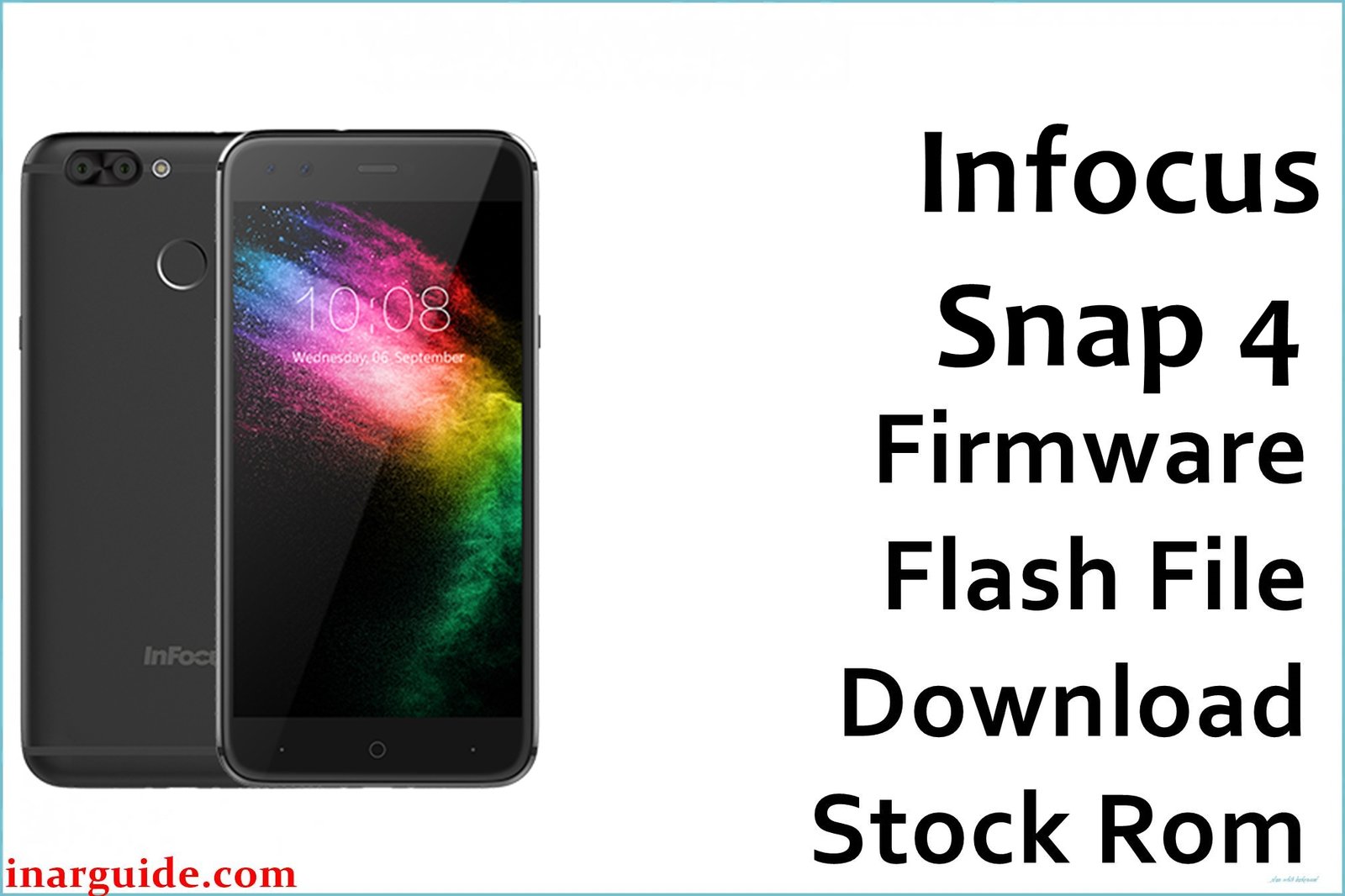
The InFocus Snap 4 is a stylish quad-camera smartphone released in 2017, equipped with the MediaTek MT6750 chipset and Android 7.0. However, users have reported issues including unresponsive touch, battery drain, and frequent app crashes. Some devices also experience bootloop, lagging UI, and fast-draining standby time after OTA updates. Flashing the latest official firmware fixes these major bugs, restores the stock ROM, and boosts overall performance.
InFocus Snap 4 Firmware Details
| Device Name: | InFocus Snap 4 |
| Model: | AH1-126A-0-00WW-A01 |
| Chipset: | MediaTek MT6750 (Octa-Core 1.5GHz Cortex-A53) |
| GPU: | ARM Mali-T860 MP2 |
| Android Version: | Android 7.0 Nougat |
| Firmware Version: | AH1-126A-0-00WW-A01_SUT |
| Build Date: | August 2024 |
| File Size: | 1.36GB |
| File Type: | Firmware Update (.zip) |
| Flashing Tool: | SUT / SP Flash Tool (MTK) |
| Display: | 5.2-inch IPS LCD, 720×1280 pixels |
| RAM / Storage: | 4GB RAM / 64GB ROM (Expandable up to 128GB) |
| Battery: | 3000mAh Li-Ion (Non-removable) |
| Camera: | Dual Rear (13MP + 8MP) / Dual Front (8MP + 8MP) |
Download Official Firmware for InFocus Snap 4
This official firmware helps fix common issues such as stuck logo, FRP lock, forgotten pattern, heating, unresponsiveness, and system crashes. It also improves network stability and enhances camera performance.
📄 Filename: Infocus_Snap_4_AH1-126A-0-00WW-A01_SUT.zip
📦 Size: 1.36GB
🗓️ Build Date: August 2024
🔢 Build Version: AH1-126A-0-00WW-A01_SUT
🤖 Android Version: 7.0 (Nougat)
⬇️ Download Link: MediaFire
How to Flash the Firmware
Follow these 5 quick steps to install the firmware safely on your InFocus Snap 4:
- Download and extract the InFocus Snap 4 firmware and install device drivers.
- Open the SUT or SP Flash Tool and load the firmware scatter file.
- Power off your phone and connect it to your computer using a USB cable.
- Click start or download in the tool and wait until the process completes.
- When flashing is done, unplug and reboot your device into the refreshed system.
To view the detailed flashing tutorial with step-by-step screenshots, see this complete guide.





