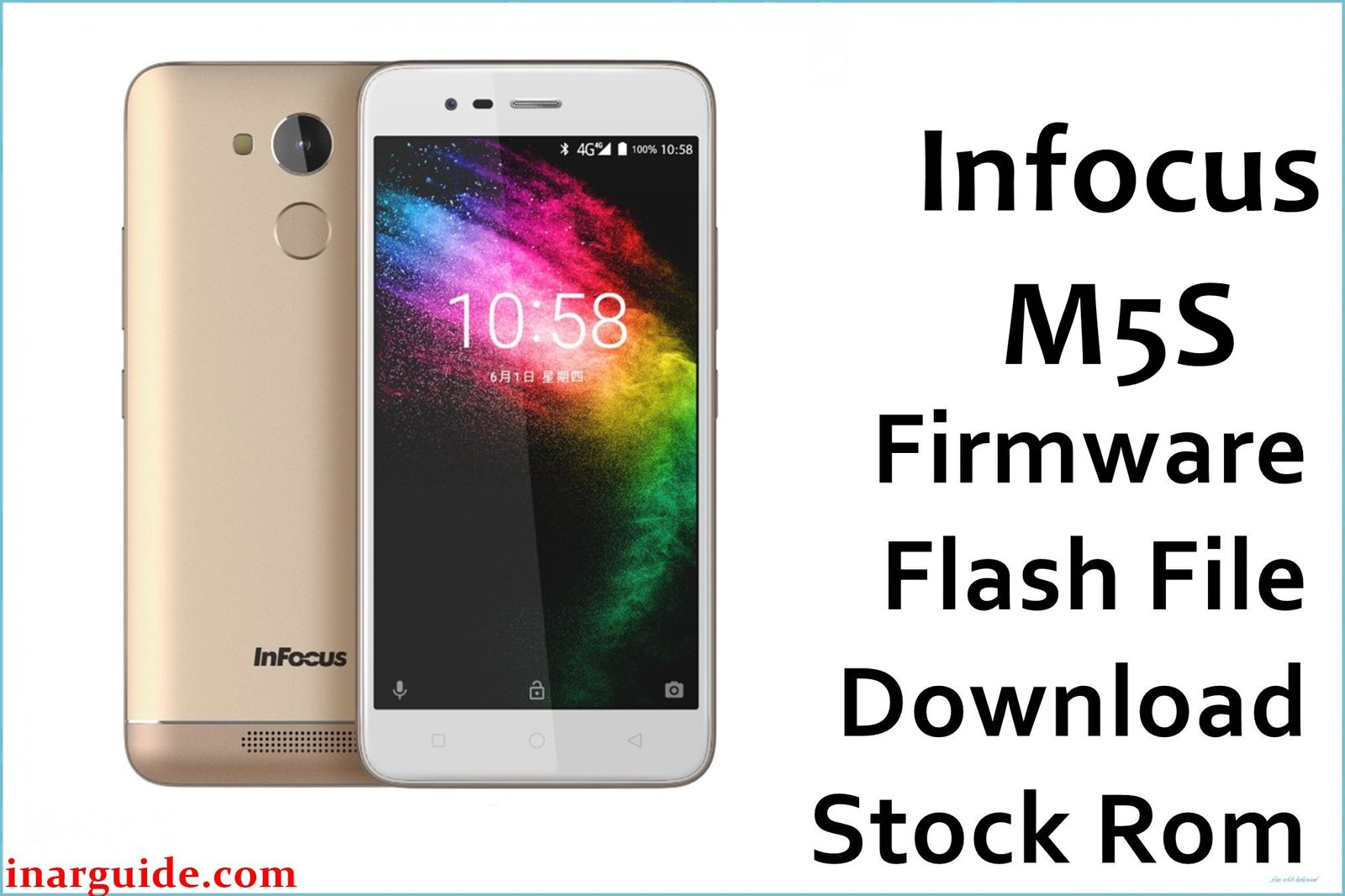
The InFocus M5s is a mid-range smartphone powered by the MediaTek MT6737M chip, offering decent performance but known for some issues such as frequent app lags, slow boot time, and battery calibration faults. Many users also report network instability and bootloop errors after OTA updates. Flashing the official firmware below helps to fix these performance issues, unbrick the device, and restore it to its stock condition.
InFocus M5s Firmware Details
| Device Name: | InFocus M5s |
| Model: | FIH-E523F / M5s |
| Chipset: | MediaTek MT6737M (Quad-Core 1.25GHz Cortex-A53) |
| GPU: | Mali-T720 MP2 |
| Android Version: | Android 7.0 Nougat |
| Firmware Version: | V2.6B16 |
| Build Date: | August 17, 2024 |
| File Size: | 1GB |
| File Type: | Scatter Package (.zip) |
| Flashing Tool: | SP Flash Tool (MTK) |
| Battery: | 4000mAh (Non-removable) |
| Display: | 5.2-inch IPS, 1280×720 pixels |
| RAM / Storage: | 3GB RAM / 32GB ROM (Expandable) |
Download Official Firmware for InFocus M5s
This official firmware is ideal for fixing boot issues, unbricking the device, and restoring factory settings. It can also resolve system lag, software crashes, and IMEI problems after formatting.
📄 Filename: Infocus_M5S_MT6737M_FIH-E523F-K101_V2.6B16_240817.zip
📦 Size: 1GB
🗓️ Build Date: August 17, 2024
🔢 Build Version: V2.6B16
🤖 Android Version: 7.0 (Nougat)
⬇️ Download Link: Google Drive
How to Flash the Firmware
Follow these 5 quick steps to install the official InFocus M5s firmware safely:
- Download and extract the firmware package and SP Flash Tool.
- Install the required MediaTek USB drivers on your computer.
- Launch SP Flash Tool and load the scatter file from the firmware folder.
- Connect your powered-off InFocus M5s via USB and begin flashing.
- Wait until a green checkmark appears, then disconnect and reboot.
To view the complete flashing guide with pictures and videos, visit this step-by-step tutorial.





