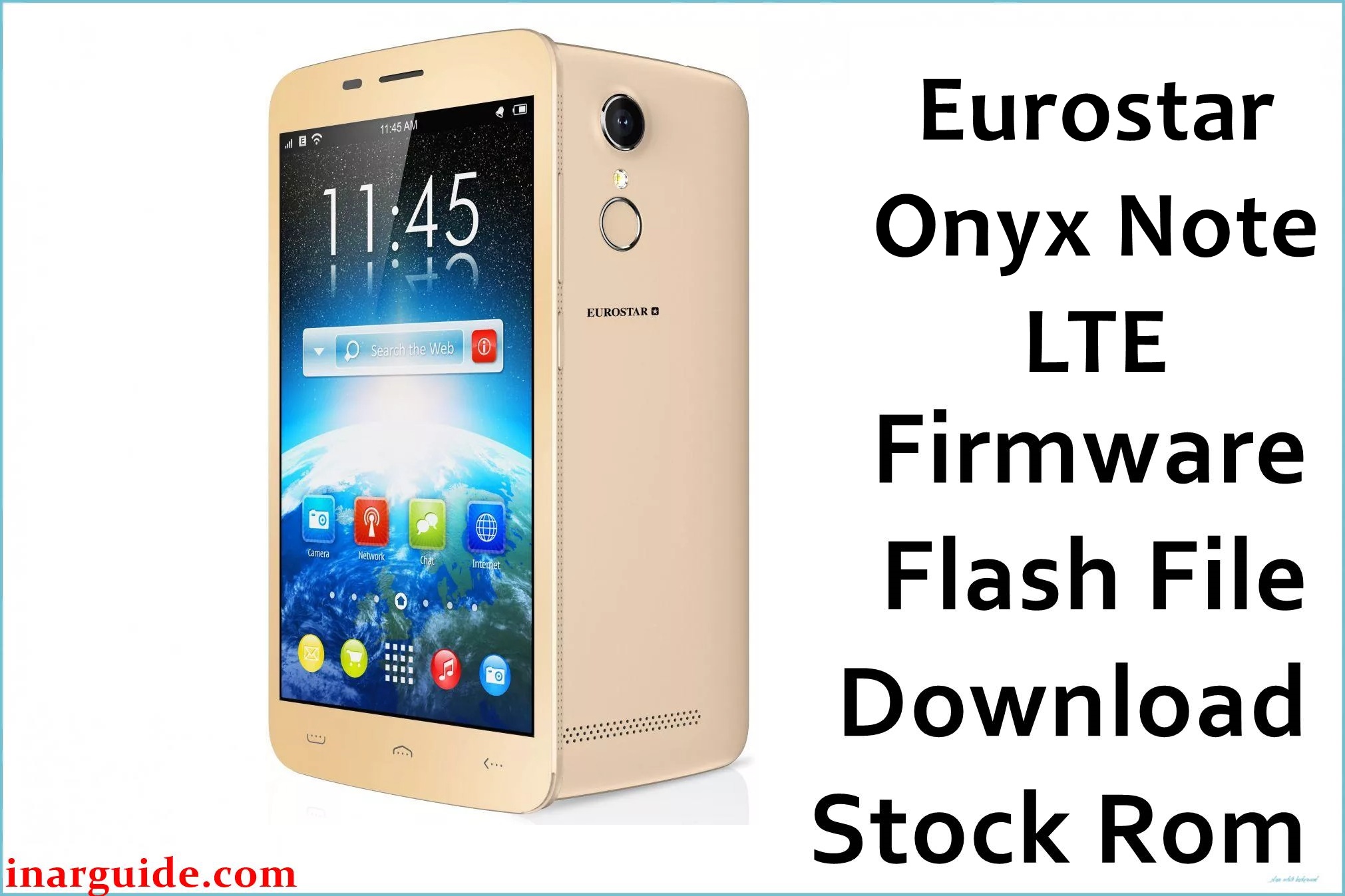
The Eurostar Onyx Note LTE is a 4G‑capable Android smartphone based on the MediaTek MT6737M platform, and the firmware archive listed here is a stock Android 7.0 ROM intended for full system restoration using a PC‑based flashing tool.
This type of package can help recover the phone from bootloops, failed updates, or software corruption by reinstalling the factory Android 7.0 build and all core partitions.
Eurostar Onyx Note LTE Firmware Details
| Device Name | Eurostar Onyx Note LTE |
|---|---|
| Model Identifier | Onyx Note LTE (exact retail code varies by batch/region) |
| Codename | MT6737M‑based Eurostar Onyx Note LTE (no public codename in filename) |
| Chipset / Platform | MediaTek MT6737M, quad‑core Cortex‑A53, LTE‑capable platform |
| Launch Android Version | Android 7.0 Nougat (per firmware filename “7.0”) |
| Current Firmware Line | Eurostar_Onyx_Note_LTE_MT6737M_V1.0_11012018_7.0 (factory stock ROM, version 1.0) |
| Typical File Size Range | Approx. 833 MB compressed ZIP (larger once extracted) |
| Firmware Type | Stock ROM archive, likely containing scatter file and partition images for SP Flash Tool |
| Flashing Tool | SP Flash Tool (MediaTek scatter loading) or an equivalent MTK firmware flasher |
| Bootloader Requirement | Standard MT6737M preloader access; device must be detected in preloader/bootrom mode over USB |
| Region / Branch Notes | Single generic build V1.0_11012018_7.0; no distinct regional suffix is exposed in the filename |
⚠️ Flashing Risks & Disclaimer
This device uses the MediaTek MT6737M platform, so flashing an incorrect scatter file, preloader, or modem image from another phone can cause deep bricks or loss of LTE and IMEI configuration. Scatter‑based flashes that include “Format All + Download” risk erasing NVRAM, NVDATA, and other calibration partitions, which may not be fully restored by the public ROM alone.
Improper use of SP Flash Tool (such as interrupting the flash, selecting wrong options, or mixing images) can leave the phone stuck on logo, in a bootloop, or undetectable over USB without specialist recovery. Only experienced users should perform low‑level flashing, and all actions are taken at the user’s own risk; backing up NVRAM and user data beforehand is strongly recommended whenever the device is still able to boot.
Download Official Firmware for Eurostar Onyx Note LTE
The table below lists the known stock Android 7.0 firmware archive for the Eurostar Onyx Note LTE, hosted on Google Drive as provided in the download link.
| Region / Variant | Filename | Build / Version | Android / Firmware Version | File Type | Build Date | File Size | Download Link |
|---|---|---|---|---|---|---|---|
| Global (Eurostar Onyx Note LTE) | Eurostar_Onyx_Note_LTE_MT6737M_V1.0_11012018_7.0.zip | V1.0_11012018_7.0 (MT6737M) | Android 7.0 Nougat | Firmware archive (.zip) | 2018‑01‑11 (interpreted from “11012018” in filename) | 833 MB (compressed) | Download Eurostar Onyx Note LTE ROM (Google Drive) |
Flashing Requirements
This MT6737M‑based phone is typically restored with SP Flash Tool using a scatter file in the extracted firmware folder. A Windows PC is strongly preferred because MediaTek USB drivers and SP Flash Tool are primarily distributed for Windows.
- Install MediaTek VCOM/Preloader USB drivers so the powered‑off Eurostar Onyx Note LTE is recognized when connected in preloader/bootrom mode.
- Download and fully extract Eurostar_Onyx_Note_LTE_MT6737M_V1.0_11012018_7.0.zip, then locate the MT6737M scatter file (for example, MT6737M_Android_scatter.txt) and associated partition images.
- Use only the scatter and partition images from this archive for this phone; avoid mixing files from other MT6737(M) devices to reduce the risk of NVRAM or modem mismatches.
- Back up NVRAM/NVDATA (IMEI and radio configuration) and user data if the device can still boot, because some flashing modes can erase these partitions permanently.
- Charge the battery to at least 50% and use a direct, good‑quality USB cable plugged into a reliable USB port (no hubs) during flashing.
How to Flash the Firmware
The following high‑level steps describe a typical SP Flash Tool workflow for installing the Eurostar_Onyx_Note_LTE_MT6737M_V1.0_11012018_7.0 firmware on an MT6737M phone.
- Download the Eurostar_Onyx_Note_LTE_MT6737M_V1.0_11012018_7.0.zip file from Google Drive and extract it on the PC; verify that the MT6737M scatter file and partition images are present.
- Install MediaTek USB VCOM drivers, open SP Flash Tool, and click “Scatter‑loading” to select the MT6737M scatter file from the extracted firmware folder.
- Review the partition list; for a standard repair, choose “Download Only” and keep preloader selected only if the ROM is confirmed correct for this exact device, otherwise deselect preloader for a safer partial flash.
- With the phone powered off, click “Download” in SP Flash Tool, then connect the Eurostar Onyx Note LTE to the PC via USB; the tool should detect the preloader/bootrom connection and begin flashing.
- Wait until SP Flash Tool reports a successful flash, then disconnect the phone and power it on; first boot after a full Android 7.0 reinstall can take several minutes while the system rebuilds caches and optimizes apps.
For a detailed explanation of scatter loading, modes, and common MTK flashing behavior, see the SP Flash Tool guide: Flash MediaTek firmware with SP Flash Tool.
Frequently Asked Questions (FAQs)
Is this ROM specific to the Eurostar Onyx Note LTE MT6737M?
The filename explicitly includes “Onyx_Note_LTE_MT6737M_V1.0_11012018_7.0”, so it is intended for the MT6737M‑based Eurostar Onyx Note LTE and should not be used on other Eurostar or MT6737 variants with different hardware layouts.
Does this Android 7.0 firmware upgrade the device from Android 6.0?
This package is labeled Android 7.0 and version V1.0_11012018_7.0, so it installs or restores a Nougat‑based system; whether this is an upgrade depends on the ROM currently installed on the phone.
Can this firmware fix a bootloop or soft‑brick?
When the underlying hardware is intact, a correct scatter‑based flash can often resolve software bootloops or a stuck logo by replacing corrupted system and boot partitions, but it cannot repair failing storage or other physical defects.





