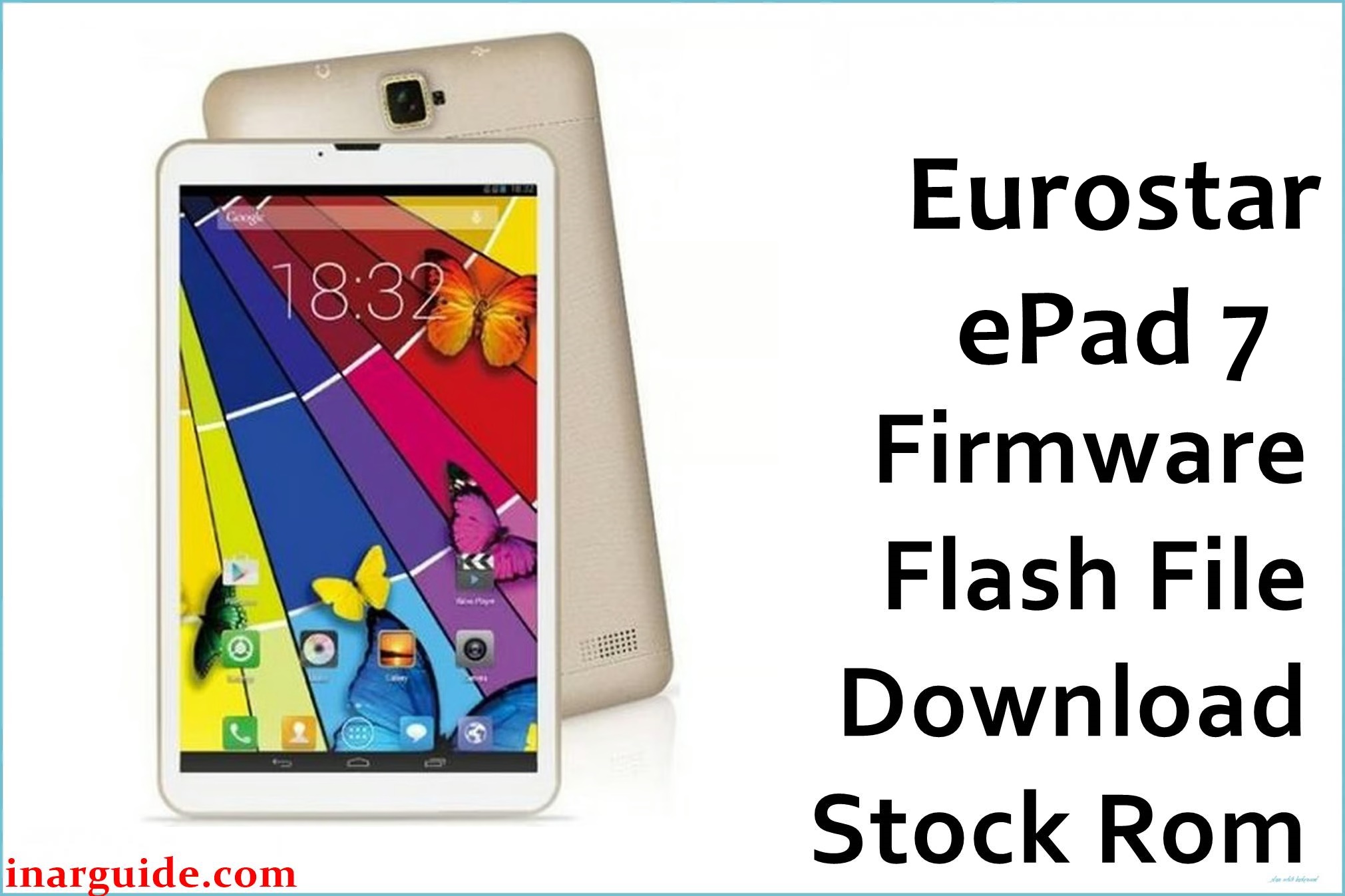
The Eurostar ePad 7 is a 7‑inch Android tablet based on the Spreadtrum/Unisoc SC7731G 3G platform, typically sold as a low-cost kids or entry tablet. The firmware package Eurostar_ePad_7_SP7731GEA_SW05CB_HDR_V1.0.0_170106_6.0_SPD is an official Android 6.0 stock ROM in SPD format, intended for use with SPD/Spreadtrum flashing tools to recover from bootloops, failed modifications, or software corruption.
Flashing this ROM can help restore the device to factory software state, remove custom ROMs, or fix startup issues, but all data on internal storage may be erased.
Eurostar ePad 7 Firmware Details
| Device Name | Eurostar ePad 7 |
|---|---|
| Model Identifier | Eurostar ePad-7 / si7067sc_cuser_170106 (board family) |
| Codename / Board | SP7731GEA / SC7731G (Spreadtrum) |
| Chipset / Platform | Spreadtrum / Unisoc SC7731G, quad‑core Cortex‑A7 |
| Launch Android Version | Android 6.0 Marshmallow |
| Current Firmware Line | Stock Eurostar ROM SW05CB_HDR_V1.0.0_170106 (Android 6.0) |
| Typical File Size Range | Around 900 MB – 1 GB for full SPD ROM package |
| Firmware Type | SPD/Spreadtrum stock ROM (flashable via SPD Upgrade / Research / Factory tools) |
| Flashing Tool | SPD/Spreadtrum Upgrade Tool (also known as SPD Upgrade/Download Tool) |
| Bootloader Requirement | No user unlock; requires correct SPD drivers and flashing in download mode |
| Region / Branch Notes | Single generic Eurostar ePad 7 build; do not mix with firmware for other Eurostar ePad models or non‑SC7731G variants |
⚠️ Flashing Risks & Disclaimer
This Eurostar ePad 7 firmware targets the SP7731GEA / SC7731G platform only, so flashing it on a different Eurostar model, different SoC, or mismatched board revision can hard‑brick the tablet or break radio, touch, or display support. SPD flashing rewrites low‑level partitions (including boot, system, and sometimes nv partitions), so a wrong or interrupted flash can cause permanent boot failure, IMEI loss, or loss of calibration data that may require professional tools to recover.
All operations are performed at the user’s own risk. Confirm the device is an ePad 7 based on SC7731G, verify that the firmware build matches SP7731GEA_SW05CB_HDR_V1.0.0_170106_6.0, and ensure a stable PC, USB cable, and power before flashing.
Download Official Firmware for Eurostar ePad 7
| Region / Variant | Filename | Build / Version | Android / Firmware Version | File Type | Build Date | File Size | Download Link |
|---|---|---|---|---|---|---|---|
| Global (Eurostar ePad 7, SC7731G) | Eurostar_ePad_7_SP7731GEA_SW05CB_HDR_V1.0.0_170106_6.0_SPD.zip | SW05CB_HDR_V1.0.0_170106 | Android 6.0 Marshmallow | SPD stock ROM package (.zip with PAC/IMG + tools) | 2017‑01‑06 (firmware build tag) | ≈ 921.6 MB (archive) | Download Eurostar ePad 7 SPD ROM (MediaFire) |
Flashing Requirements
- A Windows PC (recommended) with administrative rights to install Spreadtrum/Unisoc USB drivers and run the SPD Upgrade / Research / Factory tool.
- Installed SPD/Spreadtrum USB drivers so the SC7731G‑based tablet is recognized in download mode over USB.
- The extracted Eurostar_ePad_7_SP7731GEA_SW05CB_HDR_V1.0.0_170106_6.0_SPD.zip package, which typically contains the PAC or partition images plus the flashing tool and drivers.
- A good quality USB cable and a stable USB port; avoid hubs and loose connections during the write process.
- Battery charge at a safe level (ideally above 50%), as interrupting an SPD flash on SC7731G can leave the tablet in a non‑booting state.
- Verification that the tablet is indeed Eurostar ePad 7 (not ePad 2/3/4/5/Genie/Onyx series) and uses the SC7731G/7731GEA platform; when in doubt, compare board IDs and printed labels.
How to Flash the Firmware
- Confirm that the tablet is an Eurostar ePad 7 with Spreadtrum SC7731G (SP7731GEA) board and that the chosen firmware is Eurostar_ePad_7_SP7731GEA_SW05CB_HDR_V1.0.0_170106_6.0_SPD to avoid cross‑model flashes.
- On the PC, extract the downloaded ZIP, then install the included SPD/Spreadtrum USB drivers and run the SPD Upgrade or SPD Research/Download Tool executable from the firmware package.
- In the SPD tool, load the PAC file (or project configuration) from the Eurostar ePad 7 firmware folder, then power off the tablet and connect it in download mode (often by plugging USB while holding a volume key, depending on board behavior).
- After the tool detects the SC7731G device, start the flash process and wait until all partitions are written and a success message appears; do not disconnect the cable or power off the PC during this operation.
- Once flashing is complete, disconnect the USB cable and power on the tablet; first boot into Android 6.0 may take several minutes while the ePad 7 initializes the new system, optimizes apps, and rebuilds caches.
For a general walkthrough on installing SPD/Spreadtrum firmware with the SPD Upgrade Tool on SC7731/SC7731G devices, see this reference guide: How to flash Spreadtrum/Unisoc firmware with SPD Upgrade Tool.
Frequently Asked Questions (FAQs)
Is this SPD ROM only for the Eurostar ePad 7 SC7731G variant?
Yes, this firmware is specifically labeled for Eurostar ePad 7 with SP7731GEA / SC7731G hardware and should not be used on other Eurostar tablets or non‑SC7731G models.
Can this stock firmware remove a custom ROM or root changes?
Flashing the full SPD stock ROM overwrites system and boot partitions, so it can remove most custom ROM and root changes and restore the original Android 6.0 software, though user data is typically wiped.
Will SPD flashing erase internal storage on the Eurostar ePad 7?
Most full SC7731G SPD flashes are configured as full wipes, so apps and internal user data are usually erased; back up anything accessible before starting where possible.
What problems can this firmware realistically help with?
This stock ROM can help fix software issues such as bootloops, OS corruption, failed updates, and instability from incompatible apps or modifications, but it cannot resolve hardware faults like damaged displays or bad batteries.
Do all Eurostar ePad 7 units use the same firmware?
Eurostar ePad 7 units based on the same SC7731G board and Android 6 line generally share this firmware, but some sub‑revisions may require slightly different builds, so matching the board ID and firmware tag is important.
Can other flashing tools (Infinity‑Box, etc.) be used instead of SPD Upgrade Tool?
Service tools like Infinity‑Box or similar SC7731‑compatible boxes can flash the same images if configured correctly, but this is intended for technicians and is outside the scope of typical user instructions.
Is there a simpler option than flashing if the issue is only a pattern lock?
For lock or PIN issues without deeper system damage, a hard reset through the recovery menu may be enough, and is often demonstrated for the ePad 7 without using a PC..





