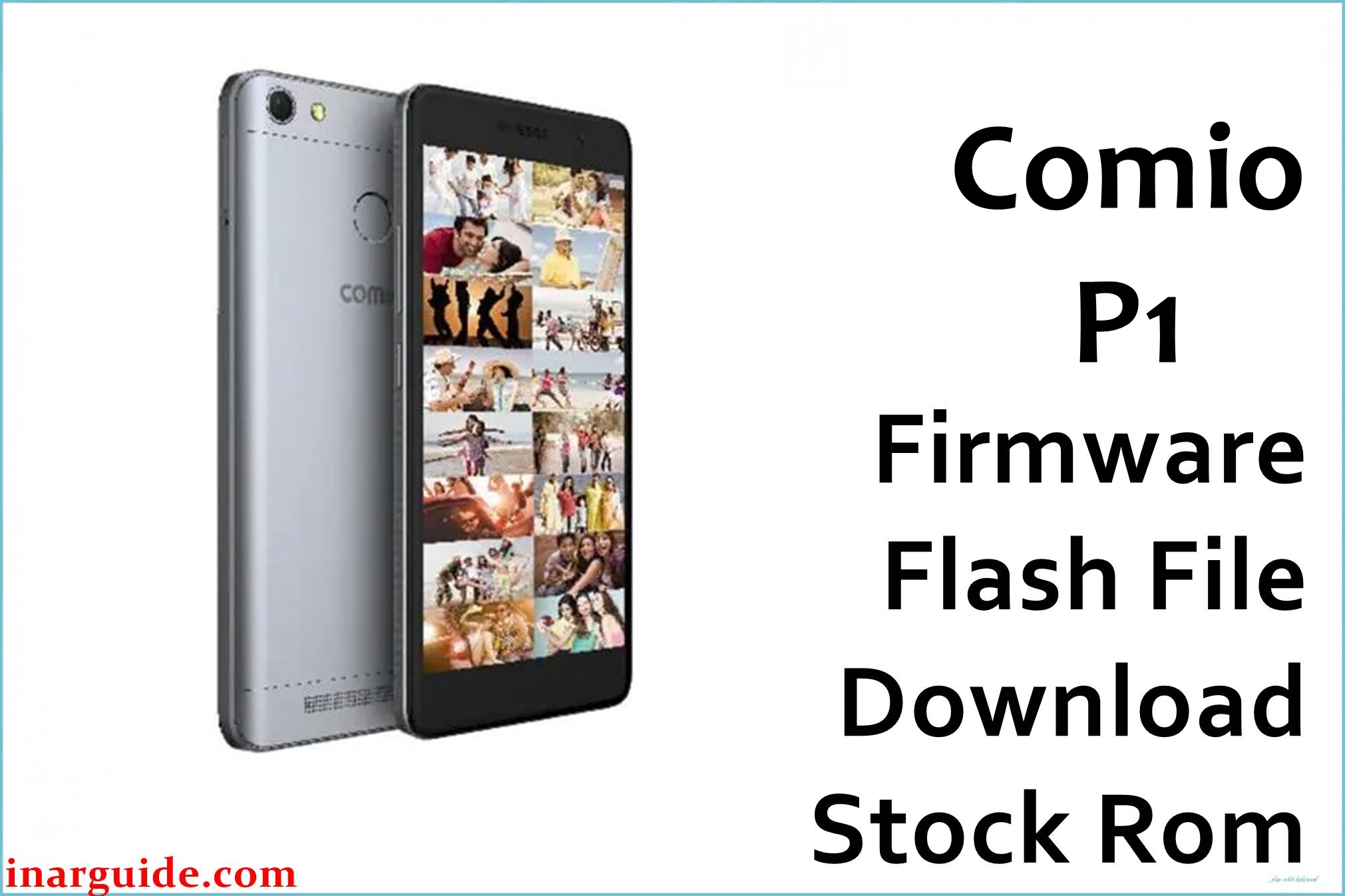
The Comio P1 is a budget Android 7.0 smartphone featuring a 5.5‑inch HD IPS display, 3 GB RAM, 32 GB storage, and a massive 5000 mAh battery aimed at users who prioritise all‑day endurance.
Despite the big battery, many owners complain about slow performance, frequent lag, long charging times, and battery backup that degrades noticeably after a few months of use.
The Comio_P1_171013_7.0_CPB and Comio_P1_MT6737M_171013_7.0 firmware packages are full stock ROMs that can unbrick the device, fix boot‑loops, clear stubborn software bugs, and refresh performance by reinstalling a clean Android 7.0 system on the P1.
Comio P1 Firmware Details
| Field | Details |
|---|---|
| Device Name | Comio P1 |
| Model Identifier | P1, dual‑SIM 4G VoLTE Android smartphone |
| Chipset / CPU | MediaTek MT6737 / MT6737M, quad‑core 1.3 GHz, Mali‑T720 GPU |
| RAM / Storage | 3 GB RAM, 32 GB internal storage, microSD up to 128 GB |
| Display | 5.5‑inch IPS LCD, 720 × 1280 pixels (HD) |
| Battery | 5000 mAh non‑removable Li‑ion battery |
| Android Version | Android 7.0 Nougat with COMIO UI |
| Firmware Base | 171013 build line (October 13, 2017) for Comio P1 |
| Available Packages | Comio_P1_171013_7.0_CPB (CPB format); Comio_P1_MT6737M_171013_7.0 (scatter/SP Flash Tool style) |
| Approx. File Sizes | ~1.40 GB CPB file; ~1.39 GB MT6737M flash package |
| File Types | .CPB full stock ROM;.zip archive containing MT6737M firmware for SP Flash Tool‑style flashing |
| Flashing Tools | QGDP / CPB flasher for CPB build; SP Flash Tool‑compatible workflow for MT6737M package (scatter‑based) |
| Typical Use Cases | Repair boot‑loops, remove malware, fix severe lag/slow charging bugs, and restore stock system after failed mods. |
Download Official Firmware for Comio P1
| Filename | Type / CPU | File Size | Build Date | Build Version | Android | Flashing Type | Notes | Download Link |
|---|---|---|---|---|---|---|---|---|
| Comio_P1_171013_7.0_CPB.zip | CPB stock ROM for Comio P1 (MT6737 series) | ≈ 1.40 GB | 2017‑10‑13 base build | 171013_7.0_CPB | Android 7.0 Nougat | QGDP / other CPB flashing tool (full firmware rewrite) | Recommended when using CPB‑based workflow to unbrick devices stuck on logo, in boot‑loops, or affected by serious software corruption. | Download Comio P1 171013 CPB (MediaFire) |
| Comio_P1_MT6737M_171013_7.0.zip | MT6737M firmware package, likely scatter‑based for SP Flash Tool | ≈ 1.39 GB | 2017‑10‑13 base build | 171013_7.0_MT6737M | Android 7.0 Nougat | MediaTek SP Flash Tool‑style flashing (after extracting and loading scatter) | Useful when working directly with MT6737M chipset tools, for deep repair (NVRAM issues, partition‑level problems) on compatible P1 units. Confirm CPU (MT6737M) before using. | Download Comio P1 MT6737M 171013 (MediaFire) |
Flashing Requirements
- Windows PC or laptop with administrator rights and a stable USB port for flashing.
- Comio P1 handset with at least 60% battery charge to prevent shutdown mid‑flash.
- Good‑quality USB cable to avoid random disconnects during the process.
- Correct MediaTek USB/VCOM drivers installed so Windows can detect the device in download mode.
- For CPB file: QGDP (or another verified CPB flasher) installed and configured on the PC.
- For MT6737M package: SP Flash Tool (or equivalent) and extracted firmware folder with scatter file.
- Complete backup of personal data (contacts, photos, WhatsApp, internal storage) because full flashing will normally erase user data.
How to Flash the Firmware
Quick steps – Comio_P1_171013_7.0_CPB (QGDP / CPB method):
- Install MediaTek USB drivers and QGDP Tool on your Windows PC, then open QGDP and log in with the default credentials provided by the tool.
- In QGDP, go to configuration, select the Comio_P1_171013_7.0_CPB file, confirm the settings, and save.
- Power off the Comio P1 completely, connect it to the PC via USB, and wait for the driver to load.
- Click Start/Upgrade in QGDP and let the tool flash all partitions; do not disconnect or press any buttons until a success status appears.
- Disconnect the phone, boot it up, and complete the Android setup wizard, then test calls, data, Wi‑Fi, and battery behaviour.
Quick steps – Comio_P1_MT6737M_171013_7.0 (SP Flash Tool‑style method):
- Extract the Comio_P1_MT6737M_171013_7.0.zip to a folder, install MediaTek VCOM drivers, and open SP Flash Tool on your PC.
- Load the scatter file from the extracted firmware folder in SP Flash Tool and choose the appropriate mode (Download Only or Firmware Upgrade) as recommended by your repair guide.
- With the phone powered off, click Download in SP Flash Tool, then connect the Comio P1 via USB and wait for the tool to detect it.
- Allow SP Flash Tool to write the selected partitions and verify them; do not interrupt until the success dialog or green checkmark is shown.
- Unplug the device, power it on, and go through the initial setup; if needed, perform a factory reset from recovery to clear residual cache issues.
For a detailed, illustrated walk‑through with screenshots and videos of CPB flashing, use this guide: How to use QGDP Tool to flash CPB firmware on Android devices. For scatter‑based MediaTek flashing instructions that also apply to MT6737M‑type files, follow: How to flash stock firmware to MediaTek smartphones (SP Flash Tool).
Frequently Asked Questions (FAQs)
What problems can these Comio P1 firmware files fix?
The 171013 stock ROMs can revive P1 units stuck on the COMIO logo, trapped in boot‑loops, or crashing repeatedly after failed updates or heavy app installs. They also help clean out malware‑infected systems, repair broken system apps, and often improve responsiveness on devices suffering from severe lag.
What is the difference between the CPB file and the MT6737M package?
The Comio_P1_171013_7.0_CPB file is a CPB‑formatted full firmware meant for QGDP or similar CPB flashing tools commonly used in service centres. The Comio_P1_MT6737M_171013_7.0 package is structured for MT6737M‑style tools (such as SP Flash Tool) and exposes partitions via a scatter file, which is better suited when working directly at chipset level.
Can flashing fix my battery drain and slow performance issues?
Many users report that Comio P1 battery life deteriorates over time and that the UI feels sluggish under normal workloads. A clean flash of stock firmware removes accumulated bloat, resets misconfigured services, and can restore some of the original endurance and smoothness, although it cannot fix inherent hardware or design limitations.
How do I choose which firmware package to use?
If you are following a CPB‑based guide or using QGDP in a shop‑style workflow, select the Comio_P1_171013_7.0_CPB file. If your technician prefers SP Flash Tool or you specifically need MT6737M scatter‑based flashing for deeper repair, use the Comio_P1_MT6737M_171013_7.0 package, confirming the CPU and scatter compatibility first.
Will flashing these ROMs delete my personal data?
Yes, both CPB and scatter‑based full‑flash processes typically wipe user data, installed apps, and internal storage content as part of the repair. Back up everything important to a PC, SD card, or cloud account before starting to avoid irreversible data loss.
What if my Comio P1 is not detected by the flashing tool?
If QGDP or SP Flash Tool does not detect your P1, reinstall MediaTek USB/VCOM drivers, try a different USB port or cable, and ensure the phone is fully powered off before connecting. On some Windows systems you may need to disable driver signature enforcement or test flashing on another PC to get a stable preloader connection.





