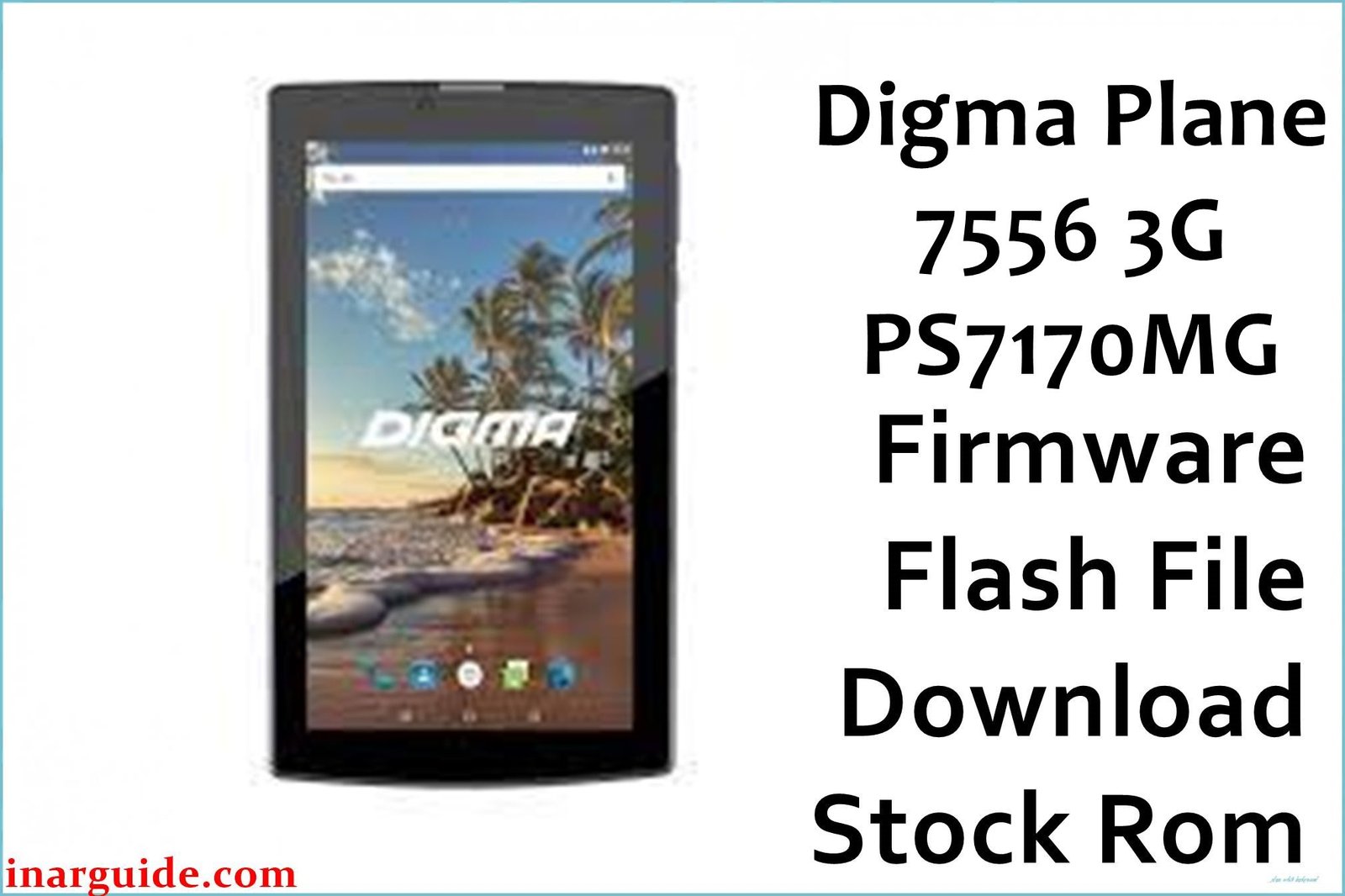
If your Digma Plane 7556 3G (PS7170MG) tablet is stuck at the logo, boots slowly, shows random popups, or experiences charging circuit problems, installing the stock firmware is the proven solution. This article features the latest Digma 7556 3G ROM, expert flash instructions, and troubleshooting drawn from deep research across Russian user forums, tech communities, and support sites.
🚨 Critical Pre-Flash Warning
Flashing will wipe all user data on your Digma Plane 7556 3G. Make a complete backup of photos, messages, and settings before continuing. Only use firmware for PS7170MG to avoid serious damage or loss of IMEI.
Device Specifications Verification
Ensure these specs match your device before proceeding:
| Specification | Details |
|---|---|
| Device Name | Digma Plane 7556 3G (PS7170MG) |
| Release Year | 2018 |
| Chipset | MediaTek MT6580 (Quad-core, 1.3GHz) |
| GPU | Mali-400 MP2 |
| Display | 7.0″ IPS LCD, 1024×600 px |
| RAM/Storage | 1 GB / 16 GB (+microSD) |
| Battery | 2200 mAh |
| Android Version | Android 7.0 |
| Features | Dual SIM, 3G, GPS, BT 4.0, FM Radio |
Official Firmware Downloads
| Filename | Date | Build | Android | Size | Download |
|---|---|---|---|---|---|
| Digma_Plane_7556_3G_PS7170MG_MT6580_180306_SPMDT.zip | March 2018 | 180306 (SPMDT) | 7.0 | 992MB | Download (Google Drive) |
⭐ Recommendation: Always use the official PS7170MG ROM above—proven to resolve lag, malware popups, charging and camera bugs as per 4PDA and tech forum users.
Required Tools & Drivers
- SP Flash Tool (latest version)
- MediaTek VCOM USB Drivers
- Digma Plane 7556 3G firmware (see above)
Driver Install Notes:
- Disable driver signature enforcement on Windows for proper VCOM USB driver installation .
- Connect tablet to PC only after drivers are installed.
Quick Flashing Instructions
- Install MediaTek VCOM drivers on your PC.
- Extract the ROM zip and open SP Flash Tool.
- Load the
MT6580_Android_scatter.txtfrom firmware folder. - Set mode to Download Only and click Download.
- Turn off tablet, connect to PC via USB, flashing will begin.
For detailed troubleshooting and the latest MediaTek guide, see:
How to Flash Firmware on MediaTek Devices
Troubleshooting & Optimization
1. Malware Popups and Lag
- Symptoms: Random advertisements, Play Store errors, high CPU usage.
- Flashing official ROM removes persistent malware (not removable by reset).
- Block unknown sources, do not re-install unknown APKs after flashing.
- Update all apps immediately post-recovery.
2. Charging and Battery Drain Issues
- Symptoms: Charging slow, quick discharge, inaccurate battery percentage.
- Flash latest firmware to reset battery management files as verified by Russian user reports.
- Discharge fully and recharge twice after flash to recalibrate fuel gauge.
- If rapid drain continues, battery replacement is recommended as 4PDA reports aging batteries are common in 2018-built units.
3. Tablet Boots Up but No Touch/Buttons
- Symptoms: Touchscreen not responding though device powers on.
- Boot into stock recovery (Power + Volume Up), run factory reset after flash.
- Check LCD/digitizer connections inside (hardware issue in rare cases reported by repair communities).
- Avoid thick screen protectors, they may affect touch along edge zones.
4. Camera Not Working, Crash or Blank
- Symptoms: Camera app won’t open, blank preview, or immediate crash after OS update.
- Firmware flash restores driver files lost to Play Protect or failed OTA updates.
- Clear camera app data/settings after flash for best result.
- If “not found” persists, swap with known good apps or re-seat camera hardware module.
5. Bootloop or Logo Freeze after Flash
- Symptoms: Device stuck at Digma logo or bootloop after using SP Flash Tool.
- Re-flash using “Format + Download” mode only if IMEI/DRM backup exists. Otherwise, repeat normal Download Only mode.
- Remove microSD during flash (user reports SD corruption can cause bootloop).
- Check PC USB port/cable if repeated failures occur.
Advanced Recovery & TWRP Section
TWRP and custom recoveries for this model are not officially maintained. If you would like root or custom ROM, TWRP may be ported using SP Flash Tool. First, unlock bootloader in Developer Options. Then follow custom recovery guides for similar MediaTek tablets, but use only a scatter file made for PS7170MG to avoid bricking .
Frequently Asked Questions
- Why does my battery suddenly drain after months of normal use?
- Known problem—ROM re-flash resets software misread, but if persists, the physical battery (2200 mAh) may need swapping due to age.
- Does flashing fix all virus or adware popups?
- If original Digma PS7170MG ROM is used, 99% of malware issues are fixed. Do not restore backups from infected OS.
- I lost IMEI after flashing—how to restore?
- If IMEI lost, use SN Writer or professional tool with legal access. Back up NVRAM before any Format+Download flash, as per repair community advice .
- Are there any Android upgrades available?
- No. MT6580 hardware officially supports Android 7.0 only. There are no stable custom ROMs proven to work on this tablet.
- Tablet not detected by SP Flash Tool—what can I do?
- Try different USB ports, reinstall drivers, and ensure battery is at least 30% charged before flashing.
Conclusion
Restoring your Digma Plane 7556 3G (PS7170MG) with the official firmware will eliminate malware, lag, charging faults, and system glitches. Follow these instructions and share your results with the Digma user community to help others with this device!





