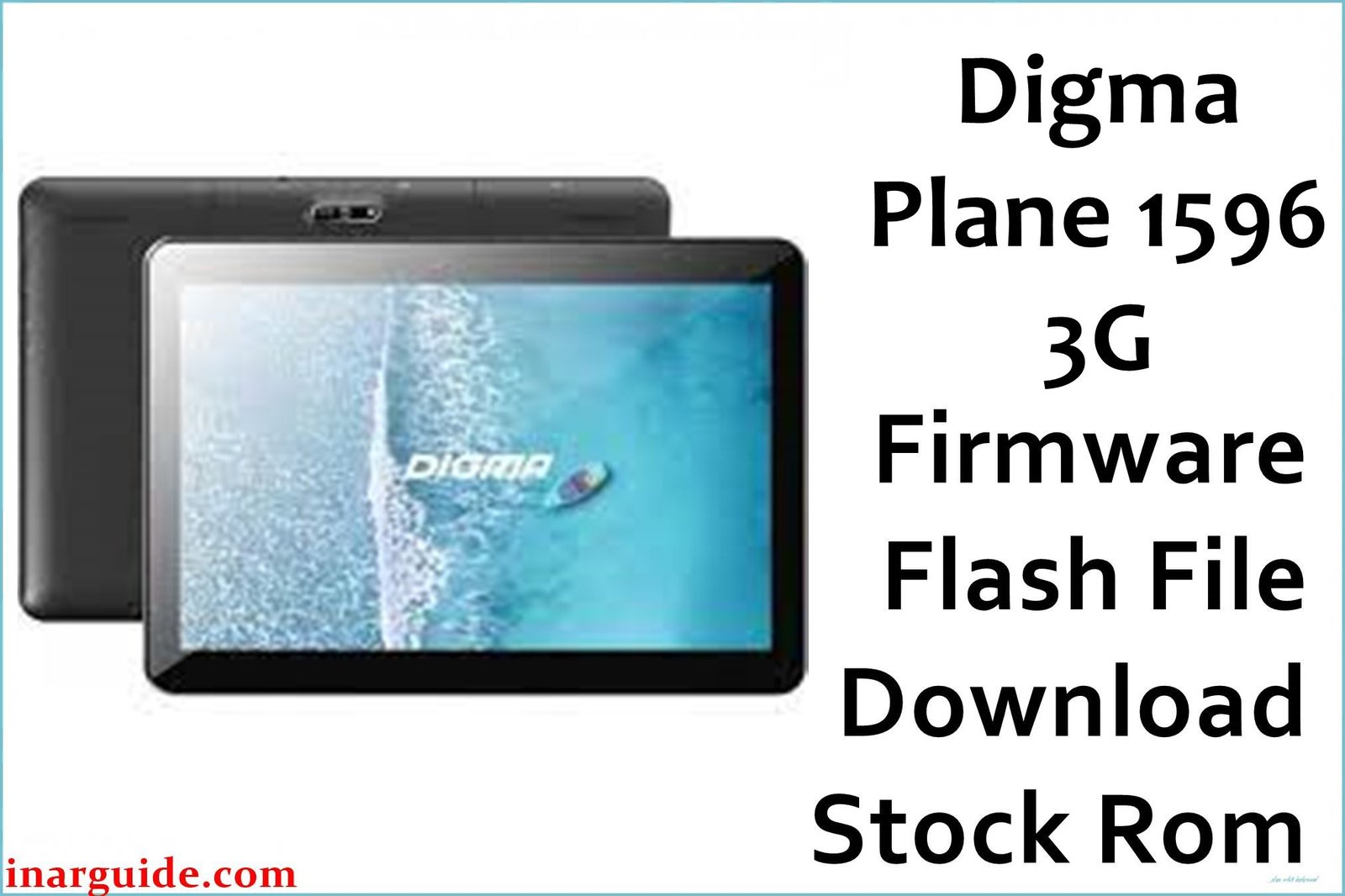
Owners of the Digma Plane 1596 3G often find that over time, the tablet becomes frustratingly slow, with apps frequently crashing and the system becoming unresponsive. A common complaint found on tech forums is that the device gets stuck on the Digma logo during startup—a classic sign of a soft brick, often caused by a problematic app or a failed system update. Furthermore, users report issues with phantom touches on the screen or aggressive adware that survives a simple factory reset.
Flashing the official stock firmware is the definitive solution to these deep-seated software issues. This process reinstalls the entire Android 9.0 operating system from scratch, effectively wiping out corrupted files, removing stubborn malware, and restoring the tablet to its original factory condition. It resolves boot loops and eliminates the lag that makes the device difficult to use, giving your tablet a clean slate and stable performance.
🚨 Critical Pre-Flash Warning
Before you begin, be aware of a critical risk specific to this device: hardware revision mismatch. Digma released multiple hardware versions (revisions) of the Plane 1596 3G. Flashing this firmware, intended for “Rev2” (R2), on a “Rev1” device can lead to a completely unresponsive touchscreen or a dead display. Always verify your tablet’s revision number from the sticker on the back of the device or the original box before proceeding. Incorrectly flashing can also lead to the loss of your IMEI and baseband, disabling 3G connectivity permanently.
Device Specifications Verification
Confirm these specifications match your device to ensure compatibility and avoid permanent damage:
| Specification | Details |
|---|---|
| Device Name | Digma Plane 1596 3G (PS1182MG / Rev2) |
| Release Date | 2019 |
| Chipset | UNISOC (Spreadtrum) SC7731E (Quad-core 1.3 GHz) |
| GPU | Mali-T820 MP1 |
| Display | 10.1″ IPS, 1280 x 800 pixels |
| RAM/Storage | 2GB RAM / 16GB internal storage |
| Battery | 4700mAh Li-Ion |
| Android Version | Android 9.0 Pie |
| Key Features | Dual SIM 3G, Wi-Fi, Bluetooth 4.2, GPS |
Official Firmware Download
This is the official factory firmware for the Digma Plane 1596 3G (Hardware Revision 2). It is essential for unbricking the device and resolving software-related performance issues.
| Filename | Date | Region | Android | Size | Download Link/s |
|---|---|---|---|---|---|
| Digma_Plane_1596_3G_SC7731E_R2_200819_9.0_SPD.zip | Aug 2020 | Global/RU | 9.0 | 1.1GB | Download (Google Drive) |
⭐ Recommendation: This August 2020 build is the most stable and optimized firmware available for the hardware revision 2 (R2) of this tablet. It addresses earlier bugs related to system stability and power management. Ensure your device is the R2 version before using this file.
Required Tools & Drivers
-
- SPD Upgrade Tool (latest version)
- Spreadtrum USB Drivers
- The Digma Plane 1596 3G firmware package (.zip) from the table above.
Quick Digma Plane 1596 3G Firmware Flashing Instructions
This tablet’s UNISOC chipset requires the SPD Upgrade Tool. The process is straightforward if you follow these steps precisely.
- First, ensure the Spreadtrum USB Drivers are correctly installed on your PC (a restart is recommended after installation).
- Extract the firmware .zip file to a folder on your computer to get the
.pacfirmware file. - Launch the SPD Upgrade Tool application. Click the first gear icon (“Load Packet”) and select the
.pacfile you extracted. - After the file loads, click the “Start Downloading” button (which looks like a Play icon).
- Device-Specific Step: Power off your Digma tablet completely. Press and hold the Volume Up button. While keeping it held, connect the tablet to your PC via a USB cable. The tool should detect the device and start the flashing process.
- The process is finished when a green “Passed” message appears in the tool. You can now safely disconnect your tablet and power it on. The first boot may take up to 10 minutes.
For a more comprehensive guide on using the tool and solving common errors, visit our pillar article: How to Use the SPD Upgrade Tool to Flash Your Smartphone.
Troubleshooting & Optimization Guide
- Touchscreen Not Working After Flash
This is the most common issue and is almost always caused by flashing the wrong firmware revision. If your touchscreen is unresponsive, you have likely flashed this Rev2 firmware on a Rev1 device. You will need to find the specific firmware for your hardware revision to fix it. - SPD Tool Gets Stuck on “Checking Baudrate”
This error indicates a driver or connection problem. Uninstall all other mobile USB drivers, reinstall the correct Spreadtrum drivers, and restart your PC. Try using a different USB port and a high-quality USB cable. - Fast Battery Drain After a Clean Flash
After flashing, let the tablet fully charge to 100% and then continue charging for another 30 minutes. Then, let it discharge completely until it powers off. This helps recalibrate the battery management system. Also, disable unused features like GPS and Bluetooth when not needed, as Android 9 on this hardware can be power-intensive.
Frequently Asked Questions
- How can I confirm if my tablet is Rev1 or Rev2?
- The most reliable way is to check the sticker on the back of the tablet or on the original packaging. The model number should explicitly state the revision (e.g., PS1182MG R2). If you can’t find it, you risk flashing the wrong file.
- Can I flash this firmware to increase my internal storage from 16GB?
- No. Firmware is software; it cannot change the physical storage capacity (16GB) of your device. Flashing this ROM will only re-format the existing storage.
- Is it possible to root the Digma Plane 1596 3G after flashing this firmware?
- Yes, it is possible to root devices with UNISOC chipsets, typically by patching the boot.img file from the firmware with Magisk. However, rooting can be a complex process and may void your warranty or cause instability if not done correctly.
Conclusion
Flashing the official Digma Plane 1596 3G (Rev2) stock firmware is the most reliable method for fixing critical software errors, from boot loops to severe performance lag. This Android 9.0 ROM provides a clean, stable, and secure foundation, restoring the tablet to its intended functionality. Always ensure you are flashing the correct firmware for your hardware revision to avoid complications like a non-functional touchscreen.
For users who also handle devices from other brands, our guides on flashing Samsung devices with Odin or Qualcomm devices with QFIL might be valuable resources.
Did you successfully revive your tablet? Let us know how it went in the comments section!





