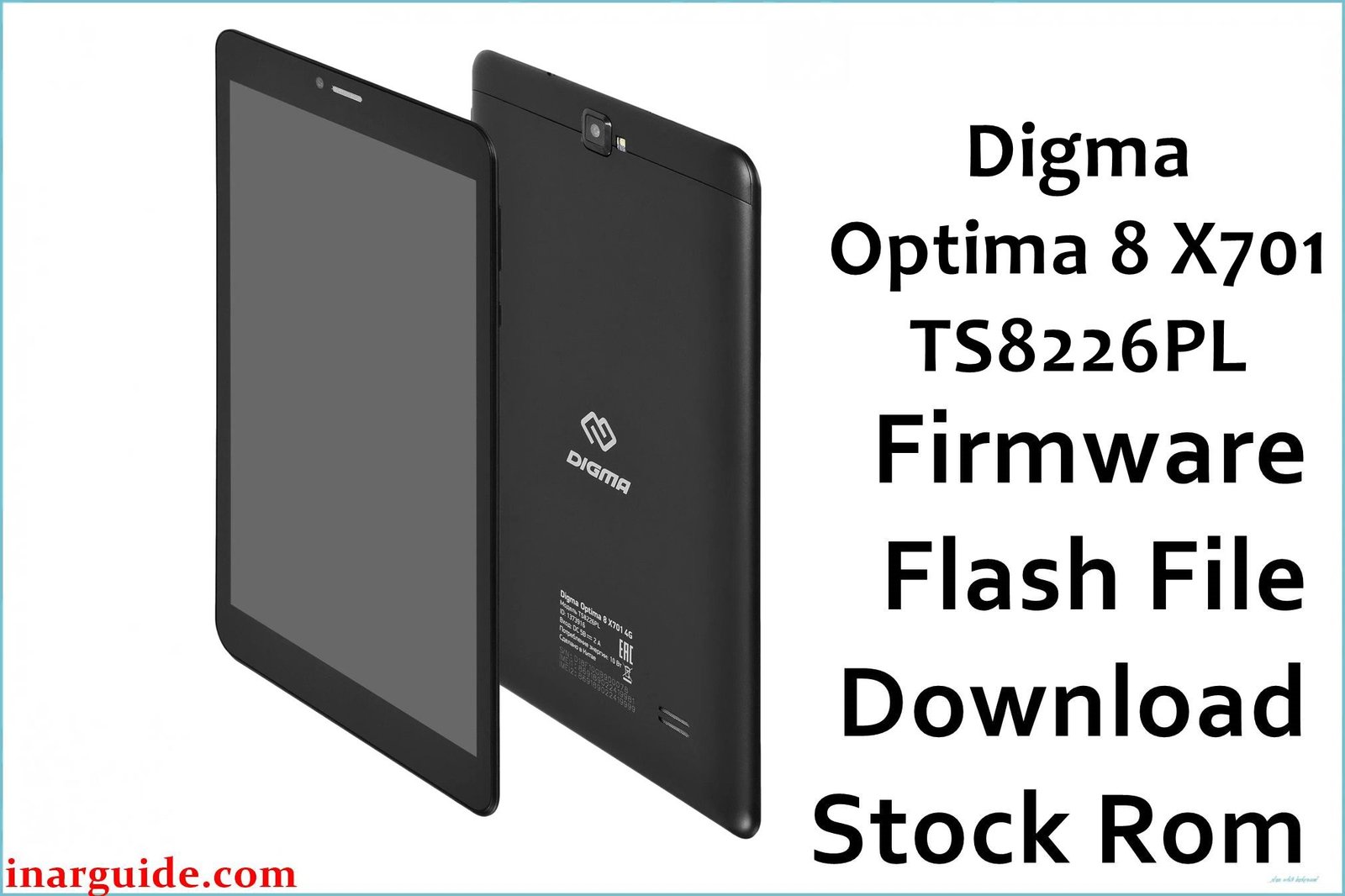
If your Digma Optima 8 X701 (TS8226PL) tablet is stuck in a bootloop, suffering from severe performance lag, or has a non-responsive touchscreen after a previous software update, flashing the official stock firmware is the definitive solution. This guide provides the official factory firmware files for all hardware revisions, ensuring you can restore your device to its original, stable condition.
🚨 Critical Pre-Flash Warning
Flashing will permanently erase all data on your tablet, including apps, photos, and personal files. Ensure you have a complete backup. The Digma Optima 8 X701 has multiple hardware revisions (Rev1, Rev2, Rev3, Rev5). Flashing the incorrect revision firmware will likely cause the touchscreen to stop working permanently. Verify your device’s revision before downloading and flashing.
Device Specifications Verification
Confirm these specifications match your device before flashing:
| Specification | Details |
|---|---|
| Device Name | Digma Optima 8 X701 4G |
| Model Number | TS8226PL |
| Release Date | 2020 |
| Chipset | Spreadtrum SC9863A (UNISOC) |
| GPU | PowerVR GE8322 |
| Display | 8.0″ IPS LCD, 1280×800 HD |
| RAM/Storage | 3GB RAM / 32GB internal storage |
| Battery | 3500mAh Li-Ion |
| Android Version | Android 10 |
| Key Features | 4G LTE Connectivity, Dual SIM |
Official Firmware Downloads
| Filename / Revision | Date | Region | Android | Size | Download Link/s |
|---|---|---|---|---|---|
| Digma_Optima_8_X701_TS8226PL_Rev1_Factory_201102_SPD.zip | Nov 2020 | Global | 10 | 1.72GB | Download (Google Drive) |
| Digma_Optima_8_X701_TS8226PL_Rev2_210425_SPD.zip | Apr 2021 | Global | 10 | 1.64GB | Download (Google Drive) |
| Digma_Optima_8_X701_TS8226PL_Rev3_Factory_210608_SPD.zip | Jun 2021 | Global | 10 | 1.71GB | Download (Google Drive) |
| Digma_Optima_8_X701_TS8226PL_Rev5_Factory_220720_SPD.zip | Jul 2022 | Global | 10 | 1.71GB | Download (Google Drive) |
⭐ Recommendation: First, identify your tablet’s hardware revision. This may be printed on the mainboard or determinable via the serial number on the original box. Only download and flash the firmware that matches your device’s revision number. If unsure, start with the revision that corresponds to your device’s purchase date.
Required Tools & Drivers
- SPD Upgrade Tool (latest version)
- Spreadtrum USB Drivers
- The correct Digma Optima 8 X701 firmware package for your revision (from the table above)
Driver Installation Notes:
- On Windows 10/11, you must disable driver signature enforcement to install the Spreadtrum drivers correctly.
- Install drivers *before* opening the SPD Upgrade Tool or connecting your tablet.
Quick Digma Optima 8 X701 Firmware Flashing Instructions
-
Use the SPD Upgrade Tool to restore your Digma tablet.
-
Ensure the Spreadtrum USB drivers are properly installed on your PC.
-
Extract the firmware .zip file to get the
.pacfirmware file. -
Launch the SPD Upgrade Tool, click the ‘Load Packet’ (gear) icon, and select the
.pacfile you extracted. -
Click the ‘Start Downloading’ (play) button.
-
Power off your tablet completely.
-
Press and hold the Volume Down button, then connect your tablet to your PC with a USB cable to initiate the flashing process.
For in-depth instructions and error solutions for the SPD Upgrade Tool, please visit our complete guide: How to Use the SPD Upgrade Tool to Flash Your Smartphone.
Troubleshooting & Optimization Guide
1. Touchscreen Not Working After Flashing
- Symptoms: The tablet boots up successfully after flashing, but the screen does not respond to any touch input.
- This is a classic sign of a hardware/firmware mismatch. You have flashed the incorrect revision.
- Disconnect the tablet. Find the correct firmware revision for your specific device.
- Re-flash the tablet using the correct
.pacfile that matches your device’s revision number (Rev1, Rev2, Rev3, or Rev5). - Do not attempt to mix and match files from different firmware packages.
2. Tablet Stuck on Digma Logo (Bootloop)
- Symptoms: The device powers on but never proceeds past the “DIGMA” splash screen.
- This indicates corrupted software. A full firmware flash is required.
- Ensure you are using the correct firmware revision for your device.
- Follow the flashing instructions precisely. Make sure the flash process completes with a “Passed” message in the SPD tool.
- If it fails, try a different USB port and a high-quality USB cable.
3. SPD Upgrade Tool Does Not Detect the Tablet
- Symptoms: Nothing happens when you connect the tablet to the PC after clicking “Start Downloading.”
- The most common cause is a driver issue. Re-install the Spreadtrum USB Drivers with driver signature enforcement disabled.
- Check Device Manager on your PC. When you connect the powered-off tablet while holding Volume Down, a “Spreadtrum” or “SCI USB” device should briefly appear.
- Ensure the tablet is fully powered off, not just in standby. Hold the power button for 15 seconds.
- Try holding both Volume Up + Volume Down buttons when connecting the USB cable.
4. Slow Performance and App Crashes
- Symptoms: Even after a reset, the tablet is extremely slow, and apps like Google Play Services crash frequently.
- A clean firmware flash often resolves persistent performance issues by removing all residual corrupted data.
- After flashing, perform a “Wipe data/factory reset” from the recovery menu for best results.
- Be mindful of the tablet’s 3GB RAM. Avoid installing too many apps that run in the background.
- Regularly clear the cache of frequently used apps like Chrome and YouTube.
Frequently Asked Questions
- How do I know which revision (Rev) my tablet is?
- The most reliable way is to check the serial number on the original box or the back of the tablet and consult the official Digma support website. If you have opened the device, the revision number is often printed directly on the main circuit board.
- Can I upgrade this tablet to Android 11 or a newer version?
- No. Due to the limitations of the Spreadtrum SC9863A chipset, Android 10 is the final and only officially supported OS version for this device. There are no official or stable custom ROMs available.
- Is the screen made of glass or plastic?
- User reports indicate the screen scratches very easily, which is typical of a plastic display layer rather than hardened glass. Using a high-quality screen protector is strongly recommended to prevent damage.
- What should I do if the SPD tool shows a “Failed” error during flashing?
- A “Failed” message can be due to an unstable USB connection, incorrect drivers, or a low-quality USB cable. Try using a different USB 2.0 port (not 3.0), use the original or a thick, high-quality data cable, and re-install the drivers before trying again.
Conclusion
Restoring your Digma Optima 8 X701 (TS8226PL) is straightforward, but success depends entirely on using the correct firmware revision for your specific device. Flashing the matching stock firmware will resolve bootloops, remove software-related bugs, and fix performance issues, returning the tablet to its original factory state. Always double-check your revision to avoid creating touchscreen problems.
Did this guide help you? Share your results in the comments below, especially which revision your tablet was. Your feedback helps other Digma users!





