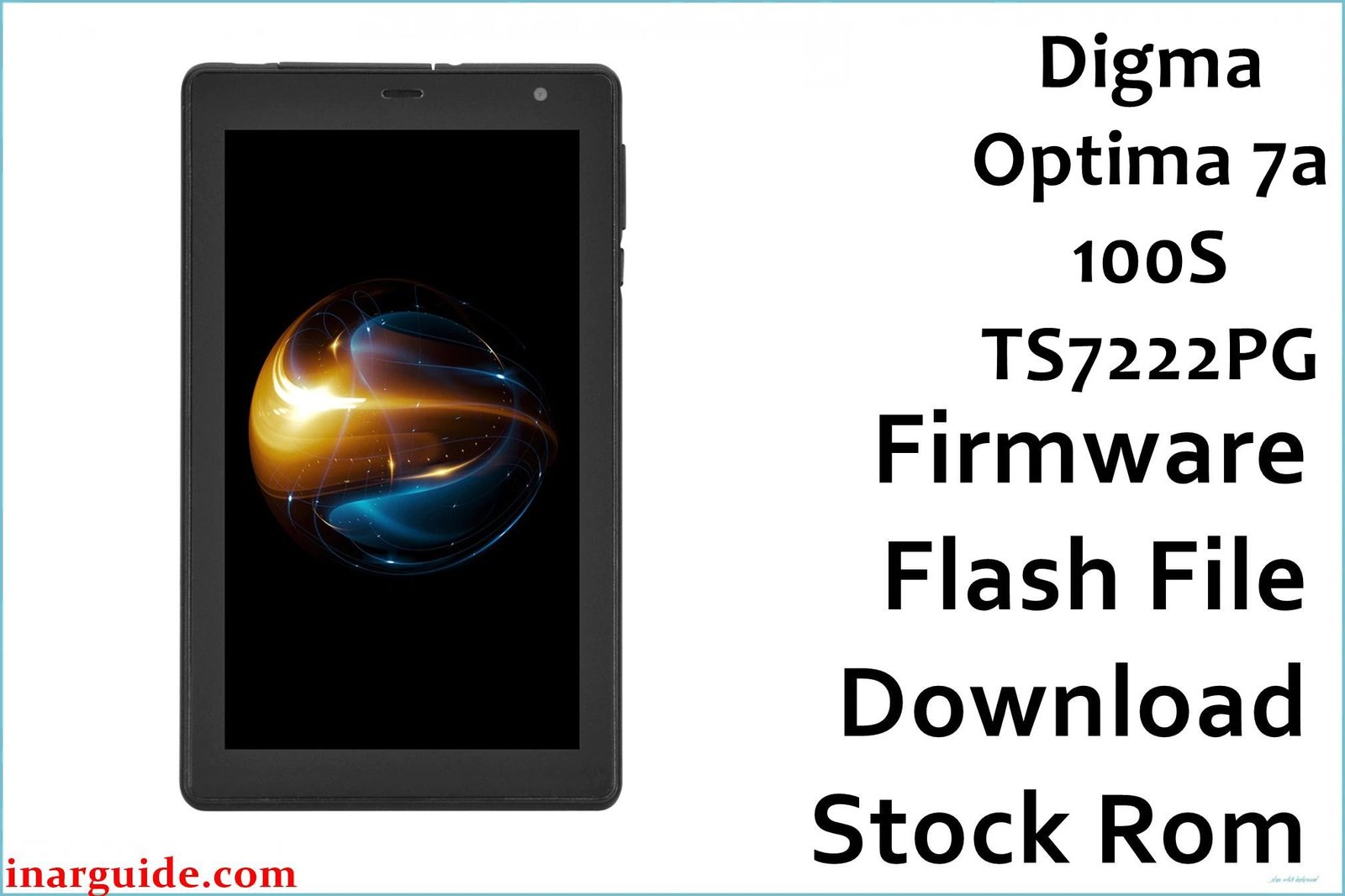
If a Digma Optima 7 A100S (model code TS7222PG Rev5) is bootlooping, showing persistent ads, losing signal, or has display/touch glitches after a bad flash, installing the correct factory firmware with the SPD Upgrade Tool is the most reliable fix for Spreadtrum/Unisoc devices.
🚨 Critical Pre‑Flash Warning
Flashing will erase all data and can alter NV partitions (IMEI/calibration) if unsafe modes are used, so a full backup and conservative settings are essential.
Device Specifications Verification
Confirm these match the tablet before flashing to avoid panel/touch or modem mismatches.
| Specification | Details |
|---|---|
| Device Name | Digma Optima 7 A100S |
| Model Code | TS7222PG (Rev5) |
| Chipset | Unisoc/Spreadtrum SC7731E (quad‑core) |
| Display | 7.0″ IPS class, 1024×600 (typical for this variant) |
| RAM / Storage | 1 GB / 16 GB |
| Cellular | 3G only (no LTE) |
| Android Version | Android 10 Go Edition |
Official Firmware Downloads
| Filename | Date | Revision | Android | Size | Download Link |
|---|---|---|---|---|---|
| Digma_Optima_7a_100S_TS7222PG_Rev5_Factory_211015_SPD.zip | Oct 15, 2021 | TS7222PG Rev5 | Android 10 Go | 1.05 GB | Download (Google Drive) |
Important: Only flash PAC/packet builds that match TS7222PG and the exact revision (Rev5) to prevent black screen, inverted touch, or modem issues.
Required Tools & Drivers
- SPD Upgrade Tool (latest recommended)
- Spreadtrum/Unisoc USB Drivers
- Firmware package from the table above
Driver notes: On Windows 10/11, temporarily disable driver signature enforcement if drivers fail to install. Install drivers before connecting the tablet.
Quick Flashing (SPD) — 5 Steps
- Extract the firmware, open SPD Upgrade Tool, and click Load Packet to select the PAC file.
- Click Start in the tool.
- Power off the tablet completely; connect via USB while holding Volume Up or Down until detection.
- Wait for a green Passed result; do not disconnect during flashing.
- First boot may take several minutes; if stuck, enter stock recovery, Wipe data/factory reset, then reboot.
Need full screenshots, driver fixes, and error solutions? See the pillar guide: How to use the SPD Upgrade Tool.
Troubleshooting & Optimization
1) “NV data in device is crashed” / NV‑Write failures
- Symptoms: Flash stops with NV errors (BFK_NV_W/NV write fail), baseband unknown after flash.
- Use the latest SPD Upgrade Tool version; reload the correct PAC.
- In Settings (gear icon), untick calibration/NV items if present and retry.
- Avoid Format All; use normal Download mode to preserve radio calibration.
- If NV is already corrupted, reflash, then repair NV/IMEI with authorized service tools in accordance with local laws.
2) Device not detected by the tool
- Symptoms: No connection after Start, or instant disconnect.
- Power off fully, hold Volume Up/Down while plugging in USB.
- Try a different USB cable/port (USB 2.0 preferred) and reinstall Spreadtrum drivers.
- Use another PC profile/admin account if the driver still enumerates incorrectly.
3) Black screen, inverted touch, or no backlight after flash
- Cause: Mismatched panel/touch drivers from the wrong TS code or revision.
- Re‑verify the back label/About Tablet for TS7222PG Rev5.
- Reflash the exact Rev5 PAC package; avoid mixed revisions even within the same model line.
4) No service or SIM not detected
- Symptoms: Baseband unknown, emergency calls only, 3G missing.
- Confirm PAC matches TS7222PG Rev5 and reflash.
- Do not use Format All; preserve NV where possible.
- If IMEI is null, complete lawful NV/IMEI restoration using professional service software.
5) Stuck on logo after a successful flash
- Cause: Dirty data/cache from prior builds or first‑boot optimization stalling on low RAM.
- Boot to stock recovery and Wipe data/factory reset; reboot.
- If still stuck, reflash and ensure the PAC and tool version are re‑downloaded and verified.
Performance & Battery Tips (Android Go)
- Prefer Go/Lite apps, disable auto‑updates for heavy apps, and keep 3–4 GB free storage.
- Restart every few days; keep brightness moderate; avoid running multiple browser tabs on 1 GB RAM.
- Use reputable chargers and clean the micro‑USB port to maintain stable charging.
Advanced Recovery
- Switch between recent SPD Upgrade Tool builds if repeat errors occur; some PACs are picky about versions.
- If detection is intermittent, connect with a known‑good data cable while holding a volume key to trigger SCI Download mode.
- Persistent NV corruption requires professional calibration restoration from a valid backup/dump.
Frequently Asked Questions
- How to confirm the exact model?
- Check the back label and About Tablet; ensure “Optima 7 A100S” with code TS7222PG and hardware “Rev5” matches the firmware name.
- Does the A100S support 4G LTE?
- No—this variant is 3G‑only on the SC7731E platform.
- What Android version is included?
- Android 10 Go Edition, optimized for 1 GB RAM devices.
- Can this PAC be flashed with YGDP/QGDP?
- No—this build is a PAC/packet format intended for SPD Upgrade/Research Download Tool.
- Will flashing erase personal data?
- Yes, flashing stock firmware wipes apps, settings, and user files; back up first.
Expert Recommendations
- Only use the TS7222PG Rev5 factory package to avoid panel/touch mismatches.
- Stick to Download mode and avoid Format All to protect NV/IMEI.
- Install current Spreadtrum drivers and use a reliable USB 2.0 port for stable transfers.
Pillar Link
For full error explanations, driver signing steps, and screenshots, follow the Spreadtrum/UNISOC pillar guide: How to Use the SPD Upgrade Tool.
Conclusion
Flashing the official Digma Optima 7 A100S TS7222PG Rev5 PAC with SPD Upgrade Tool is the safest path to recover from bootloops, remove malware, fix radio issues, and restore display/touch on this Android Go tablet.





