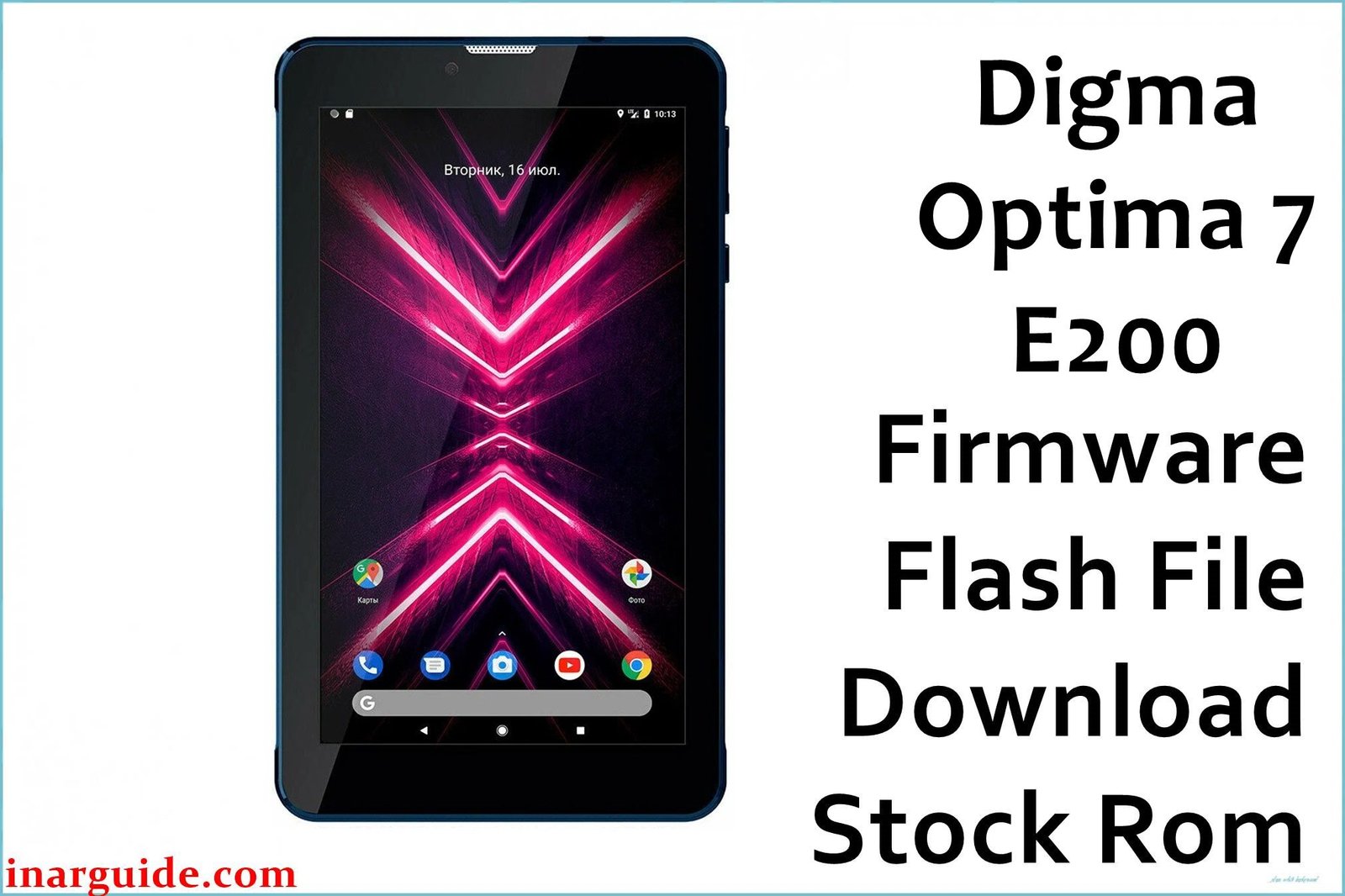
If your Digma Optima 7 E200 tablet is suffering from bootloops, unresponsive touchscreen, or charging interruptions when charging via USB-C, using the official SPD firmware and SPD Upgrade Tool provides the most reliable solution. This guide offers the tested firmware package, concise flashing steps under 5 steps, and device-specific troubleshooting to restore full functionality.
🚨 Critical Pre-Flash Warning
Flashing will erase all user data on your Digma Optima 7, including apps, photos, and settings. Back up any important files first. Incorrect use of the SPD Upgrade Tool can brick your device—follow instructions precisely.
Device Specifications Verification
Confirm these details match your tablet before flashing:
| Specification | Details |
|---|---|
| Device Name | Digma Optima 7 E200 |
| Chipset | Spreadtrum SC7731G (28nm, Quad-Core 1.3 GHz) |
| Display | 7.0″ IPS LCD, 1024×600 |
| RAM/Storage | 1 GB RAM / 8 GB internal |
| Battery | 3000 mAh non-removable Li-Ion |
| Android Version | Android 9 Go Edition |
| Key Features | Wi-Fi, Bluetooth 4.0, microSD slot, GPS |
Official Firmware Download
| Filename | Date | Size | Download Link |
|---|---|---|---|
| Digma_Optima_7_E200_210730_SPD.zip | Jul 2021 | 1.2 GB | Google Drive |
Required Tools & Drivers
- SPD Upgrade Tool: Download
- Spreadtrum USB Drivers: Download
- Digma Optima 7 E200 firmware package (above)
Quick Flashing Instructions
- Install Spreadtrum USB drivers and SPD Upgrade Tool on your Windows PC.
- Extract the firmware ZIP and launch SPD Upgrade Tool, then load the `.pac` file from the firmware folder.
- Select “Upgrade” mode in the tool (not “Format All”) to preserve user data when possible.
- Power off the tablet, click “Start,” and connect it via USB-C to initiate flashing.
- Wait for the “PASS” message in SPD Upgrade Tool, then disconnect and power on the device.
For detailed SPD flashing guidance, visit the SPD pillar article: Use the SPD Upgrade Tool.
Troubleshooting & Optimization Guide
1. Touchscreen Unresponsiveness
- Symptoms: Screen lags, misses taps especially at edges.
- Enable “Pointer calibration” if available under Settings > Display.
- Remove any third-party screen protector causing reduced sensitivity.
- Flash firmware to update the touchscreen driver optimized for SC7731G.
- In Developer Options, reduce “Pointer speed” for improved accuracy.
2. Speaker Distortion & Low Volume
- Symptoms: Audio crackles at >70% volume, muffled calls.
- Disable all audio enhancements in Settings > Sound.
- Gently clean speaker grille with compressed air.
- Flash firmware to restore SPD audio codec calibration.
- Use high-quality audio files to avoid amplifier overload.
3. Charging Interruptions & Overheating
- Symptoms: Charging halts at random percentages, device warms excessively.
- Use original charger and premium USB-C cable rated for 2 A.
- Clean charging port with isopropyl alcohol to remove debris.
- Avoid using device while charging to reduce heat generation.
- Flash firmware to update charging IC thresholds and thermal profiles.
4. GPS Drift & Slow Lock Times
- Symptoms: GPS shows location drift >20 m, lock time >2 min.
- Enable AGPS and Wi-Fi scanning under Settings > Location > Scanning.
- Clear AGPS data using “GPS Test” app > Manage A-GPS state > Reset & Download.
- Place tablet under open sky for initial cold start.
- Flash firmware to update GNSS driver for SC7731G satellite support.
5. Random Bootloops & System Crashes
- Symptoms: Stuck on logo after installing apps or updates.
- Wipe cache partition in Recovery (Power + Volume Up).
- Uninstall recently added apps via Safe Mode (hold Volume Down on boot).
- Flash firmware in “Upgrade” mode to overwrite system partitions.
- Perform a factory reset if bootloops persist after flashing.
Frequently Asked Questions
- Will flashing remove my data?
- “Upgrade” mode may preserve user data, but always back up before flashing.
- Which SPD tool mode should I use?
- Use “Upgrade” to preserve partitions; “Download” erases data but can fix deeper issues.
- How to fix touch lag?
- Remove any screen protector, adjust pointer speed, and flash firmware to update touch drivers.
- Charging stops mid-cycle—what now?
- Clean USB-C port, use original charger, and flash firmware to update charging IC calibration.
- GPS inaccurate—what’s the fix?
- Enable AGPS & scanning, reset A-GPS data, and flash firmware to update GNSS drivers.
Unique Expert Recommendations
- Perform AGPS data reset monthly via GPS Test app.
- Use only original or certified chargers and cables to avoid thermal issues.
- Keep USB-C port clean and dry, especially after outdoor use.
- Backup user data regularly; SPD firmware updates can overwrite partitions.
- Use Safe Mode for troubleshooting before flashing firmware.
- Wipe cache partition after firmware upgrades.
- Limit background apps to preserve memory and avoid crashes.
Conclusion
Flashing the Digma Optima 7 E200 SPD firmware with the SPD Upgrade Tool addresses touchscreen lag, speaker distortion, charging errors, GPS drift, and bootloops on the SC7731G platform. Follow the concise flashing steps and apply the device-specific troubleshooting solutions above to restore optimal performance and stability to your tablet.
Success? Share your experience—let us know if these solutions fixed your issues so other Optima 7 users can benefit!





