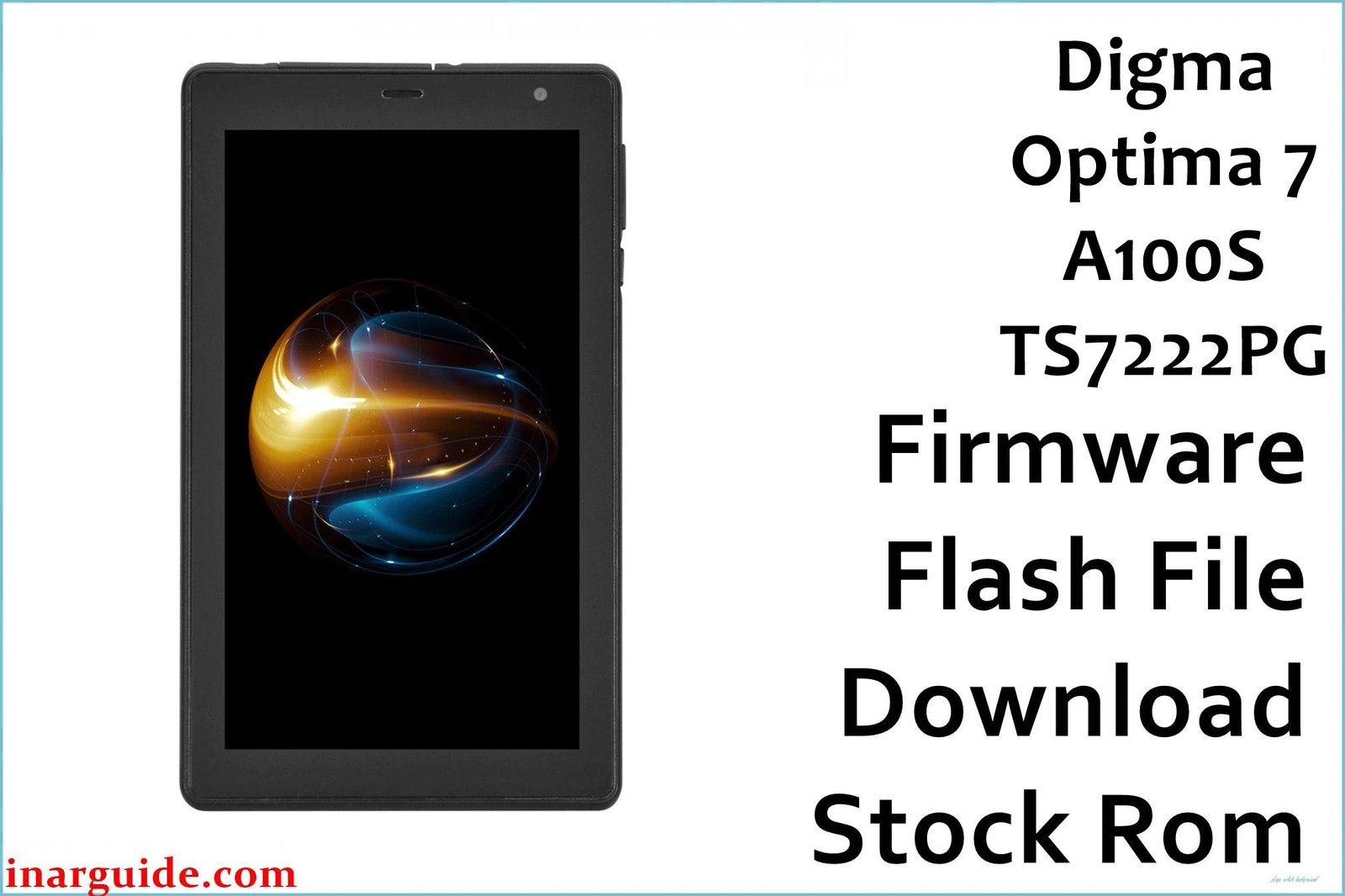
If a Digma Optima 7 A100S (TS7222PG) is stuck in a bootloop, shows a mirrored or inverted display after a wrong flash, has dead touch, or fails in Research/UpgradeDownload with “operation failed,” the correct revision stock firmware is the most reliable fix.
Critical Pre‑Flash Warning
Flashing permanently erases user data. Back up internal storage before starting. Use the exact hardware revision (Rev1/Rev2/Rev3/Rev4) to avoid issues like no touch or a mirrored screen. On Windows 10/11, unsigned driver blocks are common—install SPD/Unisoc drivers and, if needed, temporarily disable driver signature enforcement.
Device Specifications Verification
Confirm the following match the tablet to prevent a wrong flash and lost functionality.
| Specification | Details |
|---|---|
| Device Name | Digma Optima 7 A100S (TS7222PG) |
| Chipset / GPU | Unisoc Spreadtrum SC7731E, Mali‑T820 |
| Display | 7.0″ IPS, 1024×600 |
| RAM / Storage | 1GB RAM / 16GB storage, microSD support |
| Cameras | Rear 2MP, Front 0.3MP |
| Connectivity | 3G, Wi‑Fi, GPS, Bluetooth |
| Battery | 2500 mAh (typical) |
| Operating System | Android 10 (Go edition) |
Identify Your Hardware Revision
Only flash the firmware matching the exact hardware revision to avoid display inversion, no touch, or boot failure. The revision is typically printed on the back label, box, PCB silkscreen, or appears in the build name once the device boots.
Official Firmware Downloads
| Filename | Date | Revision | Android | Size | Download Link |
|---|---|---|---|---|---|
| Digma_Optima_7_A100S_TS7222PG_Rev1_Factory_200922_SPD.zip | 22 Sep 2020 | Rev1 | Android 10 Go | 938 MB | Google Drive |
| Digma_Optima_7_A100S_TS7222PG_Rev2_Factory_201028_SPD.zip | 28 Oct 2020 | Rev2 | Android 10 Go | 938 MB | Google Drive |
| Digma_Optima_7_A100S_TS7222PG_Rev3_Factory_201223_SPD.zip | 23 Dec 2020 | Rev3 | Android 10 Go | 939 MB | Google Drive |
| Digma_Optima_7_A100S_TS7222PG_Rev4_Factory_210409_SPD.zip | 09 Apr 2021 | Rev4 | Android 10 Go | 1.05 GB | Google Drive |
Tip: If the screen mirrors or touch is dead after flashing, it is almost always a revision mismatch—reflash with the exact matching Rev package.
Required Tools & Drivers
- SPD Upgrade Tool (UpgradeDownload)
- Spreadtrum/Unisoc USB Drivers (install first)
- Matching revision firmware package from the table above
Driver note: On Windows 10/11, install drivers with administrator rights and, if blocked, use the advanced startup option to disable signature enforcement temporarily.
Quick Flashing (5 Steps)
- Extract the matching Rev firmware and open
UpgradeDownload.exe, then click the Load Packet icon and select the.pacfile. - Click Start Downloading to arm the tool for flashing.
- Power off the tablet, connect via USB; if not detected, hold Volume Up or Volume Down while plugging in.
- Wait for the progress bar to complete and the green Passed status to appear, then stop the operation.
- Disconnect and boot the tablet; first boot on Android Go can take several minutes.
For detailed steps, logs, and error fixes, see the full pillar guide: How to Use the SPD Upgrade Tool.
Troubleshooting & Optimization
1) Wrong Revision Symptoms
- Mirrored or inverted display, black screen with backlight, or dead touch after flash.
- Fix: Recheck the hardware label or PCB print and flash the exact Rev1/Rev2/Rev3/Rev4 package.
2) “Failed: Operation Failed” or FDL Handshake Errors
- Caused by unstable USB, driver issues, or tool/FDL mismatches.
- Fix: Reinstall SPD drivers, try a different USB port/cable, hold a volume key during connect, and test another UpgradeDownload/ResearchDownload version.
3) Stuck at 0% / Not Detected
- Device does not enumerate or disconnects immediately.
- Fix: Install drivers, disable signature enforcement if needed, connect with battery charged, and try a short press of Power while connecting.
4) Bootloop After Successful Flash
- Passes flash but loops at the logo.
- Fix: Enter stock recovery and wipe data/factory reset, then reboot. If it persists, reflash the same Rev package again.
5) No Baseband / IMEI Issues
- Network shows “unknown baseband” or IMEI missing after service flashes.
- Fix: Avoid “format” options and NV erase; use download‑only flows. For IMEI restoration, follow local laws and consult authorized service.
6) Touch Panel Mismatch
- Touch offset or no response if panel ID differs between revisions.
- Fix: Reflash the correct Rev or use a firmware variant containing the matching TP firmware within the PAC.
7) FRP / Google Account
- Full firmware flashes often clear FRP on this series.
- Note: Only remove FRP on devices that are personally owned or with documented authorization.
Performance Tips
- Prefer Go/Lite apps and keep at least 30–40% storage free for smoother Android Go performance.
- Disable auto‑start for heavy apps and limit background processes.
- Reboot every few days and keep system apps updated after flashing.
FAQs
- How do I confirm my hardware revision?
- Check the back label, retail box, or mainboard silkscreen, and match it to Rev1/Rev2/Rev3/Rev4 before downloading firmware.
- Which tool should be used for these files?
- Use SPD Upgrade Tool (UpgradeDownload) to flash the included
.pacinside each SPD zip package. - Can I use any Rev if the device boots?
- No, mismatched Revs can break touch, display orientation, or modem; always match the exact revision.
- Will this update Android beyond Android 10 Go?
- No, these are factory stock builds for stability and restoration on Android 10 Go.
- First boot is very slow—normal?
- Yes, the first boot after a clean flash can take several minutes while the system optimizes apps and storage.
Expert Recommendations
- Verify the hardware revision first, then flash the matching PAC only.
- Install drivers before connecting and keep a known‑good USB cable ready.
- Avoid NV/IMEI erase operations unless a service manual explicitly requires it.
- If errors persist, change USB ports, cables, and tool versions, then retry.
Conclusion
Flashing the correct Digma Optima 7 A100S (TS7222PG) revision firmware with the SPD Upgrade Tool reliably fixes bootloops, display inversion, touch faults, and system instability while restoring factory performance.
Pillar reference for detailed steps and fixes: How to Use the SPD Upgrade Tool





