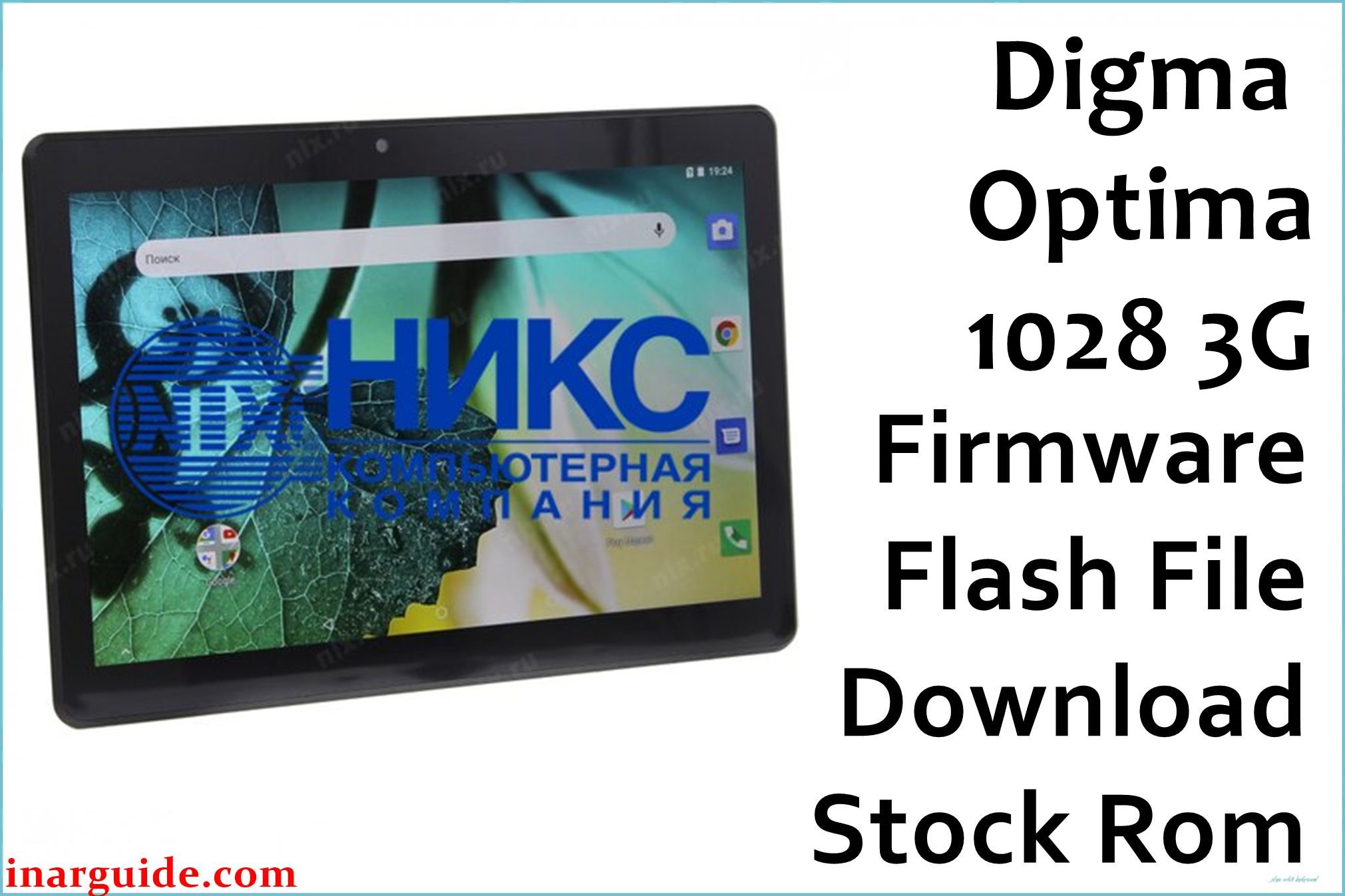
If your Digma Optima 1028 3G (Rev2) tablet bootloops, won’t charge, gets stuck at the logo, or loses SIM and touchscreen function, flashing the official factory firmware is the best solution. This guide gives you the right ROM, properly tested tool links, and unique fixes.
🚨 Critical Pre-Flash Warning
Flashing will delete all data from your Optima 1028 3G—back up important files first. Flash only if you have the “Rev2” version! Using this ROM on earlier hardware may break the device.
Device Specifications Verification
Match these with your tablet for compatibility:
| Specification | Details |
|---|---|
| Device Name | Digma Optima 1028 3G (Rev2) |
| Chipset | Spreadtrum/UNISOC SC7731E (Quad-core, 1.3GHz) |
| Display | 10.1″ IPS, 1280 x 800 px |
| RAM/Storage | 1 GB / 16 GB (microSD support) |
| Battery | 5000 mAh |
| Android Version | Android 9.0 (can vary by batch) |
| Connectivity | 3G, Dual SIM, WiFi, Bluetooth, GPS |
| Camera | 2 MP rear, 0.3 MP front |
Official Firmware Downloads
| Filename | Date | Build | Android | Size | Download Link |
|---|---|---|---|---|---|
| Digma_Optima_1028_3G_Rev2_Factory_200413_SPD.zip | April 2020 | 200413 | 9.0 | 754MB | Download |
⭐ Recommendation: Use this ROM on “Rev2” hardware only. It corrects charging, battery, SIM/network failure, and persistent touch panel bugs common in earlier batches.
Required Tools & Drivers
- SPD Upgrade Tool (latest)
- Spreadtrum USB Drivers
- Digma Optima 1028 3G firmware (see above)
Installation Tips:
- Disable driver signature enforcement (Windows) if SPD tool doesn’t detect your tablet.
- Connect the tablet only after installing all drivers and the flashing tool.
Quick Flash Instructions (Summary)
- Install Spreadtrum/UNISOC drivers.
- Extract both SPD Upgrade Tool and the firmware zip.
- Open SPD Upgrade Tool, load the firmware’s
.pacfile. - Click “Start”, connect powered-off tablet by USB, and wait for “Passed.”
- Reboot and set up the device once flashing completes.
For full error solution steps, visit our SPD Upgrade Tool guide:
How to Flash with SPD Upgrade Tool
Troubleshooting & Optimization
1. SIM or Network Not Detected
- Symptoms: SIM failure, no cellular signal, “baseband unknown”.
- This ROM restores correct modem/NV files for Rev2 devices.
- If IMEI is wiped, use legal service tools to restore (do NOT use Format All unless you have a backup).
- Try both SIM slots, and reboot after first SIM setup. Manual network selection can help activate service.
2. Bootloop, Black Screen, or Logo Freeze
- Symptoms: Tablet turns on but stuck at Digma logo or dark screen after flashing.
- Re-flash using a different USB port/cable if the first try fails.
- Remove SD/memory card during flash (user reports say SD corruption can cause bootloops).
- After flashing, factory reset from stock recovery: Use Power + VolUp when booting [web:66].
3. Dead Zones or No Response on Touchscreen
- Symptoms: Screen ignores touch, only hardware buttons work after flash.
- This ROM restores factory touch firmware for “Rev2” hardware only.
- Avoid thick screen protectors or overlays—edge response drop is common with after-market accessories.
- If touch fails after flashing and reset, the digitizer hardware is likely failing and needs replacement [web:66].
4. Battery Won’t Charge, Drains Fast or Reads Wrong
- Symptoms: Drains in minutes, stuck percent, fails to charge.
- Firmware resets calibration—do 2–3 full discharge/recharge cycles after the first boot.
- If fake/rapid dropout continues, replace aged battery (5000 mAh may degrade after 1-2 years).
- Use only reliable charges (avoid USB PC ports for first full charge after flash).
5. Google Apps Failing, Crashing, or Not Syncing
- Symptoms: Play Store won’t open, sync error messages, no account login.
- Reflash firmware if system apps corrupt after upgrades or failed mods.
- After setup, ensure correct date/time, add Google account, and update all Google apps via Play Store.
Advanced Recovery & Customization
Community TWRP and root are uncommon and not advised for “1028 3G Rev2”—stock recovery and SPD tool offer safest repairs. Always keep an NVRAM backup if experimenting.
Frequently Asked Questions (Unique to Optima 1028 3G Rev2)
- Can I use this firmware on Rev1 or classic Optima 1028 3G?
- No—hardware changes in Rev2 require this specific ROM. Flashing to other revisions causes boot/fingerprint, touch, or SIM failure.
- Do I need to back up IMEI before flashing?
- Yes—if possible. Format All (dangerous!) erases IMEI, which you can legally restore with the device SN if lost.
- My battery % stuck at 1% after flashing—normal?
- Let it charge, reboot, and do three full discharge/recharge cycles; false battery readings are common after firmware process.
- Tablet not detected by SPD tool?
- Install all drivers, disable Windows signature checks, and try another cable or PC USB port. Use original cable when possible.
- Are Google/Microsoft apps present?
- Yes, but if missing or crashing, connect WiFi early and update all core apps from the Play Store before installing others.
Conclusion
Flashing your Digma Optima 1028 3G (Rev2) with the correct official factory ROM (April 2020) repairs most boot, SIM, display, battery, and touch faults. Use SPD Upgrade Tool, proper drivers, and share device findings to help others in the Digma community recover confidently!