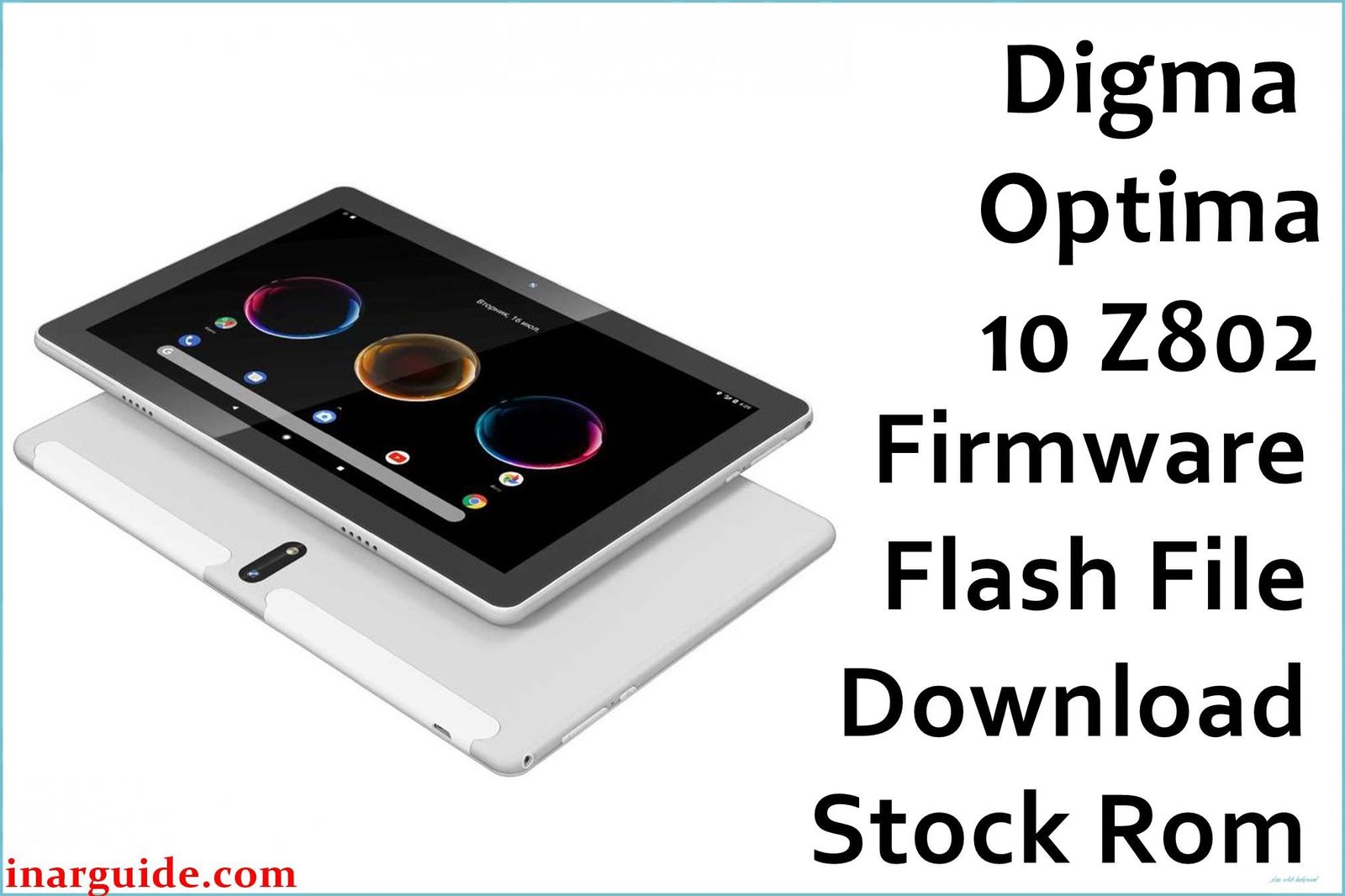
Is your Digma Optima 10 Z802 tablet failing to boot, getting stuck on the Digma logo, or running so slowly that it’s become a chore to use? These are widespread problems for this model, frequently discussed by users on forums like 4PDA. The issues often stem from software corruption, malware infections that persist after a factory reset, or glitches from incomplete over-the-air (OTA) updates. Many owners report that the tablet becomes practically unusable, with constant app crashes and a laggy interface.
The most reliable way to fix these software ailments is by flashing the official stock firmware. This procedure completely reinstalls the Android 10 operating system, erasing all the problematic data and restoring the device to its original, out-of-the-box state. It’s the ultimate solution for resolving boot loops, eliminating hidden malware, and bringing back the smooth, responsive performance your tablet once had.
🚨 Critical Pre-Flash Warning
A critical risk for the Digma Optima 10 Z802 is flashing firmware for the wrong hardware revision. This firmware is specifically for Revision 1 (R1). If you flash this on a newer revision (e.g., R2), you will likely end up with a non-functional touchscreen, camera, or Wi-Fi, effectively bricking your device. Always confirm your device’s hardware revision before proceeding. Additionally, an incorrect flash procedure can wipe your tablet’s NVRAM, leading to a permanent loss of IMEI and 3G/4G connectivity.
Device Specifications Verification
Confirm these specifications match your device before flashing to avoid irreversible damage:
| Specification | Details |
|---|---|
| Device Name | Digma Optima 10 Z802 4G (TS1229PL / Rev1) |
| Release Date | 2020 |
| Chipset | UNISOC (Spreadtrum) SC9863A (Octa-core 1.6 GHz) |
| GPU | PowerVR GE8322 |
| Display | 10.1″ IPS, 1280 x 800 pixels |
| RAM/Storage | 4GB RAM / 64GB internal storage |
| Battery | 5000mAh Li-Ion |
| Android Version | Android 10 |
| Key Features | 4G LTE, Wi-Fi, Bluetooth, USB-C, Metal Body |
Official Firmware Download
This is the official factory firmware for the Digma Optima 10 Z802 (Hardware Revision 1). Use this file to restore your device from software-related issues like boot loops or system corruption.
| Filename | Date | Region | Android | Size | Download Link/s |
|---|---|---|---|---|---|
| Digma_Optima_10_Z802_R1_200907_10_SPD.zip | Sep 2020 | Global/RU | 10 | 2.90GB | Download (Google Drive) |
⭐ Note: This September 2020 build is the recommended stable release for the Rev1 model of this tablet. It provides the necessary files to perform a full system restore and fix common software malfunctions.
Required Tools & Drivers
-
- SPD Upgrade Tool (latest version)
- Spreadtrum USB Drivers
- The Digma Optima 10 Z802 firmware package (.zip) from the table above.
Quick Digma Optima 10 Z802 Firmware Flashing Instructions
Your tablet is powered by a UNISOC (Spreadtrum) processor, which requires the SPD Upgrade Tool for flashing.
- Begin by installing the Spreadtrum USB Drivers on your computer and then rebooting your system.
- Extract the firmware .zip file. Inside, you will find the firmware file with a
.pacextension. - Launch the SPD Upgrade Tool. Click the “Load Packet” button (the single gear icon) and select the
.pacfile. - After the firmware is loaded into the tool, click the “Start Downloading” button (the play icon).
- Device-Specific Step: Power the tablet off completely. Press and hold the Volume Down button, and while holding it, connect your tablet to the PC using a USB-C cable. The flashing will begin automatically.
- Wait for the process to complete, indicated by a green “Passed” status in the tool. You can now disconnect and boot up your tablet. The initial startup may take longer than usual.
For a detailed, step-by-step guide on the flashing process, check out our comprehensive pillar article: How to Use the SPD Upgrade Tool to Flash Your Smartphone.
Troubleshooting & Optimization Guide
- “Failed: NV data is corrupted” Error in SPD Tool
This error means the flashing process failed to write the NVRAM/IMEI partition. This is often due to a poor USB connection or selecting the wrong flash mode. Ensure you are using a high-quality USB-C cable connected directly to a main USB port on your PC (not a hub). Rerun the flash process, but before starting, go to the tool’s settings (double gear icon) and make sure all partitions, especially “NV_W,” are checked for flashing. - Wi-Fi or Bluetooth Not Working After Flash
This is a classic symptom of a hardware revision mismatch. You have likely flashed the Rev1 firmware onto a different hardware version of the tablet. The only solution is to find and flash the correct firmware that matches your tablet’s specific revision number. - Tablet Fails to Boot, Shows Only a Battery Charging Symbol
If the tablet doesn’t boot after a “Passed” flash and only shows a charging icon when plugged in, the battery may be too deeply discharged to initiate a full boot sequence. Leave it connected to the wall charger (not the PC) for at least 2-3 hours before attempting to power it on again. If it still fails, you may need to re-flash the firmware.
Frequently Asked Questions
- Where can I find the hardware revision number for my tablet?
- The revision number (e.g., “Rev1” or “R1”) is usually printed on a white sticker on the back of the tablet. It may also be present on the original box. It is crucial to verify this before downloading and flashing any firmware.
- Can I use this firmware to upgrade from an older version of Android?
- This firmware is for restoring or re-installing Android 10, not for upgrading from a previous Android version. As this is the officially released version, no further major OS upgrades (like Android 11) have been made available by Digma for this model.
- My tablet has 3GB of RAM, not 4GB. Can I still use this firmware?
- No. The Digma Optima Z802 was released in several configurations. This firmware is specifically for the 4GB RAM / 64GB storage variant. Using it on a model with different memory specifications could lead to instability or a failed flash process.
Conclusion
Flashing the official stock firmware for the Digma Optima 10 Z802 (Rev1) is the most effective way to resolve serious software issues, from being stuck in a boot loop to suffering from malware attacks. By carefully following this guide and using the provided Android 10 ROM, you can restore your tablet’s performance, stability, and security. Remember, verifying your device’s hardware revision is the most critical step to ensure a successful outcome.
For those who work with a variety of devices, our tutorials on flashing RealMe devices or using the Fastboot Script method can be excellent additional resources.
Did you successfully unbrick your Digma tablet? Share your experience in the comments to help others in the community!





