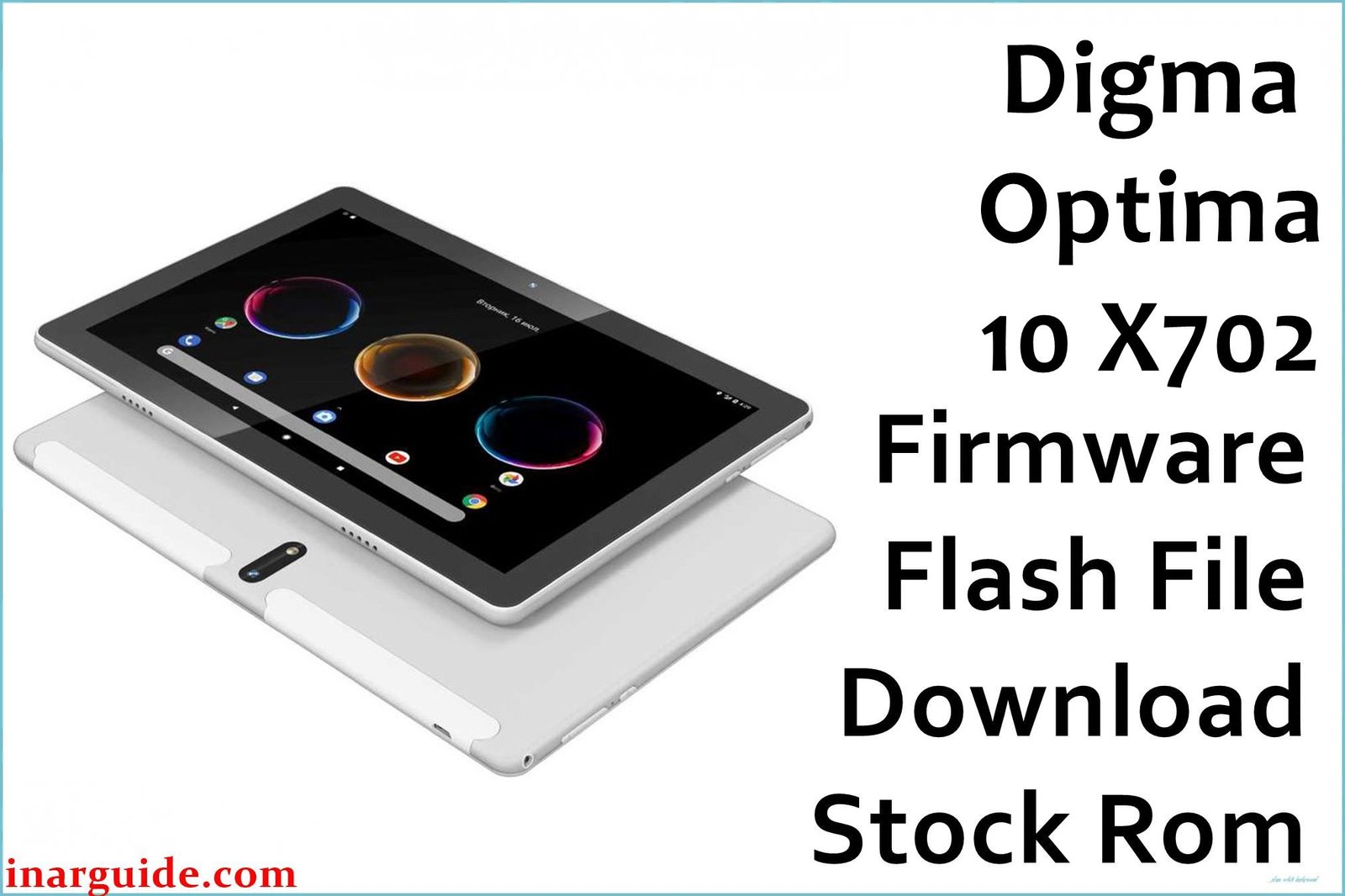
If your Digma Optima 10 X702 4G tablet is stuck on the startup logo, experiencing constant application crashes, or has become unusably slow, you’re not alone. These are common complaints in user forums, often appearing after a period of use or a failed software update. The underlying cause is typically software corruption, where essential system files become damaged, or persistent malware that a standard factory reset can’t remove. This degradation can make the tablet frustrating to use for even simple tasks.
Flashing the official stock firmware is the most comprehensive solution. This process completely reinstalls the Android 10 operating system, wiping the slate clean. It effectively resolves boot loops, eliminates stubborn viruses, fixes deep-seated software glitches, and restores the tablet to its original factory performance and stability. It’s the definitive way to give your device a fresh start.
🚨 Critical Pre-Flash Warning
This firmware is strictly for the Hardware Revision 1 (R1) of the Digma Optima 10 X702. Flashing it on a different revision can cause major hardware malfunctions, most commonly a completely unresponsive touchscreen or display glitches. Additionally, users on forums have reported that a faulty flashing process can corrupt the NVRAM partition, which permanently erases the tablet’s IMEI numbers and results in the loss of all 4G mobile network connectivity. Double-check your device’s revision number before you begin.
Device Specifications Verification
Confirm these specifications match your device to prevent irreversible damage during the flashing process:
| Specification | Details |
|---|---|
| Device Name | Digma Optima 10 X702 4G (TS1228PL / Rev1) |
| Release Date | 2020 |
| Chipset | UNISOC (Spreadtrum) SC9863A (Octa-core 1.6 GHz) |
| GPU | PowerVR GE8322 |
| Display | 10.1″ IPS, 1280 x 800 pixels |
| RAM/Storage | 3GB RAM / 32GB internal storage |
| Battery | 5000mAh Li-Ion |
| Android Version | Android 10 |
| Key Features | 4G LTE, Wi-Fi, Bluetooth 4.2, USB-C, Stereo Speakers |
Official Firmware Download
This is the official factory firmware package for the Digma Optima 10 X702 4G (Revision 1). It is essential for restoring a soft-bricked tablet or fixing severe software-related problems.
| Filename | Date | Region | Android | Size | Download Link/s |
|---|---|---|---|---|---|
| Digma_Optima_10_X702_R1_201113_10_SPD.zip | Nov 2020 | Global/RU | 10 | 1.5GB | Download (Google Drive) |
⭐ Recommendation: This November 2020 firmware is the most stable and updated official release for the Rev1 hardware. It contains necessary patches for security and system stability, making it the best choice for a full system restore.
Required Tools & Drivers
-
- SPD Upgrade Tool (latest version)
- Spreadtrum USB Drivers
- The Digma Optima 10 X702 firmware package (.zip) from the download table above.
Quick Digma Optima 10 X702 Firmware Flashing Instructions
The UNISOC chipset in your tablet requires the SPD Upgrade Tool. Follow these steps carefully.
- First, install the Spreadtrum USB Drivers on your PC. It is highly recommended to restart your computer after installation to ensure the drivers are loaded correctly.
- Extract the firmware .zip file to a folder on your desktop. You will get a firmware file with a
.pacextension. - Open the SPD Upgrade Tool application. Click the gear icon (“Load Packet”) and navigate to the folder where you extracted the firmware, then select the
.pacfile. - Once the file path appears in the tool, click the “Start Downloading” (Play) button to prepare for flashing.
- Device-Specific Step: Completely power off your Digma tablet. Press and hold the Volume Down button. While holding the button, connect the tablet to your PC with its USB-C cable. The tool will detect the device and the flashing process will begin.
- Do not disconnect the device until you see a green “Passed” message in the tool. The process is now complete. Disconnect the tablet and power it on. Be patient, as the first boot can take several minutes.
For a more detailed guide with troubleshooting tips for the SPD Upgrade Tool, please see our main pillar article: How to Use the SPD Upgrade Tool to Flash Your Smartphone.
Troubleshooting & Optimization Guide
- SPD Tool Error: “Failed: User Cancel”
This misleading error message usually means there is a problem with the USB drivers or the physical connection. Uninstall any other mobile drivers, reinstall the correct Spreadtrum drivers, and use a different USB port on your computer (avoid USB hubs). Using a high-quality, known-good USB-C cable is also essential. - Tablet Boots but Touchscreen Edges are Unresponsive
Some users have reported poor touch sensitivity near the edges of the screen even on working devices. After flashing, if this problem seems worse, it could be a calibration issue. While there’s no simple fix, try performing a factory reset from the recovery menu immediately after the first boot. If the issue persists, it may be an inherent hardware limitation or a sign you’ve flashed firmware on the wrong hardware revision. - “System UI has stopped” Error After Booting
If you encounter this error continuously after a successful flash, it indicates a conflict with leftover data. Boot into recovery mode (Power + Volume Up) and perform a “Wipe data/factory reset”. This will erase all user data but should resolve the conflict and allow the system to boot properly.
Frequently Asked Questions
- How can I be absolutely sure my tablet is Revision 1 (R1)?
- The most reliable method is to check the white sticker on the back of the tablet’s metal casing. The model number will often be followed by “R1” or a similar identifier. It might also be printed on the original box. Do not proceed if you cannot confirm the revision.
- Can I use this firmware on the Digma Optima 10 Z802 model?
- Absolutely not. The Digma Optima 10 X702 and Z802 are different models with different hardware configurations, even though they share a similar name. Using this firmware on a Z802 will brick the device. Always use firmware that matches your exact model number.
- Will flashing this firmware remove the Google account (FRP lock)?
- No, flashing the stock firmware using the standard “Download Only” mode in the SPD Upgrade Tool does not typically remove the Factory Reset Protection (FRP) lock. If the device was previously synced with a Google account, you will need to enter those credentials after the first boot.
Conclusion
Reinstalling the official Digma Optima 10 X702 4G (Rev1) stock firmware is the most powerful solution for fixing debilitating software problems like boot loops, system lag, and malware. This guide provides the necessary files and instructions to safely restore your tablet’s Android 10 operating system, returning it to a clean and stable state. The most important step is to confirm you have the correct hardware revision before you start.
If you also work with devices from other major brands, our guides on flashing Xiaomi devices or using the Samsung Odin tool could be very helpful.
Did you successfully revive your tablet? Share your results or any questions in the comments section below to help other Digma users!





