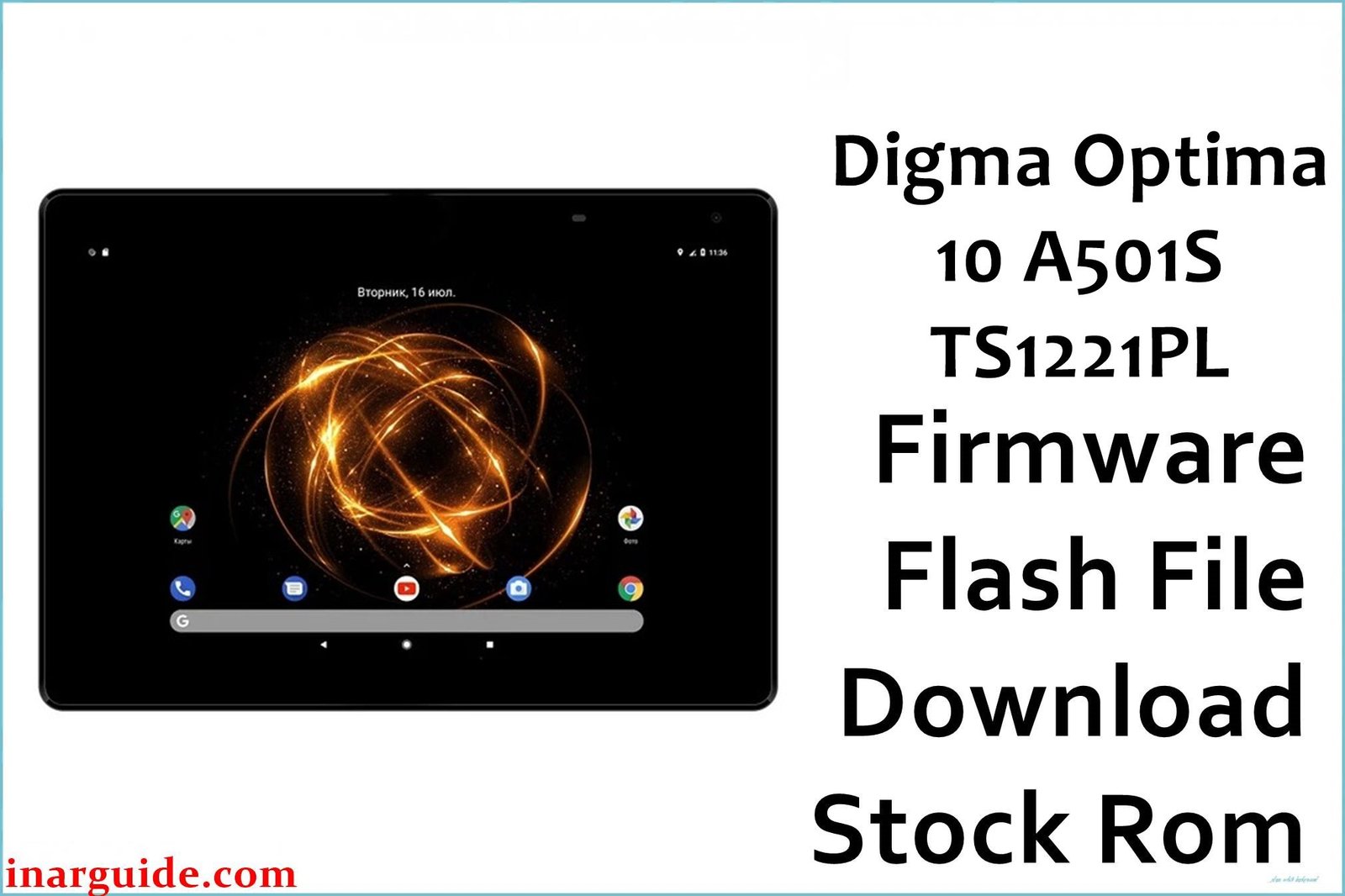
Restore stability and performance to your Digma Optima 10 A501S (TS1221PL) by flashing the official SPD firmware below. Stock firmware flashing fixes common Android bugs, software crashes, bootloops, malware attacks, and returns your tablet to factory condition—making it ideal for work, study, or entertainment.
🚨 Critical Pre-Flash Warning (Digma Optima 10 A501S)
Flashing will permanently erase all user data on your Digma Optima 10 A501S, including images, messages, downloads, and installed apps. Create a thorough backup first! Using the wrong firmware or tool method can damage system partitions or IMEI. Proceed only if the device model and revision exactly match the firmware file.
Device Specifications Verification
Check these specs before flashing:
| Specification | Details |
|---|---|
| Device Name | Digma Optima 10 A501S (TS1221PL) |
| Release Year | 2021 |
| Chipset | UNISOC/Spreadtrum SC9832E, Quad-core 1.4GHz |
| GPU | Mali-T820 MP1 |
| Display | 10.1″ IPS, 1280×800 px |
| RAM / Storage | 1GB RAM / 16GB internal storage |
| Battery | 5000mAh Li-ion |
| Android Version | Android 10 (Go edition) |
| Cameras | 2MP rear, 0.3MP front |
| SIM | 4G LTE & 3G (Dual, mini-SIM) |
| microSD | Supports microSD up to 64GB |
Official Firmware Download
| Filename | Date | Revision | Android | Size | Download Link |
|---|---|---|---|---|---|
| Digma_Optima_10_A501S_TS1221PL_Rev1_201021_SPD.zip | October 2021 | Rev.1 | 10.0 Go | 919MB | Download (Google Drive) |
⭐ Recommendation: Always flash the latest build (Rev.1, Oct 2021) for best app compatibility, bug/security fixes, and optimized performance.
Required Tools & Drivers
- SPD Upgrade Tool (latest version)
- Spreadtrum/UNISOC USB Drivers
- Digma Optima 10 A501S (TS1221PL) Rev.1 firmware package
Driver Installation Notes:
- On Windows 10/11, disable driver signature enforcement before installing SPD/UNISOC drivers.
- Connect your device to PC only after completing all driver installations.
Quick Digma Optima 10 A501S Firmware Flashing Instructions
- Extract the firmware package and SPD Upgrade Tool on your computer.
- Install Spreadtrum/UNISOC drivers (“Run as administrator” if needed).
- Open SPD Upgrade Tool, click “Load Packet” and select the firmware’s .pac file.
- Press “Start” in the tool, then connect the powered-off tablet by USB cable.
- Wait for the flashing process to finish (“Passed” or green progress), then unplug and reboot the device.
For advanced troubleshooting, error codes, and illustrated walkthroughs, see the step-by-step SPD Upgrade Tool flashing guide: How to Use SPD Upgrade Tool to Flash Your Smartphone.
Troubleshooting & Optimization Guide
- Tablet stuck on boot logo or in a bootloop: Fully format and flash with the SPD Upgrade Tool. Remove all SIM and SD cards before starting.
- No network/SIM issues: Always use the correct model firmware. If IMEI/NV errors appear, restore NVRAM or repair IMEI with SPD WriteIMEI tool.
- Camera not working: Clean flash the official ROM and wipe cache. Software bugs are resolved in the October 2021 firmware.
- Touch not responding after flash: Reboot and, if needed, flash compatible touch firmware available in the package.
- PC not detecting the tablet: Reinstall USB drivers, use a known-good cable and port.
- App errors or Google Play issues: Install only official firmware. Reset the device after flash. Avoid custom or ported ROMs to prevent bugs.
Frequently Asked Questions
- What does flashing this firmware fix?
- Restores original firmware, solves bootloops, malware infection, IMEI/network loss, camera and touch issues.
- Is the package suitable for any Digma tablet?
- No. Only use on Digma Optima 10 A501S (TS1221PL) with matching revision. Using the wrong file can brick the device.
- Will this process erase my personal files?
- Yes. Flashing will erase all photos, apps, and user data. Always backup before flashing.
- “Failed: NV” or “No IMEI” error after flashing?
- Reflash with “Format All + Download” and repair IMEI with the SPD WriteIMEI tool (use your original, legal IMEI only).
- Tablet won’t turn on after flash?
- Check if the battery is charged. Retry flashing, making sure to use the correct .pac file for your model.
- Is flashing safe for less-experienced users?
- Yes—if all steps are followed, and a backup and correct version are used. Avoid modifying partitions or third-party tools.
Conclusion
Flashing the Digma Optima 10 A501S (TS1221PL) October 2021 stock ROM is the most effective fix for major bugs, looping, or malware. It returns your tablet to a fresh start and ensures compatibility with modern apps and services.
Was your issue solved? Share your results, especially about camera/network fixes or speed improvements. Your feedback helps the Digma community troubleshoot and revive their tablets!





