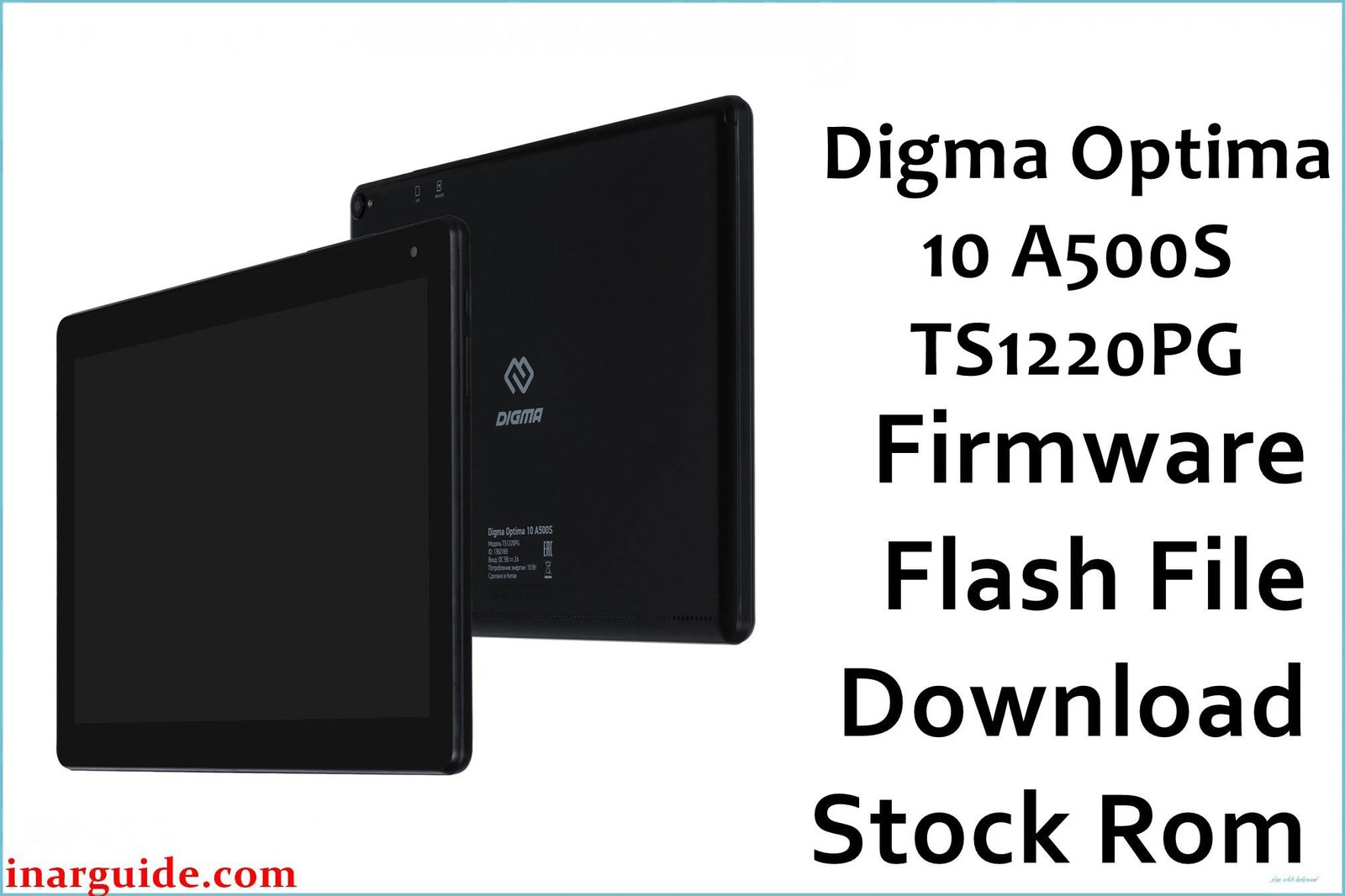
Bring your Digma Optima 10 A500S (TS1220PG) tablet back to life with its official stock firmware. This complete software package is the definitive solution for fixing major system errors that a factory reset cannot, such as being stuck on the Digma logo (bootloop), constant app crashes, severe performance lag, or aggressive malware and pop-up ads. Flashing the stock ROM performs a deep format and clean installation of Android 10 (Go Edition), restoring your tablet’s software to its original, out-of-the-box state and resolving underlying file corruption.
🚨 Critical Pre-Flash Warning
This process will permanently erase all your data, including apps, photos, and files on the internal storage of your Digma Optima 10 A500S. Ensure you have a complete backup before you start. This firmware is strictly for the Revision 1 (Rev1) model. Flashing it on a different hardware revision can cause a permanent “hard brick,” making your tablet unrecoverable. Charge your device to at least 50% to prevent it from shutting down during the flashing process.
Device Specifications Verification
Confirm these specifications match your device before flashing:
| Specification | Details |
|---|---|
| Device Name | Digma Optima 10 A500S (TS1220PG) |
| Release Date | 2020 |
| Chipset | Spreadtrum SC7731E (Quad-core 1.3 GHz Cortex-A7) |
| GPU | Mali-T820 MP1 |
| Display | 10.1″ IPS LCD, 1280×800 pixels |
| RAM/Storage | 1GB RAM / 16GB internal storage |
| Battery | 5000mAh Li-Ion |
| Android Version | Android 10 (Go Edition) |
| Key Features | 3G connectivity, microSD card slot, 2MP rear camera |
Official Firmware Download
| Filename | Date | Region | Android | Size | Download Link |
|---|---|---|---|---|---|
| Digma_Optima_10_A500S_TS1220PG_Rev1_200827_SPD.zip | Aug 2020 | Global/RU | 10 | 957MB | Download (Google Drive) |
⭐ Recommendation: This is the official and only recommended firmware for the Revision 1 (Rev1) board of this tablet. Verifying your tablet’s revision is critical to prevent device failure.
Required Tools & Drivers
- SPD Upgrade Tool (latest version)
- Spreadtrum USB Drivers
- Digma Optima 10 A500S firmware package (from the table above)
Driver Installation Notes:
- For Windows 10/11, you will likely need to disable driver signature enforcement to successfully install the Spreadtrum drivers.
- Install the drivers before you open the SPD Upgrade Tool or connect your tablet.
Quick Digma Optima 10 A500S Firmware Flashing Instructions
- First, ensure the Spreadtrum USB Drivers are correctly installed on your computer.
- Extract the contents of the Digma firmware
.zipfile and the SPD Upgrade Tool.zipfile into their own folders. - Launch the SPD Upgrade Tool by running
UpgradeDownload.exeas an administrator. - Click the single gear icon (Load Packet) and select the
.pacfirmware file from the folder where you extracted the firmware. - Once the file has loaded, click the play button (Start Downloading).
- Completely power off your Digma tablet.
- Press and hold the Volume Down button. While still holding the button, connect the tablet to your PC with a USB cable.
- The flashing process will start automatically, and you can release the Volume Down button.
- A green “Passed” message will appear in the tool once the process is successfully completed. You can then disconnect your tablet.
For in-depth instructions and error solutions for the SPD Upgrade Tool, please visit our complete guide: How to Use the SPD Upgrade Tool to Flash Your Smartphone.
Troubleshooting & Optimization Guide
-
Problem: The tablet is extremely slow and lagging, even on a fresh install.
This is expected due to the device’s 1GB of RAM and entry-level chipset. To optimize, use “Go” edition apps (e.g., YouTube Go, Google Maps Go) and “Lite” versions of social media apps. Avoid running multiple apps simultaneously. Regularly clear the cache via Settings > Storage.
-
Problem: SPD Upgrade Tool shows “Waiting” and doesn’t detect the tablet.
This is a driver or connection issue. Re-install the drivers with driver signature enforcement disabled. Use a high-quality USB cable and try a different USB port on your PC (preferably a USB 2.0 port). Make sure the tablet is fully powered off, and you are holding the Volume Down button when connecting it.
-
Problem: “FDL” or “System” file error during the flash.
This can indicate a corrupted firmware download or an issue with the tool. Re-download the firmware file to ensure it’s not corrupted. Try using a slightly older or newer version of the SPD Upgrade Tool if the problem persists.
-
Problem: The touchscreen is unresponsive or has “ghost touch” after flashing.
While a firmware flash can sometimes fix software-related touch issues, it cannot fix hardware failures. If the problem continues after a clean flash, the digitizer (touch screen) is likely physically damaged and may require replacement.
Frequently Asked Questions
- Can I upgrade this tablet to a newer Android version?
- No. This firmware is for Android 10 (Go Edition), which is the final major OS version released for this device. There will be no official updates to Android 11 or newer.
- Will flashing this firmware remove the Google Account Lock (FRP)?
- No. Flashing the stock firmware will not remove Factory Reset Protection (FRP). After the flash, if the device was previously synced with a Google account, you will need to enter the original username and password to use the tablet.
- Why does the tablet struggle to run games and heavy apps?
- The Digma Optima 10 A500S is a budget tablet designed for basic tasks like web browsing, email, and media consumption. Its Spreadtrum SC7731E processor and 1GB of RAM are insufficient for modern games or intensive multitasking.
- Is it safe to use a different firmware from another tablet on this device?
- Absolutely not. You must only use the firmware specifically designed for the Digma Optima 10 A500S (TS1220PG) Rev1. Using firmware from another model will result in a hard-bricked device.
Conclusion
Reinstalling the official stock firmware is the most reliable method for fixing critical software problems on your Digma Optima 10 A500S (TS1220PG). It provides a clean slate, removing viruses, fixing boot loops, and restoring the device to its intended performance level. For a budget tablet like this, managing expectations is key; keeping the software clean and using lightweight apps is essential for a usable experience. Always confirm your device is a Rev1 model before proceeding.
Did it work? Let us know in the comments if this guide helped you fix your tablet. Your success story can help other Digma users!





