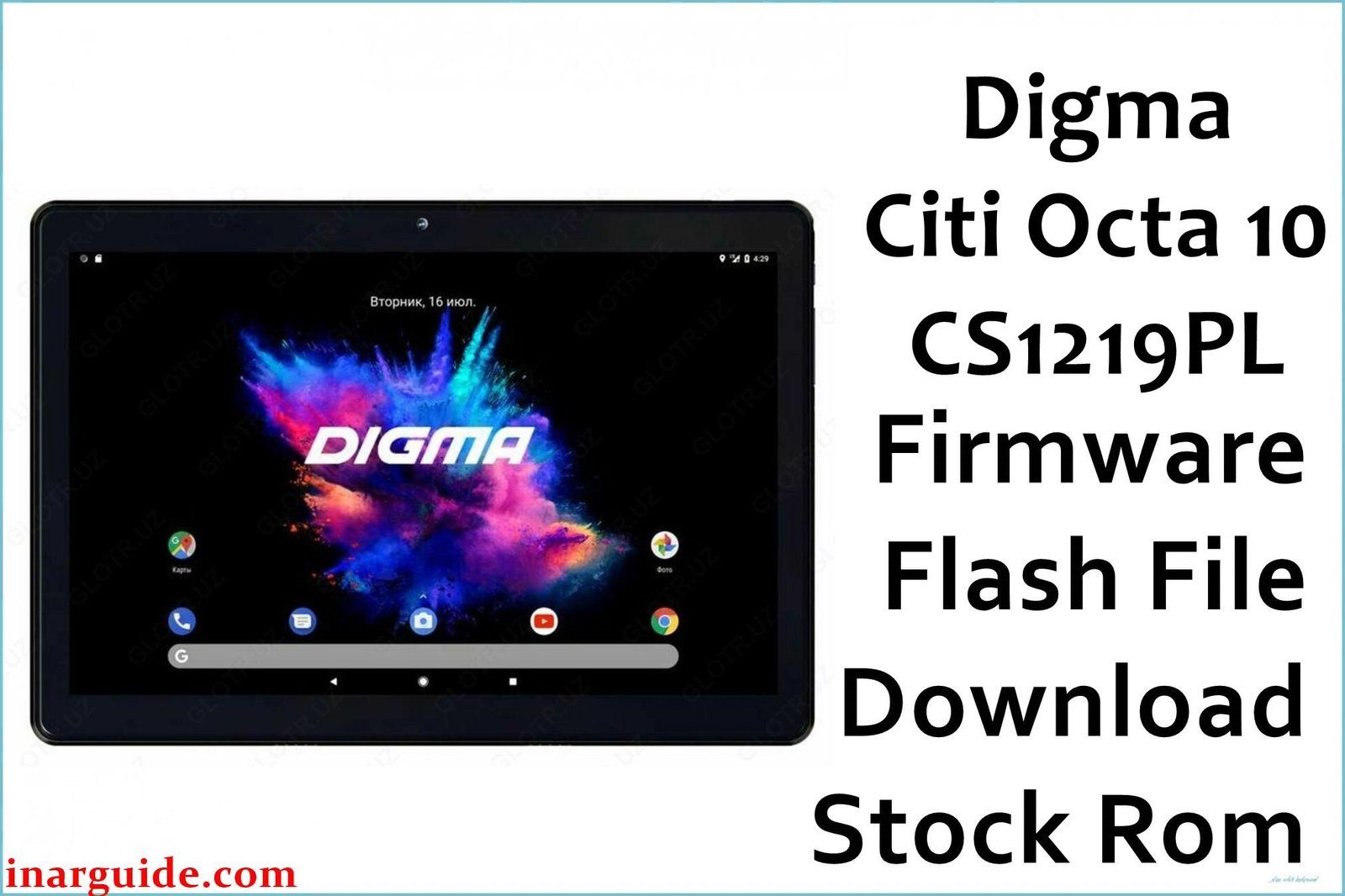
If your Digma Citi Octa 10 (CS1219PL) is caught in a bootloop, suffers from frustrating lag and freezes, or has persistent software bugs that a simple reset won’t fix, a complete firmware re-flash is the most effective solution. This guide provides the official factory firmware for all three known hardware revisions (Rev1, Rev2, and Rev3), empowering you to resolve deep-seated system errors and restore the tablet to its original, stable performance.
🚨 Critical Pre-Flash Warning **Data Deletion & Revision Mismatch**
This procedure will permanently erase all data on your tablet, including your Google account, apps, photos, and personal files. Ensure you have backed up everything important before you start. This tablet has three distinct hardware revisions. Flashing firmware for the wrong revision will cause the touchscreen to become completely unresponsive. You must correctly identify your device’s revision before downloading and flashing.
Device Specifications Verification
Confirm these specifications match your device before flashing:
| Specification | Details |
|---|---|
| Device Name | Digma Citi Octa 10 |
| Model Number | CS1219PL |
| Release Date | 2019-2021 (Multiple Revisions) |
| Chipset | UNISOC SC9863A (Octa-Core 1.6GHz) |
| GPU | PowerVR GE8322 |
| Display | 10.1″ IPS LCD, 1280×800 HD |
| RAM/Storage | 3GB RAM / 32GB internal storage |
| Battery | 5000mAh Li-Ion |
| Android Version | Android 9.0 / 10 |
| Key Features | 4G LTE, Dual SIM, Metal Back Panel |
Official Firmware Downloads
| Filename / Revision | Date | Region | Android | Size | Download Link/s |
|---|---|---|---|---|---|
| Digma_Citi_Octa_10_CS1219PL_REV1_Factory_191118_SPD.zip | Nov 2019 | Global | 9.0 | 1.54GB | Download (Google Drive) |
| Digma_Citi_Octa_10_CS1219PL_REV2_Factory_200819_SPD.zip | Aug 2020 | Global | 10 | ~1.5GB | Download (Google Drive) |
| Digma_Citi_Octa_10_CS1219PL_REV3_Factory_210603_SPD.zip | Jun 2021 | Global | 10 | ~1.5GB | Download (Google Drive) |
⭐ Recommendation: Identifying your revision is absolutely essential. Check the serial number on the back of the tablet or on the original box. Users report that the 5th character of the serial number corresponds to the revision number (e.g., if it’s “1”, you have Rev1). If you cannot find the serial number, you may need to try flashing each version, starting with Rev3, until you find the one where the touchscreen works.
Required Tools & Drivers
- SPD Upgrade Tool (latest version)
- Spreadtrum USB Drivers
- The correct Digma Citi Octa 10 firmware for your revision (from the table above)
Driver Installation Notes:
- On Windows 10/11, you must disable driver signature enforcement before installing the Spreadtrum drivers to prevent errors.
- Install the drivers before you launch the SPD Upgrade Tool for the first time.
Quick Digma Citi Octa 10 Firmware Flashing Instructions
-
Use the SPD Upgrade Tool to flash the firmware, as this tablet uses a UNISOC/Spreadtrum chipset.
-
Confirm the Spreadtrum USB drivers are installed correctly on your PC.
-
Extract the firmware .zip file to get the
.pacfirmware file. -
Launch the SPD Upgrade Tool, click the ‘Load Packet’ button (the gear icon), and select the
.pacfile you extracted. -
Click the ‘Start Downloading’ button (the play icon).
-
Power off your tablet completely (hold the power button for 15 seconds).
-
Press and hold the Volume Down button, then connect the tablet to your PC with a USB cable to start the flashing process.
For a detailed walkthrough on using the SPD tool and solving common errors, see our main guide: How to Use the SPD Upgrade Tool to Flash Your Smartphone.
Troubleshooting & Optimization Guide
1. Touchscreen Does Not Work After Flashing
- Symptoms: The firmware installs successfully (“Passed” in the tool), and the tablet boots to the welcome screen, but the screen is completely unresponsive to touch.
- This is the most common and critical issue, caused by flashing firmware for the wrong hardware revision. Each revision uses a different touch panel controller chip that requires specific drivers.
- Do not panic. Turn the tablet off by holding the power button.
- Repeat the entire flashing process, but this time use the firmware for a different revision. For example, if you flashed Rev3 and the touch failed, your tablet is a Rev2 or Rev1. Flash the Rev2 firmware next.
- The touchscreen will only function when the installed firmware’s drivers perfectly match the physical hardware of your specific tablet revision.
2. Very Slow Charging and Disappointing Battery Life
- Symptoms: The tablet takes 6-8 hours for a full charge. The battery drains quickly, even with light use like reading or browsing.
- This is a widely reported issue. The tablet’s charging circuit is not optimized. Ensure you are using a quality 5V/2A power adapter and a good USB cable.
- A clean firmware flash can sometimes help by calibrating the battery stats and removing rogue apps that cause background drain.
- To improve battery life, manually lower the screen brightness. Go to Settings > Battery and enable Battery Saver.
- Restrict background data for apps you don’t need notifications from (Settings > Apps & notifications > [Select App] > Mobile data & Wi-Fi > Disable “Background data”).
3. Performance Lag and Stutter in the Interface
- Symptoms: The tablet stutters when scrolling, opening apps, or switching between them. It feels less responsive than expected for an octa-core device.
- The UNISOC SC9863A is a budget processor. While it has eight cores, its individual core performance is low. A firmware flash provides the best starting point by creating a clean system.
- Enable Developer Options (tap “Build number” 7 times in “About tablet”). In Developer Options, set “Window animation scale,” “Transition animation scale,” and “Animator duration scale” to “0.5x”. This makes the UI feel snappier.
- Avoid using live wallpapers and limit the number of widgets on your home screen, as these consume system resources.
4. “Ghost” Touches or Inaccurate Touch Response
- Symptoms: The screen registers touches that you didn’t make, or it’s inaccurate, especially near the edges.
- First, ensure the screen is perfectly clean and that you are not using a thick, ill-fitting screen protector, which can interfere with the digitizer.
- This can sometimes be caused by a software glitch. A full firmware re-flash is a valid step to rule out a software cause.
- If the problem persists after a clean flash, it often points to a failing digitizer (the touch-sensitive layer of the screen). This is a hardware issue that requires professional repair or screen replacement.
Frequently Asked Questions
- How do I find my tablet’s hardware revision (Rev1, Rev2, or Rev3)?
- The most reliable method is to check the serial number on the back of the tablet. The 5th character from the left typically indicates the hardware revision number. For example, if the number is `CS121**2**…`, you have a Revision 2 device.
- Can I upgrade my Rev1 tablet from Android 9 to Android 10 by flashing the Rev2/Rev3 firmware?
- No, this is highly discouraged. While it might seem like an upgrade, the firmware is tied to the hardware. Attempting to flash Android 10 firmware (Rev2/Rev3) onto a Rev1 device will almost certainly result in a non-functional touchscreen and potentially other instabilities.
- Is this tablet good for gaming?
- It is suitable only for very basic, casual 2D games. The UNISOC SC9863A processor and its PowerVR GPU are not powerful enough to run modern, graphically intensive 3D games like Call of Duty Mobile or Genshin Impact smoothly.
- Why are the photos from the camera so low quality?
- The tablet is equipped with very basic camera sensors (2MP rear, 0.3MP front) as a cost-saving measure. The poor quality, especially in low light, is a hardware limitation. No firmware update can improve the physical quality of the lenses and sensors.
Conclusion
Reviving your Digma Citi Octa 10 (CS1219PL) with a clean firmware installation is the most reliable way to fix major software issues. The ultimate key to a successful repair is identifying and flashing the correct firmware for your specific hardware revision (Rev1, Rev2, or Rev3) to ensure the touchscreen works perfectly. By addressing the device’s real-world quirks, like its slow charging and modest performance, you can restore your tablet to a stable and usable condition.
Did you successfully unbrick your device? Let us know which revision you have in the comments to help others!





