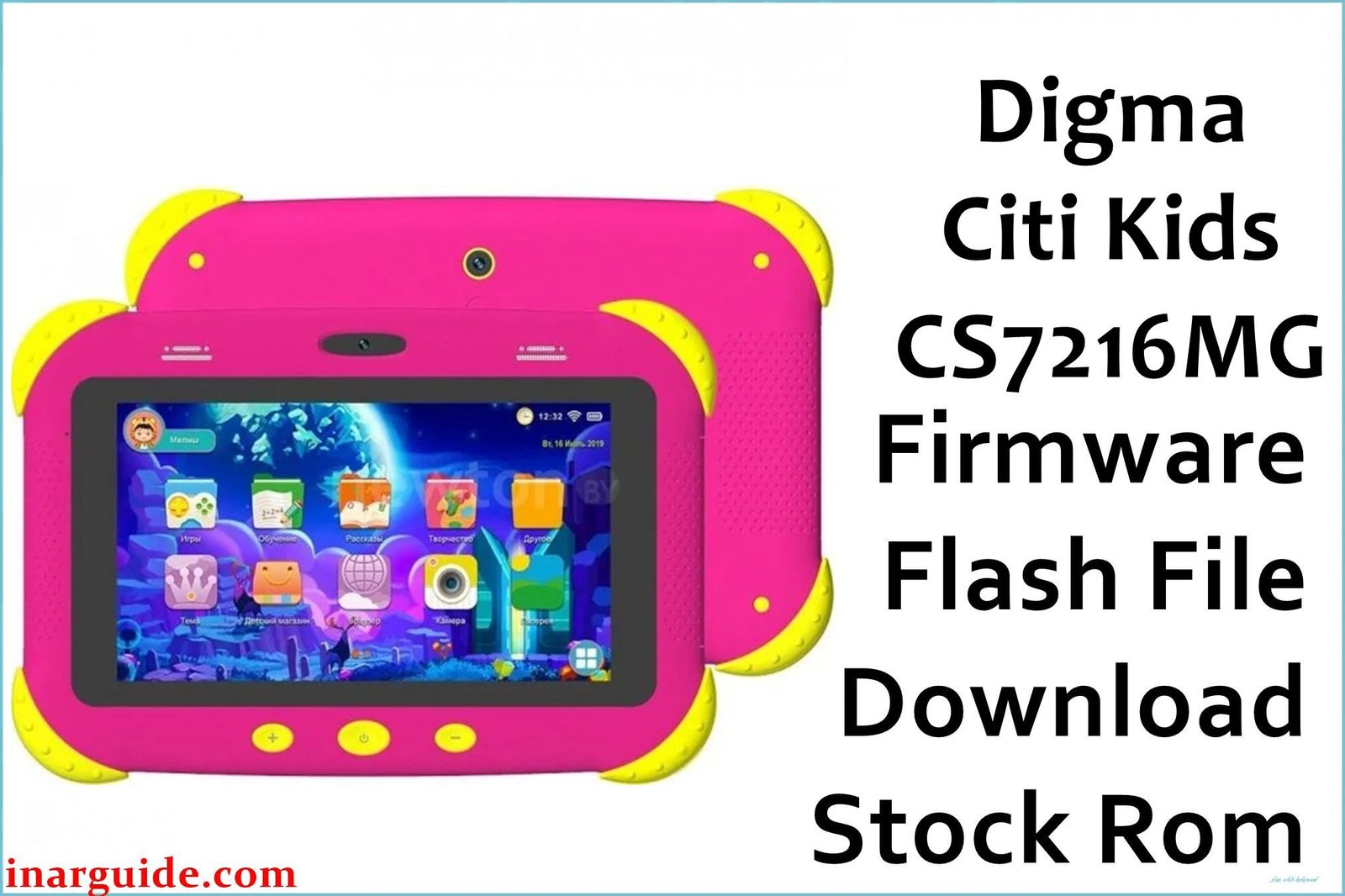
If your child’s Digma Citi Kids (CS7216MG) tablet has become unusably slow, is locked due to a forgotten parental password, or is stuck on the startup screen, flashing the official stock firmware is the most effective solution. This comprehensive guide provides the factory firmware for all three known hardware revisions (Rev1, Rev2, and Rev3), helping you resolve critical software issues and restore the tablet to its original, fully functional state.
🚨 Critical Pre-Flash Warning **For Parents: Read Carefully Before Starting**
This action will permanently erase all data on the tablet, including games, photos, videos, and app progress. Please back up any important files if possible. This tablet has three different hardware revisions. Flashing the wrong revision firmware will cause the touchscreen to stop working. You must identify the correct revision for your device. Using SP Flash Tool incorrectly, especially the “Format All + Download” option, can permanently damage the device.
Device Specifications Verification
Confirm these specifications match your device before flashing:
| Specification | Details |
|---|---|
| Device Name | Digma Citi Kids |
| Model Number | CS7216MG |
| Release Date | 2019-2021 (Multiple Revisions) |
| Chipset | MediaTek MT6580 (Quad-Core 1.3GHz) |
| GPU | ARM Mali-400 MP2 |
| Display | 7.0″ IPS LCD, 1024×600 WSVGA |
| RAM/Storage | 1GB RAM / 16GB internal storage |
| Battery | 2500mAh Li-Ion |
| Android Version | Android 8.1 / 9.0 (Go Edition) |
| Key Features | 3G Connectivity, Pre-installed Kids’ Software, Included Silicone Bumper Case |
Official Firmware Downloads
| Filename / Revision | Date | Region | Android | Size | Download Link/s |
|---|---|---|---|---|---|
| Digma_Citi_Kids_CS7216MG_MT6580_REV1_Factory_190910_SPMDT.zip | Sep 2019 | Global | 8.1 Go | 1.20GB | Download (Google Drive) |
| Digma_Citi_Kids_CS7216MG_MT6580_REV2_Factory_200811.zip | Aug 2020 | Global | 9.0 Go | 1.25GB | Download (Google Drive) |
| Digma_Citi_Kids_CS7216MG_MT6580_REV3_Factory_210703.zip | Jul 2021 | Global | 9.0 Go | 1.35GB | Download (Google Drive) |
⭐ Recommendation: Identifying your revision is crucial. Check the serial number on the device or original box. The 5th character often indicates the revision (e.g., a “2” means Rev2). If you are completely unsure, a safe approach is to start with the newest firmware (Rev3). If the touchscreen fails, try Rev2, and then Rev1.
Required Tools & Drivers
- SP Flash Tool (latest version)
- MediaTek VCOM USB Drivers
- The correct Digma Citi Kids firmware package for your revision (from the table above)
Driver Installation Notes:
- For Windows 10/11 users, you will likely need to disable driver signature enforcement to successfully install the MediaTek VCOM drivers.
- Install all drivers before opening the SP Flash Tool for the first time.
Quick Digma Citi Kids Firmware Flashing Instructions
-
Use the SP Flash Tool to restore this tablet, as it runs on a MediaTek processor.
-
Confirm the MediaTek VCOM drivers are properly installed on your PC.
-
Extract the firmware .zip file. You will find a folder containing the firmware files, including the
MT6580_Android_scatter.txtfile. -
Launch SP Flash Tool, click the “Scatter-loading File” button, and select the
.txtscatter file. -
Make sure the flashing mode is set to “Download Only” and click the large “Download” button.
-
Turn the tablet completely off.
-
Connect the powered-off tablet to your PC with a USB cable to begin the flashing process.
For a detailed walkthrough, error solutions, and advanced tips for SP Flash Tool, please see our main guide: How to Flash Firmware on MediaTek (MTK) Smartphones.
Troubleshooting & Optimization Guide
1. Tablet is Extremely Slow and Unresponsive
- Symptoms: The tablet freezes constantly, takes a very long time to open even the simplest apps, and often shows “System UI is not responding.”
- This is the most common complaint and is a direct result of the very old MT6580 chipset and only 1GB of RAM. A clean firmware flash is the best way to restore it to its original (slow) speed by removing all software clutter.
- After flashing, set realistic expectations. This tablet is designed for one very simple task at a time. Do not install more than a few essential kids’ apps.
- Regularly clear the cache by going to Settings > Storage > Cached data.
- Teach your child to close one game before opening another to free up the limited RAM.
2. Touchscreen Not Working After Flashing
- Symptoms: The firmware installation completes successfully, the tablet boots up, but the screen does not respond to touch at all.
- This is a clear sign that you have flashed firmware for the wrong hardware revision.
- Do not worry. The tablet is not broken. Power it off by holding the power button for about 15 seconds.
- Repeat the flashing process using the firmware for a different revision. For example, if you used Rev3 and it failed, your tablet is a Rev2 or Rev1. Flash the Rev2 firmware next.
- The touchscreen will only work when the firmware’s drivers match the physical screen hardware.
3. “Not enough space” Error, Even With an SD Card
- Symptoms: You cannot install new apps from the Play Store, receiving an “insufficient storage” error, even though there is plenty of space on the microSD card.
- This happens because the tablet has very limited internal storage (16GB), and most of that is taken up by the OS. Apps primarily install to internal storage by default.
- Go to Settings > Storage. Click on the SD card and ensure it is formatted as “Portable Storage,” not “Internal Storage,” as the latter can be unstable on this device.
- For apps that support it, go to Settings > Apps > [App Name] > Storage and look for a “Change” button to move the app to the SD card.
- A firmware flash will free up all available internal storage, giving you a clean slate to manage.
4. Forgotten Password for Kids’ Mode
- Symptoms: The tablet is locked in the pre-installed Kids’ Shell, and you have forgotten the password to exit to the main Android interface.
- A factory reset from recovery mode may not always remove the Kids’ Shell password.
- The only guaranteed method to bypass and remove the password is to perform a full firmware flash as described in this guide.
- This process will completely reinstall the operating system and all its apps, including the Kids’ Shell, resetting it to its default state with no password set.
Frequently Asked Questions
- How can I tell which revision (Rev1, Rev2, or Rev3) my tablet is?
- The most reliable way is by checking the 5th character of the serial number, which is usually found on a sticker on the back of the tablet or in the settings under “About Tablet.” A “1” typically means Rev1, a “2” means Rev2, and so on. If the sticker is gone, you may have to use the trial-and-error flashing method.
- Can this tablet be used for online classes or Zoom?
- While technically possible, the experience will be very poor. The combination of the weak processor, limited 1GB of RAM, and low-quality 0.3MP front camera will result in a laggy, pixelated video feed and frequent app crashes. It is not recommended for this purpose.
- Why is the battery life so short?
- The 2500mAh battery is extremely small for a 7-inch tablet. Expect only 2-3 hours of continuous screen-on time for activities like watching videos or playing games. To extend it, lower the screen brightness significantly and turn off Wi-Fi when not in use.
- Can I upgrade this tablet to a newer version of Android?
- No. The MediaTek MT6580 chipset is very old and does not support any Android version beyond what is provided here (Android 9 Go for the newer revisions). There will be no further official updates, and no custom ROMs are available for this device.
Conclusion
For parents struggling with a problematic Digma Citi Kids (CS7216MG), a complete firmware re-flash is the ultimate solution. It can bypass any forgotten password, resolve critical software errors, and clear out the system clutter that makes the tablet agonizingly slow. The key to success is carefully matching the firmware (Rev1, Rev2, or Rev3) to your tablet’s specific hardware to ensure the touchscreen works correctly. By following this guide, you can restore the device and give it a new lease on life.
Did you successfully rescue your tablet? Share your experience and which revision you have in the comments to help other parents!





