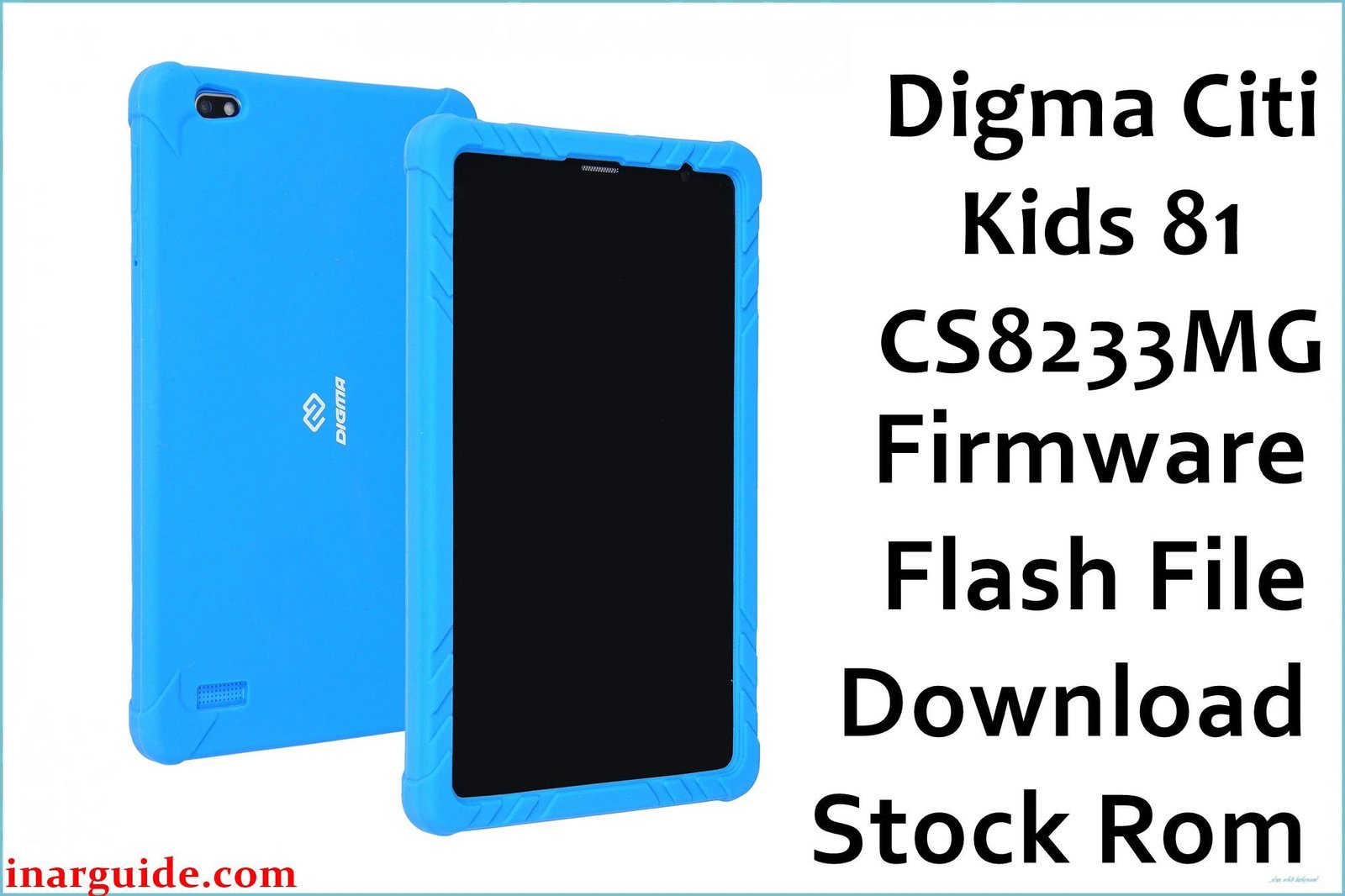
If your child’s Digma Citi Kids 81 (CS8233MG) tablet is locked due to a forgotten password, stuck in a boot loop, or has become unusably slow, performing a full firmware re-flash is the most effective way to fix it. This guide provides the official factory firmware for the first hardware revision (Rev1) of the device, allowing you to completely restore the software, remove all passwords, and give the tablet a fresh start.
🚨 Critical Pre-Flash Warning **Parents, Please Read Before Starting**
This action will permanently delete all data on the tablet, including games, saved progress, photos, and videos. Please back up anything important if you can still access the device. This firmware is for Hardware Revision 1 (Rev1). Flashing it on a newer revision (Rev2) will cause the touchscreen to stop working. Incorrectly using SP Flash Tool can cause permanent damage, so follow the instructions carefully.
Device Specifications Verification
Confirm these specifications match your device before flashing:
| Specification | Details |
|---|---|
| Device Name | Digma Citi Kids 81 |
| Model Number | CS8233MG |
| Release Date | Late 2020 |
| Chipset | MediaTek MT8321 (Quad-Core 1.3GHz) *Note: Firmware filename may incorrectly state MT6580 |
| GPU | Mali-400 MP2 |
| Display | 8.0″ IPS LCD, 1280×800 HD |
| RAM/Storage | 2GB RAM / 32GB internal storage |
| Battery | 3500mAh Li-Ion |
| Android Version | Android 10 (Go Edition) |
| Key Features | 3G Connectivity, Pre-installed Kids’ Software, Included Silicone Bumper Case |
Official Firmware Downloads
| Filename / Revision | Date | Region | Android | Size | Download Link/s |
|---|---|---|---|---|---|
| Digma_Citi_Kids_81_CS8233MG_MT6580_REV1_Factory_201221.zip | Dec 2020 | Global | 10 Go | 940MB | Download (Google Drive) |
⭐ Recommendation: This is the factory firmware for the first revision of the tablet. Before flashing, check your device’s serial number. As reported on technical forums, the 5th character of the serial number often indicates the revision number (e.g., a “1” means Rev1).
Required Tools & Drivers
- SP Flash Tool (latest version)
- MediaTek VCOM USB Drivers
- The Digma Citi Kids 81 Rev1 firmware package (from the table above)
Driver Installation Notes:
- On newer versions of Windows, you will likely need to disable driver signature enforcement to install the MediaTek VCOM drivers correctly.
- Install the drivers before you open SP Flash Tool for the first time.
Quick Digma Citi Kids 81 Firmware Flashing Instructions
-
Use the SP Flash Tool to flash the firmware, as this is a MediaTek-based device.
-
Ensure the MediaTek VCOM drivers are properly installed on your PC.
-
Extract the firmware .zip file. Inside the resulting folder, find the
MT6580_Android_scatter.txtfile. -
Launch SP Flash Tool, click on the “Scatter-loading File” button, and select that
.txtfile. -
Ensure the flashing mode is set to “Download Only” and click the big green “Download” button.
-
Power off the tablet completely.
-
Connect the tablet to your PC with its USB cable. The flashing process should start automatically.
For detailed, step-by-step instructions and troubleshooting for SP Flash Tool, please refer to our main pillar article: How to Flash Firmware on MediaTek (MTK) Smartphones.
Troubleshooting & Optimization Guide
1. Cracked Touchscreen and Unresponsive Replacement
- Symptoms: The original screen is cracked and partially or fully unresponsive. After installing a new replacement screen, the new screen also doesn’t respond to touch.
- This is a critical issue for this model due to multiple hardware revisions. The replacement screen must be compatible with your tablet’s specific revision (Rev1 or Rev2).
- If you have installed a new screen and it’s not working, the first step is to flash the correct stock firmware for your revision. This guide provides the Rev1 firmware. Flashing it ensures the correct touchscreen drivers are installed.
- If the screen still doesn’t work after flashing, you have likely purchased a replacement screen meant for a different hardware revision. Contact the seller and provide your tablet’s full model number and revision.
2. Tablet is Very Slow, Even for a Kids’ Device
- Symptoms: Apps take a long time to load, the interface stutters, and the tablet freezes frequently, requiring a reboot.
- While Android 10 Go is optimized for low-spec devices, the 2GB of RAM is still a significant bottleneck. A clean firmware flash is the best way to restore “like-new” performance.
- After flashing, be very selective about what you install. The pre-installed kids’ software is already resource-intensive.
- Go to Settings > Apps and disable or uninstall any apps you don’t use.
- Use the built-in “Files by Google” app to regularly clean junk files and clear the cache, which can significantly improve responsiveness.
3. “SIM Card not Detected” or 3G Not Working
- Symptoms: After inserting a working SIM card, the tablet shows “No Service” or fails to connect to the 3G mobile network.
- First, power off the tablet, remove the SIM card, and carefully re-insert it, making sure it clicks into place properly.
- Go to Settings > Network & Internet > Mobile network. Ensure “Mobile data” is turned on and check that the correct APN (Access Point Name) for your mobile carrier is selected.
- Flashing the stock firmware can resolve software or modem-related glitches that might be preventing the SIM card from being recognized.
- If the problem persists after a re-flash, it could indicate a faulty SIM card slot or a damaged internal antenna, which would require hardware repair.
4. Bumper Case Makes It Hard to Press Power/Volume Buttons
- Symptoms: The included silicone bumper case is thick, and the child has difficulty pressing the power and volume buttons through it.
- This is a common ergonomic complaint. The case is designed for drop protection, but the button covers are stiff.
- With the case removed from the tablet, you can try to “work” the button areas by repeatedly pressing and flexing them to make the silicone more pliable.
- For a more permanent solution, an adult can use a sharp craft knife to carefully cut out the small sections of the case covering the buttons. This will expose the buttons directly, making them much easier to press. Do this with extreme care.
Frequently Asked Questions
- Can I use this tablet to make regular phone calls?
- Yes, since the tablet has a SIM card slot and 3G capabilities, you can install a dialer app from the Google Play Store and use it to make and receive phone calls, just like a very large smartphone. It has a built-in earpiece and microphone.
- How do I find out if my tablet is Rev1 or Rev2?
- The most reliable method is to check the serial number, usually found on the back of the tablet or on the original box. Users have determined that the 5th character in the serial number corresponds to the revision number (e.g., if it’s “1”, you have Rev1; if it’s “2”, you have Rev2).
- Is the 3500mAh battery enough for this tablet?
- The battery capacity is quite small for an 8-inch tablet. Expect a few hours of continuous use (e.g., for watching videos or playing games). To maximize battery life, lower the screen brightness and turn off Wi-Fi and 3G when not in use.
- Why is the front camera quality so poor in video calls?
- The tablet is equipped with a very basic 0.3-megapixel front camera. This resolution is extremely low by modern standards, resulting in a grainy and pixelated image. For the best possible quality, ensure the child is in a very brightly lit room during video calls. No software update can improve this hardware limitation.
Conclusion
Restoring the Digma Citi Kids 81 (CS8233MG) by flashing its factory firmware is the definitive solution for parents facing software lockouts, frustrating lag, or post-repair issues like an unresponsive touchscreen. This guide addresses the real-world challenges of this device—from its hardware revisions to its usability quirks—providing authentic solutions to get it working reliably again. By carefully following the steps for your Rev1 device, you can bypass any software issue and return the tablet to a clean, ready-for-play state.
Did you successfully bring your tablet back to life? Let other parents know in the comments!





