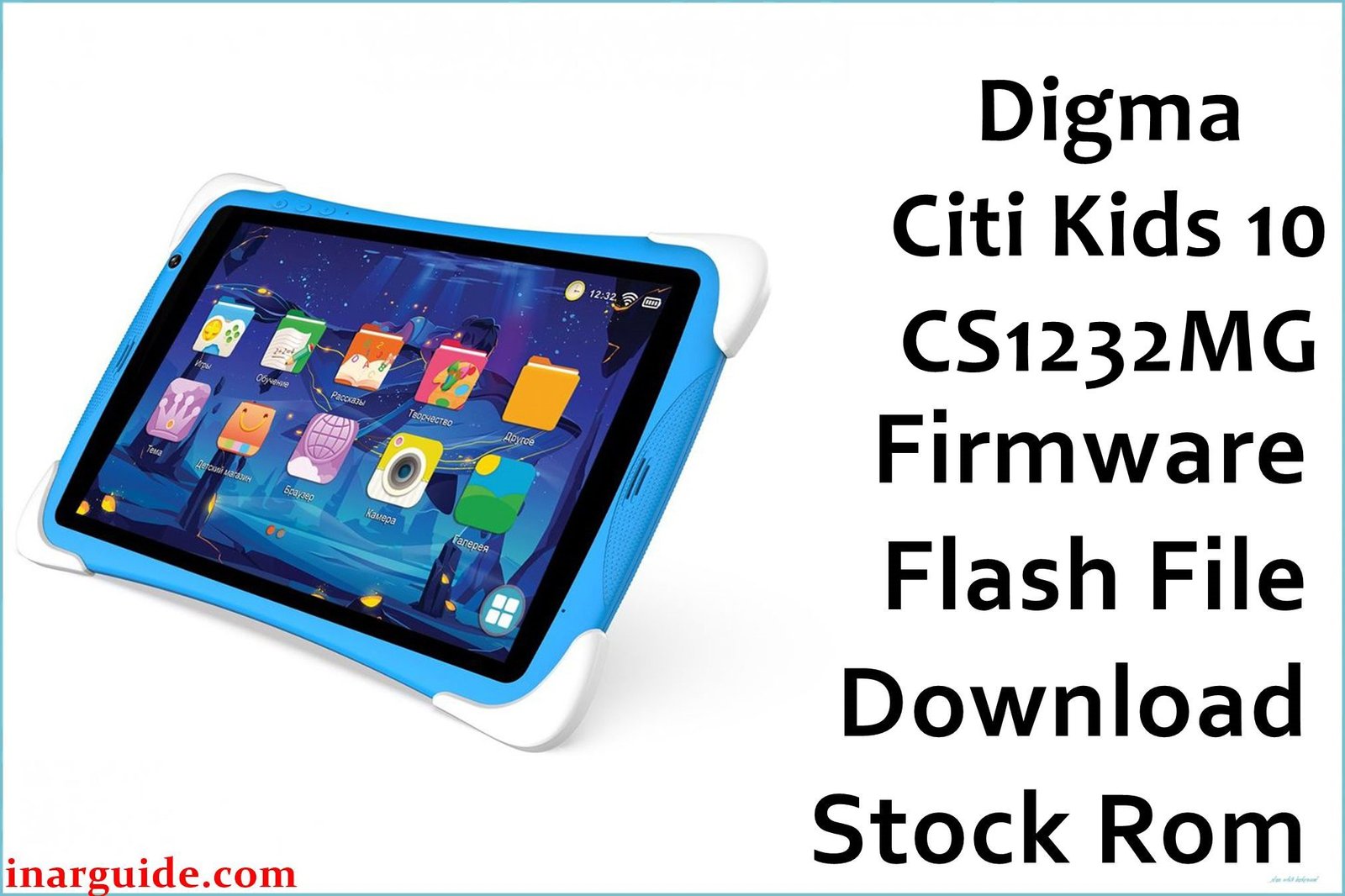
If your child’s Digma Citi Kids 10 (CS1232MG) tablet has become frustratingly slow, is stuck in the kids’ interface, or won’t boot up properly, flashing the official stock firmware is the ultimate reset button. This guide provides the official factory firmware for all known hardware revisions, helping you resolve deep-seated software issues, bypass forgotten parental control passwords, and restore the tablet to its original, out-of-the-box condition.
🚨 Critical Pre-Flash Warning
This process will permanently delete everything on the tablet, including downloaded games, photos, and progress. Please back up any precious memories before you start. This tablet has multiple hardware revisions (Rev1, Rev2, and an older V21). Flashing the wrong revision will make the touchscreen stop working. Incorrectly using the SP Flash Tool (especially the “Format All” option) can damage the tablet’s IMEI, so follow instructions precisely.
Device Specifications Verification
Confirm these specifications match your device before flashing:
| Specification | Details |
|---|---|
| Device Name | Digma Citi Kids 10 |
| Model Number | CS1232MG |
| Release Date | 2019-2022 (Multiple Revisions) |
| Chipset | MediaTek MT6580 (Quad-Core 1.3GHz) |
| GPU | ARM Mali-400 MP2 |
| Display | 10.1″ IPS LCD, 1280×800 HD |
| RAM/Storage | 1GB RAM / 16GB internal storage |
| Battery | 4000mAh Li-Ion |
| Android Version | Android 8.1 / 9.0 (Go Edition) |
| Key Features | Pre-installed Kids’ Shell, Parental Controls, Included Silicone Bumper Case |
Official Firmware Downloads
| Filename / Revision | Date | Region | Android | Size | Download Link/s |
|---|---|---|---|---|---|
| Digma_Citi_Kids_10_CS1232MG_MT6580_V21_Factory_190711.zip | Jul 2019 | Global | 8.1 Go | 1.05GB | Download (Google Drive) |
| Digma_Citi_Kids_10_CS1232MG_MT6580_REV1_Factory_210428.zip | Apr 2021 | Global | 9.0 Go | 1.06GB | Download (Google Drive) |
| Digma_Citi_Kids_10_CS1232MG_MT6580_REV2_Factory_220225.zip | Feb 2022 | Global | 9.0 Go | 979MB | Download (Google Drive) |
⭐ Recommendation: Always try to flash the firmware that matches your device’s hardware revision. If you are unsure, start with the newest firmware (REV2 from Feb 2022). If the touchscreen does not work after flashing, your device is an older revision, and you should then try flashing the REV1 or V21 firmware.
Required Tools & Drivers
- SP Flash Tool (latest version)
- MediaTek VCOM USB Drivers
- The correct Digma Citi Kids 10 firmware package for your revision (from the table above)
Driver Installation Notes:
- On Windows 10/11, you may need to disable driver signature enforcement to install the MediaTek drivers.
- Install drivers before connecting your phone.
Quick Digma Citi Kids 10 Firmware Flashing Instructions
-
Use the SP Flash Tool to restore your MediaTek-based tablet.
-
First, make sure the MediaTek VCOM drivers are correctly installed on your computer.
-
After extracting the firmware file, open SP Flash Tool and load the
MT6580_Android_scatter.txtfile from the firmware folder. -
Set the flashing mode to “Download Only” and click the “Download” button.
-
Power off the tablet completely.
-
Connect your tablet to your PC with a USB cable to begin the flashing process automatically.
For in-depth instructions and error solutions for the SP Flash Tool, please visit our complete guide: How to Flash Firmware on MediaTek (MTK) Smartphones.
Troubleshooting & Optimization Guide
1. Stuck in Kids’ Mode or Forgotten Parental Control Password
- Symptoms: You cannot exit the “Kids’ Shell” interface because you’ve forgotten the password, or the interface has frozen completely. A standard factory reset doesn’t work.
- This is the most common reason parents need to re-flash this tablet. Flashing the stock firmware is the only guaranteed way to wipe the password and restore access.
- Follow the flashing instructions precisely. The process will reinstall the entire operating system, including the Kids’ Shell, setting it back to its default state with no password.
- When you set a new password, write it down and keep it in a safe place.
2. Extreme Slowness, Games Crashing or Not Loading
- Symptoms: Even simple educational games are very slow to load, animations are choppy, and apps frequently crash or show a “Not Responding” error.
- This is a direct result of the tablet’s hardware limitations: the very old MT6580 processor and only 1GB of RAM. A firmware flash can help by cleaning the system, but it cannot upgrade the hardware.
- Set realistic expectations: this tablet is suitable for one simple task at a time (e.g., watching a video or playing a basic puzzle game).
- Free up storage: Uninstall any unused games or apps. Go to Settings > Storage and clear the cache.
- Teach your child to close an app completely before opening a new one.
3. Touchscreen Not Working After a Successful Flash
- Symptoms: The tablet boots up to the welcome screen, but the display does not respond to any touch input.
- You have flashed a firmware version that is incompatible with your tablet’s specific hardware revision.
- Don’t panic. Simply power off the tablet and repeat the flashing process, but this time, use a different firmware file from the list above.
- For example, if you flashed REV2 and the touch failed, your tablet is likely REV1 or the older V21 model. Try flashing the REV1 firmware next.
4. Battery Drains Very Quickly
- Symptoms: The battery doesn’t last long, even with light use. It drains significantly overnight while idle.
- First, lower the screen brightness, as the large 10.1-inch display is the biggest power consumer.
- Turn off Wi-Fi when it’s not needed, especially overnight.
- A clean firmware flash can sometimes resolve software bugs that cause “wakelocks” (processes that prevent the tablet from sleeping properly), which can improve battery life.
- Be aware that the 4000mAh battery is relatively small for a 10.1-inch tablet, so moderate battery life is expected.
Frequently Asked Questions
- Can my child easily bypass the parental controls or Kids’ Shell?
- The built-in Kids’ Shell is fairly basic. While it can prevent access to settings and the Play Store, tech-savvy children may find ways to exit it through app notifications or crash prompts. A firmware flash restores the default secure environment.
- Can I remove the Digma Kids software and use it as a normal tablet?
- Flashing the stock firmware will reinstall all the original software, including the Kids’ Shell. While you can choose not to activate it and use a standard Android launcher from the Play Store, the tablet’s extremely slow performance with only 1GB of RAM makes it a poor experience for general adult use.
- Can I upgrade the tablet to Android 10 or 11?
- Absolutely not. The MediaTek MT6580 chipset is very old and does not support any Android version newer than what is provided in these firmware packages. There are no official or custom ROM updates available.
- The screen scratches very easily. Is this normal?
- Yes, user reports confirm the screen is made of soft plastic and is highly susceptible to scratches. While the included bumper case protects against drops, it is highly recommended to apply a plastic screen protector immediately after purchase to protect the display from scratches.
Conclusion
For parents dealing with a malfunctioning Digma Citi Kids 10 (CS1232MG), a full firmware re-flash is the most powerful tool at your disposal. It’s the ultimate solution for bypassing forgotten parental passwords, fixing software freezes, and clearing out system clutter that makes the tablet unbearably slow. By carefully matching the firmware revision to your hardware, you can successfully restore the device to a clean, usable state for your child.
Did you rescue your child’s tablet? Share your success story or ask a question in the comments below to help other parents!





