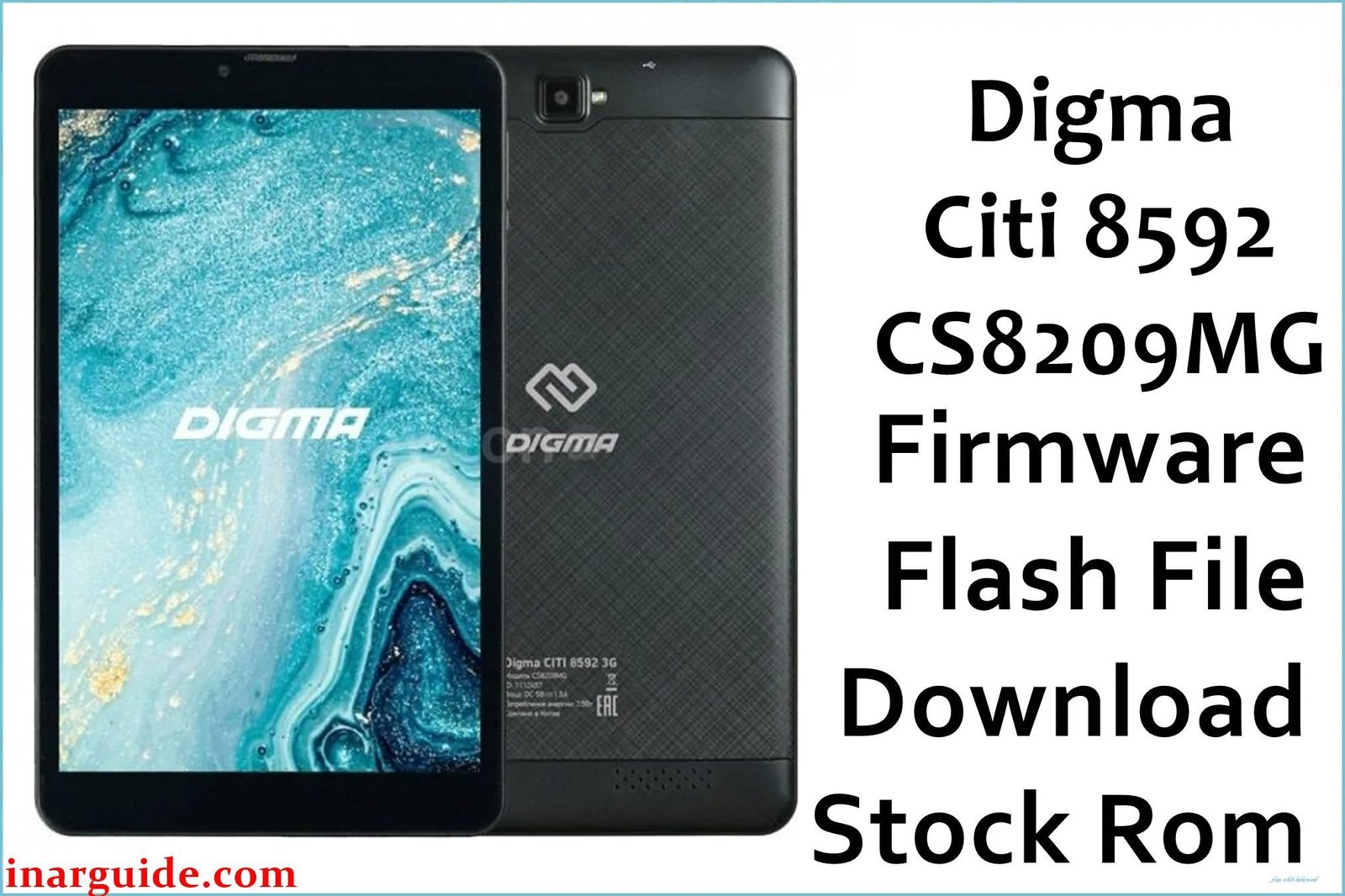
Restore your Digma Citi 8592 (CS8209MG) tablet to its peak operational state with the official stock firmware. This flash file is the ultimate solution for resolving deep-rooted software problems that a simple factory reset can’t fix, including being stuck in a bootloop, experiencing frequent system crashes, dealing with malware infections, or being locked out due to a forgotten password. By reinstalling the original Android 8.1 Oreo (Go Edition) operating system, you can effectively repair corrupted files and give your device a completely fresh start.
🚨 Critical Pre-Flash Warning
Flashing will permanently erase all data on your Digma Citi 8592, including photos, apps, and personal files. Create a complete backup before proceeding. Using the wrong mode in SP Flash Tool, such as “Format All + Download,” can permanently wipe your device’s IMEI numbers, resulting in a loss of all network connectivity (3G/Calling). Always use “Download Only” mode to protect this critical information.
Device Specifications Verification
Confirm these specifications match your device before flashing:
| Specification | Details |
|---|---|
| Device Name | Digma Citi 8592 3G (CS8209MG) |
| Release Date | 2019 |
| Chipset | MediaTek MT6580 (28nm, Quad-core 1.3 GHz Cortex-A7) |
| GPU | Mali-400 MP2 |
| Display | 8.0″ IPS LCD, 1280×800 pixels |
| RAM/Storage | 2GB RAM / 16GB internal storage |
| Battery | 3200mAh Li-Ion |
| Android Version | Android 8.1 Oreo (Go Edition) |
| Key Features | 3G network support, GPS, microSD card slot |
Official Firmware Download
| Filename | Date | Region | Android | Size | Download Link |
|---|---|---|---|---|---|
| Digma_Citi_8592_CS8209MG_MT6580_Rev1_190612_SPMDT.zip | Jun 2019 | Global/RU | 8.1 | 1.06GB | Download (MediaFire) |
⭐ Recommendation: This is the official factory firmware for the hardware Revision 1 (Rev1) board. To protect your device’s unique calibration data, always flash using the “Download Only” mode in SP Flash Tool.
Required Tools & Drivers
- SP Flash Tool (latest version)
- MediaTek VCOM USB Drivers
- Digma Citi 8592 firmware package (from the table above)
Driver Installation Notes:
- On modern Windows versions (10/11), you must disable driver signature enforcement before installing the MediaTek VCOM drivers.
- Always install the drivers before you launch SP Flash Tool for the first time.
Quick Digma Citi 8592 Firmware Flashing Instructions
- Ensure the MediaTek VCOM drivers are properly installed on your PC.
- Extract the downloaded Digma firmware and the SP Flash Tool zip files into separate, easy-to-access folders.
- Open the SP Flash Tool folder and run
flash_tool.exe. - In the “Scatter-loading File” field, click “Choose” and navigate to the firmware folder to select the
MT6580_Android_scatter.txtfile. - Verify that the flashing mode in the dropdown menu is set to “Download Only”. Do NOT use other modes.
- Click the green “Download” button with the arrow icon.
- Completely power off your Digma tablet.
- Connect your powered-off tablet to the PC with a USB cable. The flashing process will start automatically.
- Wait for a green checkmark with a “Download OK” message to appear, which confirms the flash was successful.
For in-depth instructions and error solutions for the SP Flash Tool, please visit our complete guide: How to Flash Firmware on MediaTek (MTK) Smartphones.
Troubleshooting & Optimization Guide
-
Problem: SP Flash Tool gives a BROM or S_FT_… error.
These errors almost always point to a driver or connection issue. Re-install the VCOM drivers with signature enforcement disabled. Use a different USB port (USB 2.0 is often more reliable) and a known-good USB cable. Also, ensure the tablet’s battery is not completely drained before starting.
-
Problem: After flashing, the tablet has no signal, and the IMEI is “Invalid” or “0”.
This critical error occurs if the NVRAM partition was erased, likely by using the “Format All + Download” mode. This is difficult to fix and requires advanced tools like Maui META to rewrite the original IMEI numbers (found on the tablet’s box or back cover). To prevent this, only use “Download Only” mode.
-
Problem: The tablet is stuck at the boot screen after a successful flash.
The first boot after a full flash can take up to 10-15 minutes. Be patient. If it remains stuck for longer, boot into recovery mode (Power + Volume Up) and perform a “Wipe data/factory reset” to clear any residual conflicting data.
-
Problem: Poor performance even with a clean system.
The MediaTek MT6580 is an older, entry-level processor. Performance will be modest. After flashing, stick to lightweight apps, especially “Go Edition” apps from the Play Store. Limit the number of widgets on your home screen and avoid running many apps in the background.
Frequently Asked Questions
- What is the “scatter file”?
- The `MT6580_Android_scatter.txt` file is the most important file in a MediaTek firmware package. It’s a map that tells SP Flash Tool the exact memory address and size of every partition (like system, boot, cache, etc.) on the device’s storage. The tool cannot function without it.
- Why is “Download Only” mode so important?
- “Download Only” mode safely overwrites existing system partitions with new ones from the firmware file. Other modes, like “Format All + Download,” perform a low-level format that erases everything, including the protected NVRAM partition containing your device’s IMEI, MAC addresses, and other calibration data, which is often irreversible without special tools.
- Can I upgrade to a newer Android version with this firmware?
- No. This package will install or restore Android 8.1 Oreo (Go Edition). This is the official and final OS version released by the manufacturer for this hardware. No further major Android upgrades are available.
- My tablet is a different revision (Rev2). Can I still use this?
- It is extremely risky and not recommended. Firmware is compiled specifically for the hardware revision (motherboard, screen, camera sensors, etc.). Flashing a Rev1 firmware on a Rev2 device can cause boot failures, non-functional hardware (like the touchscreen), or a completely dead device.
Conclusion
Flashing the official stock firmware is the most effective way to fix software-related issues and restore the Digma Citi 8592 (CS8209MG) to its factory state. By carefully following the instructions and, most importantly, using the “Download Only” mode in SP Flash Tool, you can safely resolve problems like bootloops and malware infections. Adhering to the correct procedure will ensure you avoid critical issues like IMEI loss, giving your budget tablet a new lease on life.
Did you succeed? Share your flashing experience in the comments below. Your feedback helps other Digma tablet owners!





