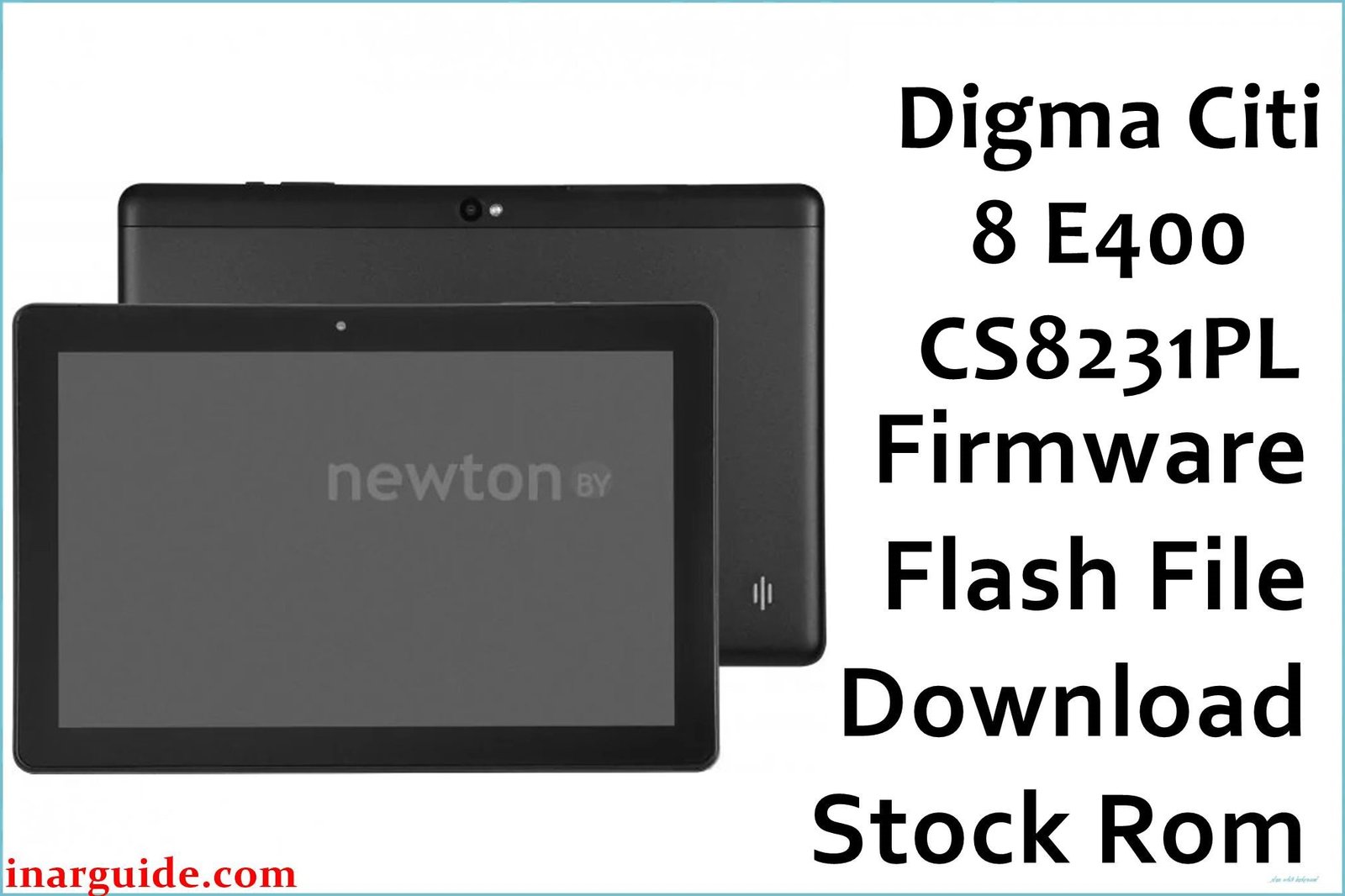
If your Digma Citi 8 E400 4G (CS8231PL) is stuck in a bootloop, experiencing severe performance degradation, or has software glitches that persist after a factory reset, flashing the official stock firmware is the definitive solution. This guide provides the official factory firmware for the first hardware revision (Rev1), allowing you to perform a clean installation and restore your tablet to its original, stable condition.
🚨 Critical Pre-Flash Warning
This procedure will permanently erase all data on your tablet, including your Google account, apps, photos, and personal files. Ensure you have a complete backup before you begin. This firmware is specifically for Hardware Revision 1 (Rev1). Flashing this on a different revision may cause the touchscreen or other components to stop working.
Device Specifications Verification
Confirm these specifications match your device before flashing:
| Specification | Details |
|---|---|
| Device Name | Digma Citi 8 E400 4G |
| Model Number | CS8231PL |
| Release Date | Late 2020 |
| Chipset | Spreadtrum SC9863A (UNISOC) |
| GPU | PowerVR GE8322 |
| Display | 8.0″ IPS LCD, 1280×800 HD |
| RAM/Storage | 2GB RAM / 32GB internal storage |
| Battery | 3500mAh Li-Ion |
| Android Version | Android 10 |
| Key Features | 4G LTE, Dual SIM, 8-Core Processor |
Official Firmware Downloads
| Filename / Revision | Date | Region | Android | Size | Download Link/s |
|---|---|---|---|---|---|
| Digma_Citi_8_E400_4G_CS8231PL_Rev1_201111_SPD.zip | Nov 2020 | Global | 10 | 1.04GB | Download (MediaFire) |
⭐ Recommendation: This is the initial factory release for Rev1 devices. It is the perfect tool for unbricking a tablet or resolving software corruption caused by faulty apps or failed system modifications.
Required Tools & Drivers
- SPD Upgrade Tool (latest version)
- Spreadtrum USB Drivers
- The Digma Citi 8 E400 Rev1 firmware package (from the table above)
Driver Installation Notes:
- On Windows 10/11, you must disable driver signature enforcement to allow the Spreadtrum drivers to be installed without errors.
- Complete the driver installation before launching the SPD Upgrade Tool.
Quick Digma Citi 8 E400 Firmware Flashing Instructions
-
Use the SPD Upgrade Tool for flashing the firmware on your tablet.
-
Confirm that the Spreadtrum USB drivers are correctly installed on your computer.
-
Extract the firmware .zip archive to access the
.pacfirmware file within. -
Open SPD Upgrade Tool, click the ‘Load Packet’ button (the gear icon), and load the
.pacfile. -
Click the ‘Start Downloading’ button (the play symbol) to put the tool in standby for flashing.
-
Completely power off your tablet.
-
Press and hold the Volume Down key, and while holding it, connect the tablet to your PC with a USB cable to initiate the flash.
For an in-depth guide on using the tool and solving common flashing errors, please visit our pillar article: How to Use the SPD Upgrade Tool to Flash Your Smartphone.
Troubleshooting & Optimization Guide
1. Tablet Fails to Charge or Charges Extremely Slowly
- Symptoms: The battery percentage does not increase when plugged in, or it takes an entire day to gain a small amount of charge. The charging indicator might flicker.
- This is a very common complaint with this model. Before assuming a hardware fault, rule out the basics: use a different, high-quality USB cable and a reliable power adapter (at least 5V/2A).
- The micro-USB port on the device is a known weak point. Gently clean it with compressed air or a non-metallic pick to remove any debris that could be causing a poor connection.
- Some users have reported that a complete software re-flash can resolve charging logic errors. Follow the guide to flash the stock firmware as a final software troubleshooting step.
- If the issue persists after these steps, the charging port or an internal power management IC (like the LP6253H mentioned in some forums) has likely failed and requires professional repair.
2. Poor Camera Quality and Blurry Images
- Symptoms: Photos and videos from both the front and rear cameras are grainy, lack detail, and perform very poorly in anything but perfect bright-light conditions.
- This is a hardware limitation. The tablet is equipped with very basic 2MP rear and 0.3MP front camera sensors, and no firmware update can improve their physical capabilities.
- For the best possible results, always shoot in bright, outdoor light.
- Ensure the plastic lens cover on the back is perfectly clean, as smudges can make the low quality even worse.
- For video calls, position yourself in a well-lit room facing a light source (like a window) to improve the front camera’s performance.
3. System Lag and Slow App Loading with 2GB RAM
- Symptoms: The tablet feels sluggish, apps take a long time to open, and switching between apps is slow and often causes them to restart.
- With only 2GB of RAM, the full Android 10 OS will struggle with multitasking. This is expected behavior for the device’s specifications.
- Performing a clean firmware flash will provide a temporary speed boost by removing all accumulated software clutter.
- To maintain performance, be selective about the apps you install. Prioritize “Lite” or “Go” versions of popular apps (e.g., YouTube Go, Facebook Lite).
- Enable “Developer options” and set “Background process limit” to “At most, 2 processes” to prevent too many apps from running in the background.
4. “Touch Screen Not Working” After Screen Replacement
- Symptoms: After physically replacing a cracked screen with a new part, the new touchscreen does not respond.
- This issue often arises from incompatibility between the replacement screen’s controller and the tablet’s firmware. Different batches of screens may use different controller chips.
- Replacement part sellers often note that a specific screen is tested and confirmed to work with a particular firmware version (e.g., the “201111” version in this guide).
- If you have installed a new screen and it’s not working, flashing this stock firmware, which the part was likely tested against, can often restore its functionality by installing the correct drivers.
Frequently Asked Questions
- Is the Digma Citi 8 E400 good for gaming?
- No, this tablet is not designed for gaming. The combination of a UNISOC SC9863A processor and only 2GB of RAM makes it suitable for basic tasks like web browsing, reading, and watching videos, but it will struggle significantly with graphically demanding 3D games.
- Why does my 128GB microSD card not work properly?
- While the tablet officially supports cards up to 128GB, performance can be unreliable with larger cards, especially if they are low-quality or slow. For best results, use a high-quality Class 10 or U1 rated microSD card from a reputable brand and format it as FAT32 using a computer before inserting it into the tablet.
- Does the tablet support fast charging?
- No, the device does not support any fast charging standards. It is designed to charge at a standard rate of 5V/1A or 5V/2A. Using a high-wattage fast charger will not make it charge any faster and will not harm the device, as it will only draw the power it is designed for.
- Can I get root access on this tablet?
- Rooting devices with UNISOC/Spreadtrum chipsets can be complex and risky. While possible for advanced users, there are no simple one-click methods. Attempting to root without proper knowledge is highly likely to result in a bootloop, which would require re-flashing this stock firmware to fix.
Conclusion
Flashing the official stock firmware for the Digma Citi 8 E400 4G (CS8231PL) is a powerful troubleshooting step that can resolve a wide range of software-related problems, from bootloops to charging logic errors. This guide provides authentic, user-centric solutions that acknowledge the hardware’s real-world limitations—such as the basic cameras and common charging port issues—while giving you the tools to restore the software to a clean, factory state.
Did this guide help you unbrick your tablet? Share your story in the comments below to help other users!





