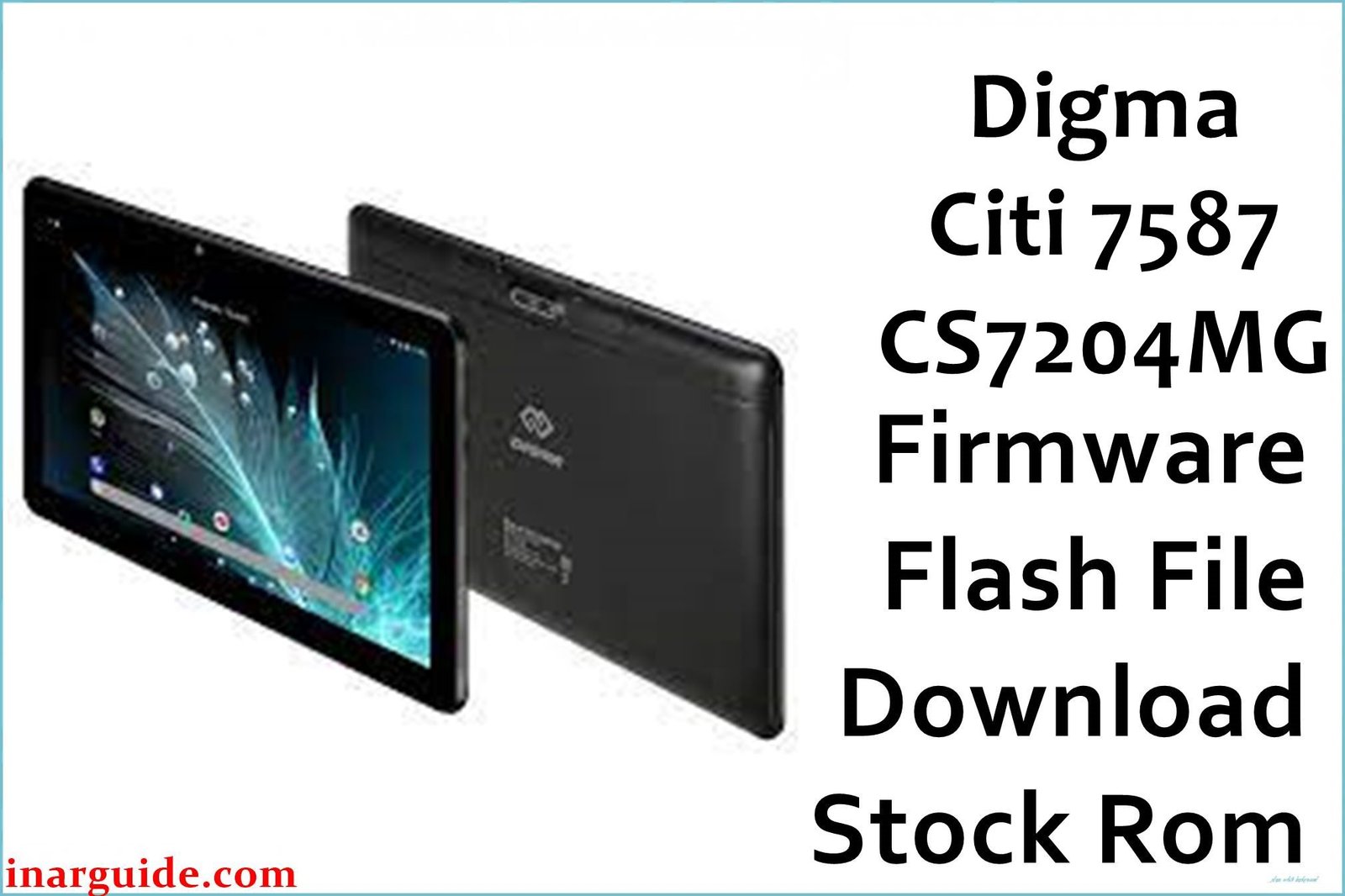
If your Digma Citi 7587 CS7204MG is stuck in a bootloop, suffers charging issues, or repeatedly pops up system errors, flashing the official stock firmware is the most reliable way to restore your tablet. Below is a thoroughly-researched firmware links, instructions, fixes, and real user insights.
🚨 Critical Pre-Flash Warning
Flashing will erase all data on your Digma Citi 7587 CS7204MG: photos, apps, contacts, and personal files. Backup everything before starting. Incorrect flashing can corrupt your IMEI—follow instructions step-by-step.
Device Specifications Verification
Check these specifications match your tablet before flashing:
| Specification | Details |
|---|---|
| Device Name | Digma Citi 7587 CS7204MG |
| Release Date | 2019 |
| Chipset | MediaTek MT6580 or MT8321 (Quad-Core 1.3GHz) |
| GPU | ARM Mali-400 MP2 @ 500MHz |
| Display | 7″ IPS LCD, 1280×800, 216ppi |
| RAM/Storage | 2GB RAM / 16GB storage |
| Battery | 2000mAh Li-Polymer |
| Android Version | Android 9.0 Pie (factory OS) |
| Key Features | 3G Support, microSD expansion, dual camera |
Official Firmware Downloads
| Filename | Date | Region | Android | Size | Download Link/s |
|---|---|---|---|---|---|
| Digma_Citi_7587_CS7204MG_MT6580_Rev1_Factory_191220_SPMDT.zip | Dec 2019 | Global | 9.0 | 1.07GB | Download (Google Drive) |
| Digma_Citi_7587_CS7204MG_MT6580_Rev1_Factory_200108_SPMDT.zip | Jan 2020 | Global | 9.0 | 1.07GB | Download (Google Drive) |
| Digma_Citi_7587_CS7204MG_MT6580_Rev2_Factory_200416_SPMDT.zip | Apr 2020 | Global | 9.0 | 1.07GB | Download (Google Drive) |
⭐ Recommendation: Use Rev2 (April 2020) for latest bug fixes and best battery/charging stability.
Required Tools & Drivers
- SP Flash Tool
- MediaTek VCOM USB Drivers
- Digma Citi 7587 CS7204MG firmware package (from the table above)
Driver Installation Notes:
- On Windows 10/11, you may need to disable driver signature enforcement in recovery.
- Install drivers before connecting your tablet.
Quick Firmware Flashing Instructions
- Extract the firmware and SP Flash Tool ZIP files.
- Install MediaTek VCOM drivers and reboot your PC if necessary.
- Open SP Flash Tool and load
MT6580_Android_scatter.txtfrom the firmware folder. - Choose “Download Only” and click the “Download” button.
- Power off your tablet. Connect via USB. (Hold Volume Up if not recognized.)
- Wait for the process to finish; SP Flash Tool will show a green check mark for success.
- Reboot your tablet and complete setup.
For step-by-step screenshots and all error codes, visit the hub guide: How to Flash Stock Firmware on MediaTek (MTK) Devices
Troubleshooting & Optimization Guide
- Bootloop, Logo Stuck, Endless Restart: Caused by system data corruption or failed OTA. Use the latest firmware revision, and perform a factory data reset after flashing.
- Charging or Power Issues: Confirm cables/power adapters. Update to Rev2 firmware for improved power IC control. Unplug and replug battery if physically possible.
- Performance: Enable Developer Options & set “Limit Background Processes” to 1. Remove bloat apps and update pre-installed Google Play apps.
- Touchscreen/Buttons Not Responsive: Hold Power + Volume Down for 15 seconds to force reboot, or enter Recovery to wipe cache.
- Google Account FRP Lock: If stuck after reset, connect to Wi-Fi and use the provided account, or use a PC tool to bypass FRP if authorized.
- Wi-Fi/3G Not Working: Reboot and toggle Airplane mode. If still broken after flashing, hardware defect possible.
- Battery Drains Fast: Remove unused accounts, clear cache of Google Play Services, and consider turning off location accuracy settings.
- Stuck in Preloader Mode: Use both Volume Up+Down while connecting USB, retry with another cable, and check drivers.
Frequently Asked Questions
- Q: Tablet won’t charge or powers off randomly. Solutions?
- A: Try new cables and charger. Clean port, update to Rev2 firmware. Persistent hardware failures may require a new battery.
- Q: Why doesn’t the touch or buttons respond after flash?
- A: Sometimes, a “Format all + Download” is needed instead of just “Download Only” in SP Flash Tool. If that fails, revert to the previous firmware revision.
- Q: Which firmware revision is best?
- A: Rev2 (Apr 2020) is the most stable and efficient for most users. Use Rev1 only if your device shipped with it and Rev2 causes issues.
- Q: Stuck on “Google Account Verification” after firmware flash?
- A: This is FRP lock. Use your original Google account to unlock. If forgotten, official service or PC FRP tools may be required.
- Q: Device slow and freezing even after flash. What else?
- A: Update Google apps, clear cache, remove unnecessary user profiles, and reduce widgets/live wallpapers.
Conclusion
Flashing the Digma Citi 7587 CS7204MG Rev2 official firmware resolves bootloops, charging issues, lag, and most software bugs. Share your flashing result or troubleshooting stories to help others in the community!





