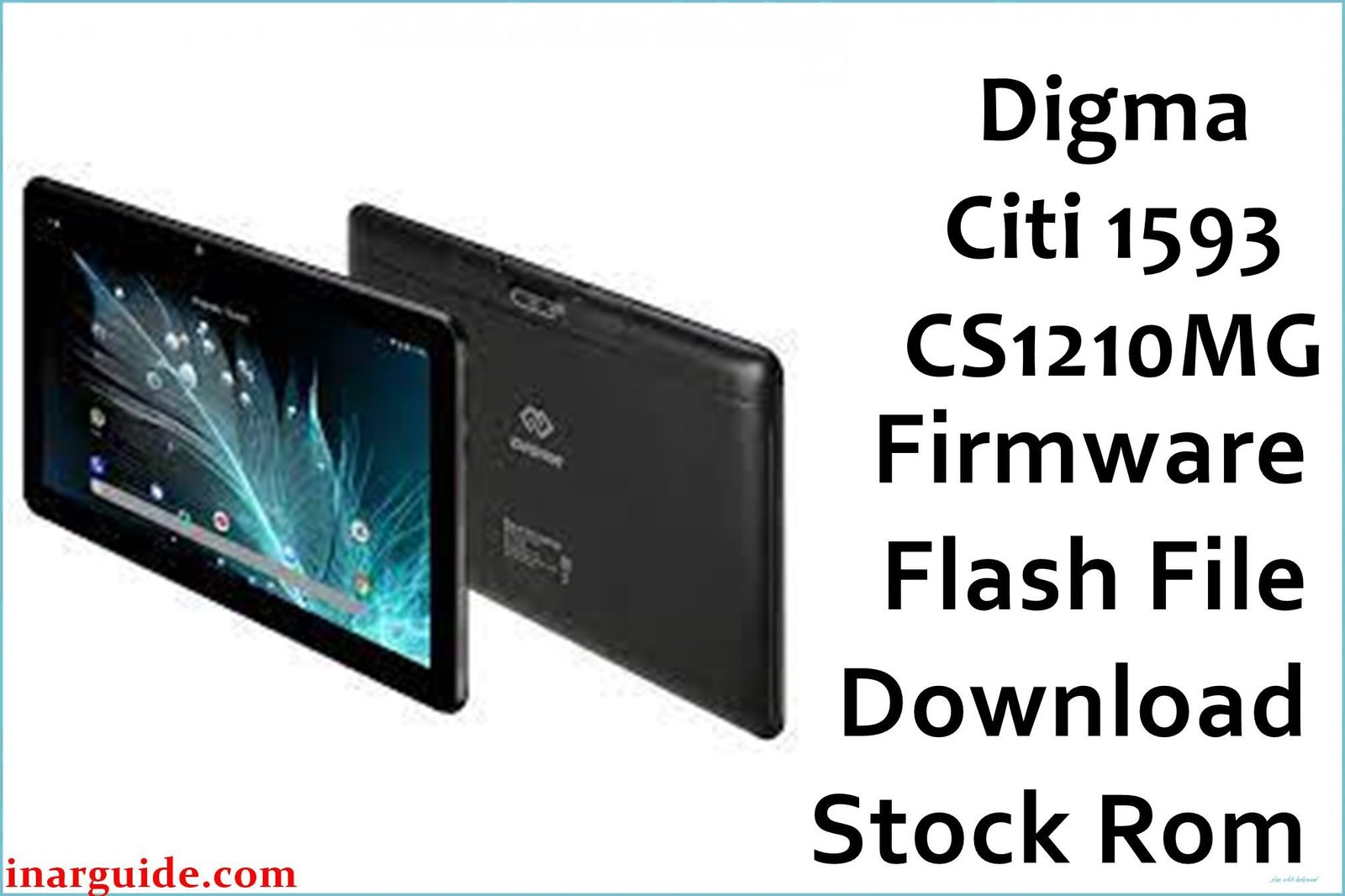
If your Digma Citi 1593 CS1210MG is suffering SystemUI crashes, charging failures, system slowdowns, or bootloops, flashing the stock firmware is a proven solution. This guide provides verified firmware files, step-by-step flashing instructions, and troubleshooting from real user experiences.
🚨 Critical Pre-Flash Warning
Flashing will erase all data on your Digma Citi 1593 CS1210MG: photos, apps, contacts, files. Backup everything before starting. Incorrect use of SP Flash Tool can damage your tablet’s IMEI—follow the steps precisely.
Device Specifications Verification
Check these specifications match your tablet before flashing:
| Specification | Details |
|---|---|
| Device Name | Digma Citi 1593 CS1210MG |
| Release Date | 2019 |
| Chipset | MediaTek MT8321 (28nm Quad-Core 1.3GHz) or MediaTek MT6580 (some revisions) |
| GPU | ARM Mali-400 MP2 @ 500MHz |
| Display | 10.1″ IPS LCD, 1280×800 HD |
| RAM/Storage | 2GB RAM / 32GB storage |
| Battery | 5000mAh Li-Ion |
| Android Version | Android 9.0 (Rev3), 8.1 Go (earlier) |
| Key Features | 2MP rear camera, 0.3MP front camera, GPS |
Official Firmware Downloads
| Filename | Date | Region | Android | Size | Download Link/s |
|---|---|---|---|---|---|
| Digma_Citi_1593_CS1210MG_MT6580_Rev1_Factory_190613.zip | Jun 2019 | Global | 8.1 Go | 1.05GB | Download (Google Drive) |
| Digma_Citi_1593_CS1210MG_MT6580_Rev2_Factory_200330.zip | Mar 2020 | Global | 9.0 | 1.05GB | Download (Google Drive) |
| Digma_Citi_1593_CS1210MG_MT6580_Rev3_Factory_210428.zip | Apr 2021 | Global | 9.0 | 1.19GB | Download (Google Drive) |
⭐ Recommendation: Use Rev3 (April 2021) firmware for latest security patches, best battery, and improved system performance.
Required Tools & Drivers
- SP Flash Tool
- MediaTek VCOM USB Drivers
- Digma Citi 1593 CS1210MG firmware package (from the table above)
Driver Installation Notes:
- On Windows 10/11, you may need to disable driver signature enforcement.
- Install drivers before connecting your tablet.
Quick Firmware Flashing Instructions
- Extract your chosen firmware zip and SP Flash Tool ZIP to separate folders.
- Install MediaTek VCOM drivers and restart your PC if prompted.
- Open SP Flash Tool and load the
MT6580_Android_scatter.txtorMT8321_Android_scatter.txtfrom the firmware’s folder. - Select “Download Only” mode and click the “Download” button.
- Power off your tablet. Connect it to PC via USB cable (hold Volume Up if not detected).
- Wait for the green checkmark in SP Flash Tool; disconnect tablet and boot.
For full error/fix guide, read How to Flash Firmware on MediaTek (MTK) Smartphones.
Troubleshooting & Optimization Guide
- SystemUI Crashes: Most common with older firmware or incompatible apps. Flashing latest Rev3 usually resolves endless SystemUI errors.
- Charging Problems: Try different charger & cable, clean port. If no fix, Rev3 firmware contains power management updates for charging issues.
- Performance Tweaks: Enable Developer Options, set “Limit Background Processes” to 1 process for smoother multitasking on low RAM.
- Bootloop/Not Booting: Enter Recovery Mode (Volume Up + Power), wipe cache, then factory reset if stuck.
- Touchscreen Not Responding: Hold Power + Volume Down for 10s for forced reboot. Most touch issues are fixed with a fresh flash.
- Wi-Fi Issues: Reset network settings via Settings > System > Reset Options. Use latest firmware for most driver fixes.
- Storage Full: Uninstall unused apps, use microSD (up to 64GB) to expand storage and move photos & videos.
- Can’t Enter Preloader: Hold both Volume buttons when connecting USB, or retry multiple times, ensuring drivers are installed.
Frequently Asked Questions
- Q: My Digma Citi 1593 won’t charge or charges slowly. What can I do?
- A: Try a new cable/adapter. Clean the charging port with air. If it stays slow, flash Rev3 firmware, as earlier versions have charging bugs.
- Q: Can this tablet be rooted?
- A: Rooting MT6580/MT8321 tablets can be tricky and may void warranty. Most one-click tools don’t work; unlocking bootloader and replacing recovery is mandatory.
- Q: Tablet keeps saying “SystemUI has stopped”. Solutions?
- A: Safe Mode first for backup, then flash Rev3 firmware. It’s a major system error fixed only by reflashing.
- Q: Which firmware revision is best?
- A: Rev3 (April 2021) is the newest, most stable, and optimized for system and battery.
- Q: Tablet is slow and lags. Will a flash help?
- A: Yes, especially if combined with regular cache clearing and background process limit.
- Q: Can’t enter Download or Preloader Mode?
- A: Use both Volume buttons when plugging USB, or repeat the connection after driver reinstall.
- Q: Is cross-region firmware safe?
- A: These are Global ROMs for CS1210MG. Match model and flash; region doesn’t matter for this model.
- Q: Screen turns black but device is on?
- A: Usually display driver or system crash. Try forced reboot; if reoccurs, reflash with Rev3.
Conclusion
Flashing the official Digma Citi 1593 CS1210MG Rev3 firmware fully resolves SystemUI crashes, charging faults, lag, and other major bugs. The April 2021 revision is the safest and smoothest version for this affordable tablet.
Success? Please share your experience below—from SystemUI fixes to performance boosts—to help other Digma owners!