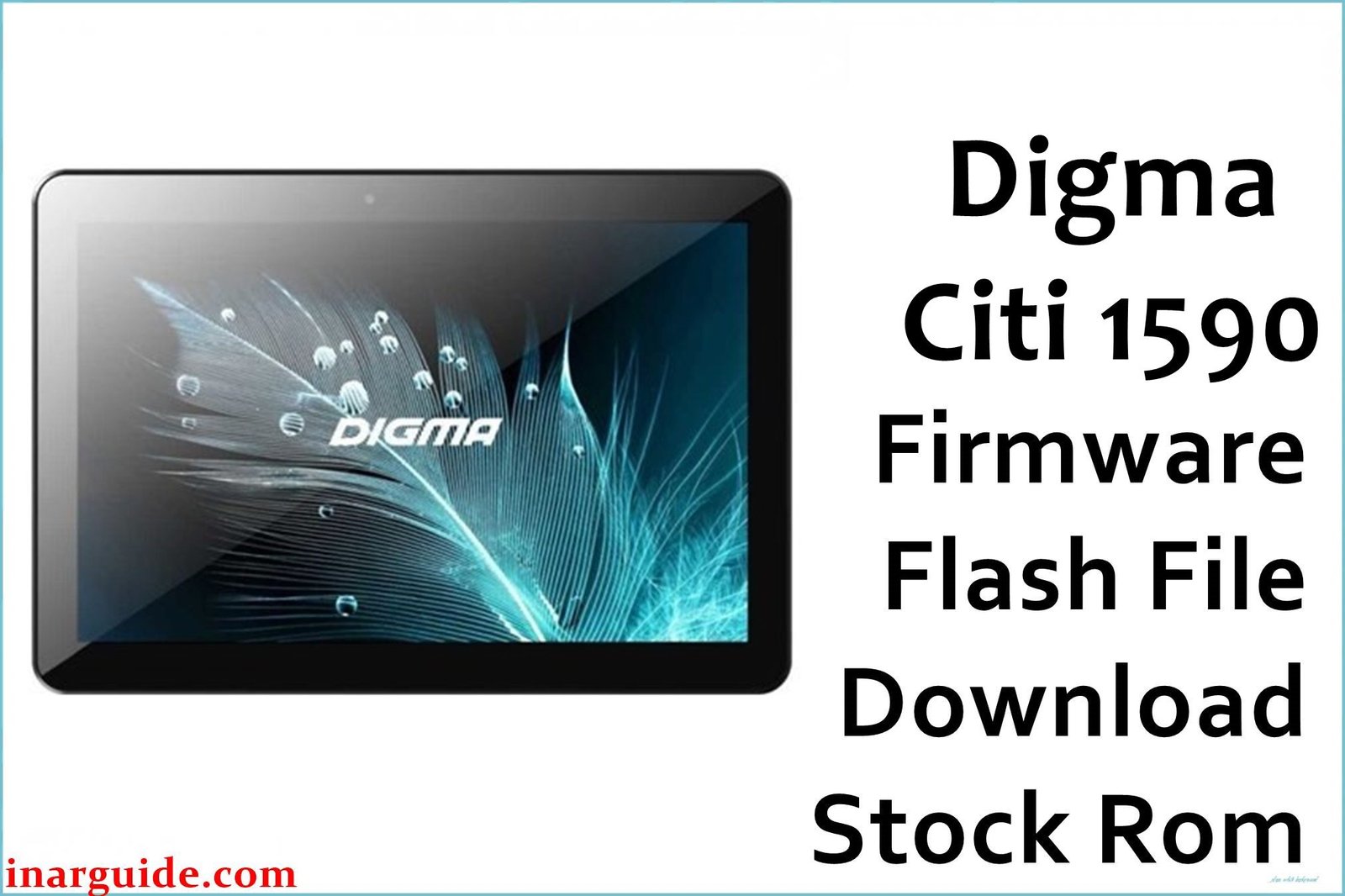
This page provides the official stock firmware (ROM) for the Digma Citi 1590 tablet. This firmware package is essential for anyone needing to unbrick their device, resolve software issues like bootloops or system crashes, or simply return their tablet to its original factory state. By following our detailed guide, you can safely flash the stock ROM and restore your Digma Citi 1590 to optimal performance.
Using the official firmware is the most reliable method for fixing deep-seated software problems that a simple factory reset cannot solve.
Digma Citi 1590 Firmware Details
Here is a complete overview of this specific firmware package:
| Attribute | Details |
|---|---|
| 📱 Device | Digma Citi 1590 |
| 🆔 Chipset | MediaTek MT6580 |
| 🤖 Android OS | Android 9.0 Pie |
| 🔢 Build Number | REV1_V07_200430 |
| 📂 File Type | Scatter Firmware |
| 💻💻 Flashing Tool | SP Flash Tool |
| 🌍 Region | Global / Russia (RU) |
Why Flash the Stock Firmware?
Installing the official V07_200430 firmware on your Digma Citi 1590 can solve a variety of issues:
- Fix Bootloop: If your tablet is stuck on the Digma loading screen, this firmware will resolve the issue.
- Unbrick Your Device: Revive a “soft-bricked” tablet that is unresponsive or won’t turn on due to software corruption.
- Remove Viruses & Malware: A full flash is the most effective way to eliminate stubborn viruses or malware.
- Improve Stability: Re-installing the clean, official software can fix random reboots, app crashes, and general system lag.
- Revert to Stock: If you have modified your system (e.g., with root), this will return it to its original, un-modified state.
⚠️ Important: Prerequisites Before Flashing
Failure to prepare properly can lead to a failed flash. Please follow these steps carefully.
- Backup Your Data: This process will completely wipe all personal data from your tablet’s internal storage.
- Charge Your Tablet: Ensure your Digma Citi 1590 has at least 50-60% battery power before you begin.
- Install MediaTek VCOM Drivers: Your PC needs these drivers to communicate with your tablet. Download and install the latest MediaTek VCOM USB drivers. You may need to disable Driver Signature Enforcement on Windows to install them.
- Download SP Flash Tool: This is the official application for flashing MediaTek devices. You can download the latest version of SP Flash Tool from various trusted sources online.
Download Official Firmware for Digma Citi 1590
- File Name: Digma_Citi_1590_MT6580_REV1_V07_200430.zip
- Size: 1.07 GB
- 🔗 Download Link: Digma Citi 1590 Firmware
How to Flash Stock Firmware on Digma Citi 1590
- Download and extract both the firmware zip file and the SP Flash Tool on your PC.
- Open the SP Flash Tool folder and run flash_tool.exe as an administrator.
- In the tool, click on the “Scatter-loading File” button.
- Navigate to the extracted firmware folder and select the
MT6580_Android_scatter.txtfile. - After loading the scatter file, ensure the dropdown menu is set to “Download Only”. Do NOT use “Format All + Download” unless you are an expert, as it can erase your device’s IMEI.
- Click the big green “Download” button at the top of the tool.
- Completely power off your Digma Citi 1590 tablet.
- Connect the powered-off tablet to your PC using a good quality USB cable. The flashing process should start automatically.
- Wait for the process to complete. A large window with a green checkmark will appear indicating success.
- You can now disconnect your tablet and power it on. The first boot may take 5-10 minutes, so please be patient.
Common Issues & FAQ
Q: SP Flash Tool shows a BROM or other error. What do I do?
A: Errors in SP Flash Tool are usually caused by three things: 1) Incorrect or missing VCOM drivers. 2) Using an outdated version of SP Flash Tool. 3) A faulty USB cable or port. Re-install drivers and try again with the latest tool.
Q: What is a scatter file?
A: A scatter file is a text file that acts as a map for SP Flash Tool. It tells the tool the name, size, and location of every partition (like system, boot, recovery) in your device’s memory, ensuring the firmware is written to the correct places.
Disclaimer: This guide and firmware are provided for educational purposes. Flashing can be risky if not done correctly. We are not responsible for any damage or data loss that may occur. Proceed at your own risk.





