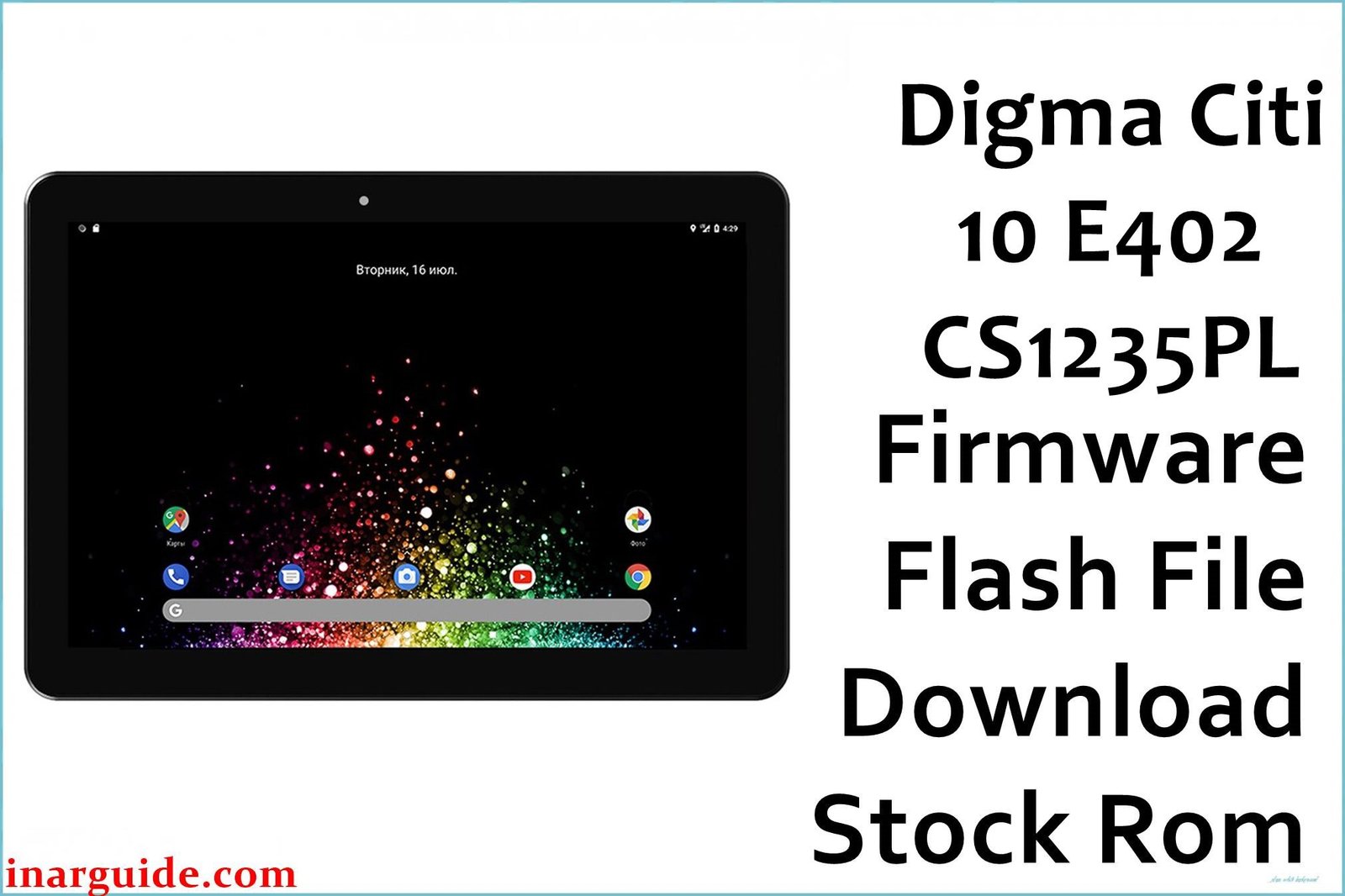
If your Digma Citi 10 E402 tablet is acting up—perhaps it’s stuck on the Digma logo, running extremely slow, or plagued by software errors—you’ve landed in the right place. Reinstalling the official stock firmware (ROM) is the most effective way to restore your device to its original, factory-fresh state.
This guide provides the official firmware download link for the Digma Citi 10 E402 (model variant CS1235PL) and walks you through the necessary steps to get your tablet back in perfect working order.
Device Specifications
First, let’s confirm the key specifications of this tablet to ensure you have the right device.
| Specification | Details |
| Display | 10.1-inch IPS LCD |
| Resolution | 1280 x 800 pixels |
| Chipset | UNISOC (Spreadtrum) SC9863A |
| CPU | Octa-core |
| RAM | 2GB |
| Storage | 32GB |
| Operating System | Android 10 |
Firmware Details
This is the specific software package for your device. Verify these details before downloading.
- Device Name: Digma Citi 10 E402
- Model: CS1235PL
- Chipset: UNISOC (Spreadtrum) SC9863A
- Firmware Version: Rev1_201111
- Android Version: Android 10
- File Type: .pac (for SPD Upgrade Tool)
- File Size: 1.04 GB
- Download Link: Digma_Citi_10_E402_CS1235PL_Rev1_201111_SPD.zip
Why You Might Need This Firmware 🤔
Flashing the stock ROM is a powerful solution for a wide range of software-related problems. You should consider this process if you are experiencing:
- Bootloop: The tablet is stuck on the Digma animation and won’t boot to the home screen.
- System Lag: The device has become unusually slow and unresponsive, even after a factory reset.
- App Crashes: Frequent “Unfortunately, the app has stopped” errors.
- Virus or Malware: You suspect the tablet has been infected with malicious software.
- Forgotten Password/Pattern: You are locked out of your device and need to wipe it to regain access.
- Software Glitches: Wi-Fi or Bluetooth issues that aren’t related to hardware.
Prerequisites: Your Pre-Flash Checklist ✅
To ensure a smooth and successful flashing process, please complete these essential steps first.
- Backup Your Data: Flashing will completely erase all personal data (photos, apps, contacts). Back up everything important to a computer or cloud storage.
- Charge the Tablet: Make sure your Digma Citi 10 E402 has at least 60% battery to prevent it from shutting down unexpectedly.
- Install UNISOC/SPD Drivers: For your computer to detect the tablet correctly, you must install the right drivers. You can download the generic SPD Driver package and install it on your Windows PC.
- Download SPD Upgrade Tool: This is the software used to flash
.pacfirmware files. Download the latest version from a trusted source.
How to Flash the Firmware
This tablet is powered by a UNISOC (Spreadtrum) chipset. The flashing process involves using the SPD Upgrade Tool and the .pac file contained within the zip you downloaded.
We have created a comprehensive, step-by-step guide that explains this process in detail with screenshots. Please follow it carefully to avoid any mistakes.
➡️ Full Tutorial: How to Use the SPD Upgrade Tool to Flash Your Smartphone
💡 Pro-Tip: Based on user feedback from forums like 4PDA, if you encounter a “Bin packet error” or other connection issues with the latest version of the SPD tool, try using an older, stable version like R24.0.0003.
Disclaimer
Flashing firmware is a powerful process. Please proceed with caution. InarGuide is not responsible for any damage to your device. This process is performed at your own risk. Ensure you have downloaded the correct firmware for your specific device model (CS1235PL).
Frequently Asked Questions (FAQ)
What is a .pac file?
A .pac file is a packed firmware file that contains all the necessary partitions (system, boot, recovery, etc.) for a UNISOC/Spreadtrum device. The SPD Upgrade Tool reads this single file to flash the entire system.
Will this update my Android version?
This firmware package will install Android 10. It is a clean installation, not an OTA update. If you are already on a newer version, this will be a downgrade.
The tool is not detecting my tablet. What should I do?
This is almost always a driver issue. Ensure you have installed the SPD drivers correctly. Try uninstalling and reinstalling them, restarting your PC, and using a different USB port and a high-quality USB cable.





