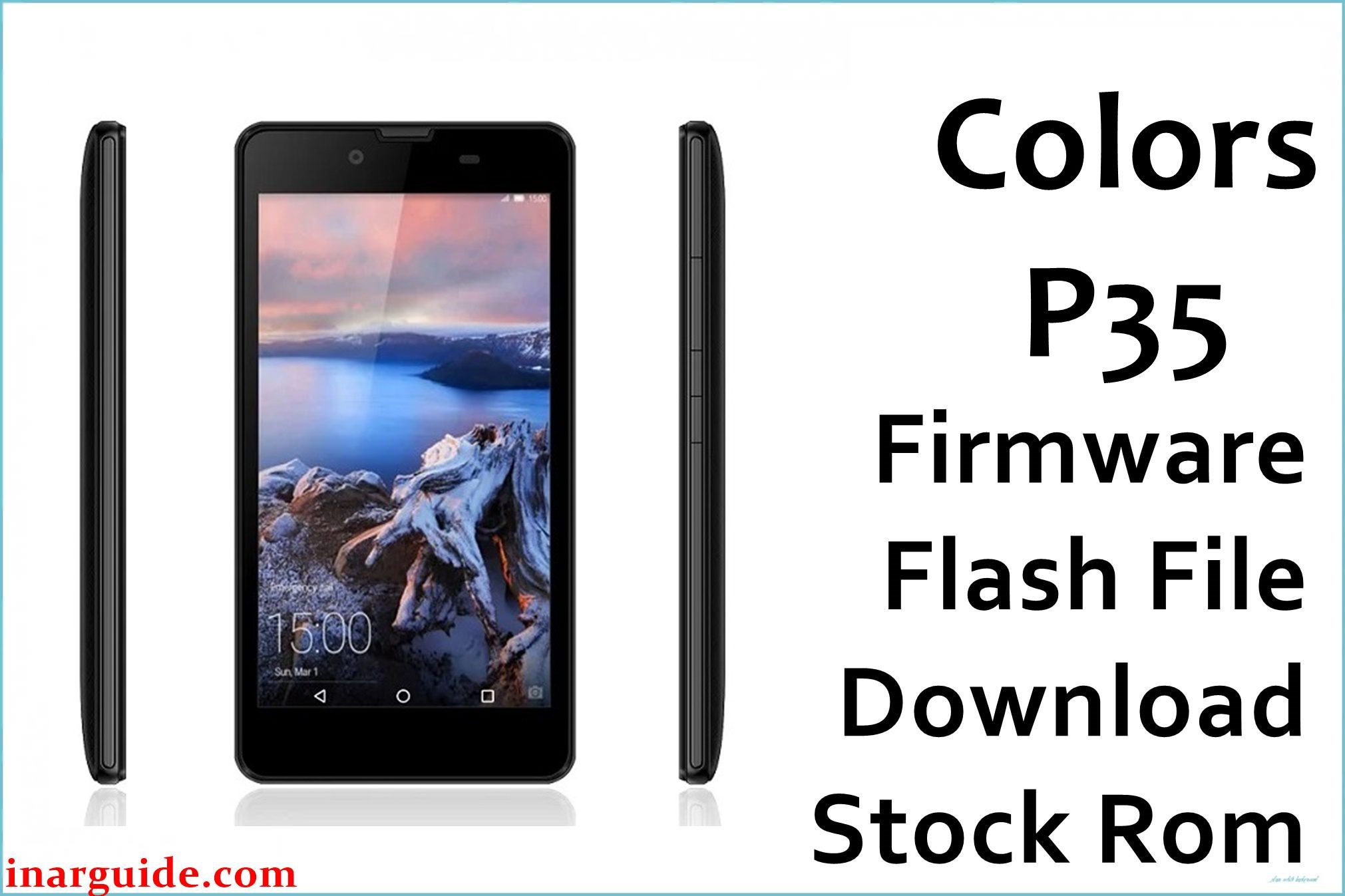
The Colors Pride P35 is an entry-level 3G smartphone launched in Nepal in September 2016 for first-time Android users needing basic features at a low price. The device runs a MediaTek MT6580M quad-core 1.3 GHz processor, 512 MB RAM, 4 GB storage (expandable via microSD), and offers a 5-inch FWVGA display plus 2000 mAh removable battery. Its essential specs include a 5MP rear autofocus camera (with LED flash), 1MP front camera, dual SIM 3G support, and Android 5.1 Lollipop for improved stability and app compatibility compared to previous versions.
Despite affordability, users have reported persistent challenges: frequent lag when running several apps (512 MB RAM fills quickly), SIM/network issues after firmware updates, camera autofocus failures, and faster-than-expected battery drain during calls and media use. The official Colors P35 firmware download (MT6580M, scatter-based ROM) helps restore a bricked device, fix bootloops, and clean bugs that standard resets can’t resolve.
Critical Notice: Before You Proceed
Flashing the Colors P35 firmware erases internal storage, IMEI info, and apps. Backup all contacts, media, and important accounts before flashing. Advanced operation—incorrect use can break network or phone. Double-check P35 (MT6580M) model before starting.
Quick Device Specs (Colors P35)
- Device Name / Model:
- Colors Pride P35
- Release Year:
- 2016 (September)
- Chipset/Codename:
- MediaTek MT6580M quad-core 1.3 GHz
- Display:
- 5″ FWVGA, 854×480 px
- Battery:
- 2000 mAh, removable
- RAM / Storage:
- 512 MB RAM / 4 GB storage, microSD up to 32 GB
- Original OS:
- Android 5.1 Lollipop
- Special Features:
- 5MP rear (autofocus, LED), 1MP selfie, dual SIM (3G), FM radio
Required Downloads
- SP Flash Tool
- MediaTek VCOM USB Drivers
- Colors Pride P35 Firmware (MT6580M, Stock ROM) (see table below)
| Filename / Version (Build Date) | Android Version | Size | Download Link |
|---|---|---|---|
| Colors_P35_5.1_ALPS.L1.MP6.V2 (2016) | 5.1 Lollipop | 712 MB | Download (MediaFire) |
How to Flash Colors P35 Firmware (SP Flash Tool)
- Unzip Colors_P35_5.1_ALPS.L1.MP6.V2.zip and locate the scatter file.
- Install MediaTek USB Drivers for Windows PC.
- Open SP Flash Tool and select the MT6580M scatter file.
- Switch off device, connect via USB (hold Vol Down if needed).
- Click “Download”, wait for successful flash, then disconnect and reboot.
- For more details, read How to Flash Stock Firmware to MediaTek MTK Smartphones.
Troubleshooting: Real-World Colors P35 Issues
1. SIM Error or No Network after Flash
Users report SIM detection fails after firmware update or flashing. Reseat both SIM cards, clear network cache, and reset APN manually. If still no signal, re-flash modem partitions. Always backup IMEI before flashing.
2. Lag During Calls & App Multitasking
With only 512 MB RAM, switching between apps or using calling while browsing can slow the P35. Disable background apps, use ‘Lite’ versions, and avoid multitasking with heavy apps. Flashing the firmware clears previous RAM/data clutter but does not increase physical memory.
3. Camera Autofocus Stops Working
After an update or flash, camera may stop focusing. Wipe camera app cache, reboot device, or try third-party camera apps. If issue persists, factory reset from recovery usually restores normal focus.
4. Unexpected Battery Drain
Despite basic hardware, some users say battery drains faster than expected. Disable auto-sync, lower display brightness, and avoid background network apps. Battery saver mode prolongs life but limits performance.
5. Touchscreen Unresponsive or Freezes
A few owners experienced slow or frozen touchscreen, especially after app crashes. Remove screen protector, restart device, and clear system cache. Full firmware re-flash restores responsiveness if the issue is software-based.
FAQs: Colors P35 Actual User Solutions
- Can flashing official firmware repair a SIM/network error?
- Yes, re-flashing modem partitions and resetting APNs resolves most SIM/network detection problems after an unstable firmware update.
- Why does my phone feel slow even after flashing?
- Physical RAM is only 512 MB; limiting apps and background processes is the key. Flashing clears junk but cannot upgrade hardware.
- Camera still won’t focus after installing new firmware?
- Try clearing camera cache, reboot, and use alternative camera apps. Factory reset after flashing often restores normal autofocus.
- How do I maximize battery life on P35?
- Use manual brightness, disable background sync, and battery saver mode; avoid heavy apps.
- Touchscreen is slow or freezing after app crashes or updates.
- Restart device, remove any protectors, and clear cache. Re-flashing firmware also ensures clean calibration for touch hardware.
- Will data and IMEI be wiped by flashing?
- Yes, all user data and IMEI can be lost unless backed up. Use IMEI repair tools if lost.
- Is Android upgrade possible for this device?
- No official upgrades above 5.1 Lollipop exist; custom ROMs are risky and may brick the device.
Closing & Call to Action
Flashing official Colors P35 firmware restores calls, camera, and system stability. Bookmark this article for future updates and add your unique problem or feedback below to help improve real user support.





